Does Pipedrive Integrate with QuickBooks?
Yes, Pipedrive integrates seamlessly with QuickBooks Online. Setting this integration up dozens of times for clients reveals it’s one of those automations that immediately pays for itself. What used to take 3+ hours weekly—manually copying deal data into QuickBooks, creating invoices, and double-checking customer information—now happens automatically in the background.
Quick Navigation
Quick Answer: Pipedrive + QuickBooks Integration at a Glance
???? Setup Time: 20 minutes
???? Cost: Free (native integration)
???? Sync: Two-way (PD ↔ QB)
???? What Syncs:
– Deals → Invoices
– Contacts → Customers
– Products → Items
– Payments → Revenue
???? Best For: Service businesses,
agencies, B2B companies
The Problem This Integration Solves
Your sales team closes a deal in Pipedrive. Great! But then someone has to manually create an invoice in QuickBooks. They copy the client name, deal value, line items, and payment terms. Sometimes they get the amount wrong. Sometimes they forget to send the invoice for days. Your accounting team asks why the revenue numbers don’t match what sales reported. Sound familiar?
Without the integration, you’re dealing with:
- Manual invoice creation that requires copying data from Pipedrive to QuickBooks
- Data entry errors—wrong amounts, missing customer details, duplicate entries
- Time waste: averaging 2-4 hours per week on pure admin work
- Delayed invoicing, which directly impacts cash flow
- No real-time visibility into revenue—sales dashboard shows one number, accounting shows another
- Disconnected teams working from different data sources
With the integration in place, here’s what changes:
- Won deals automatically become invoices in QuickBooks the moment you mark them “won”
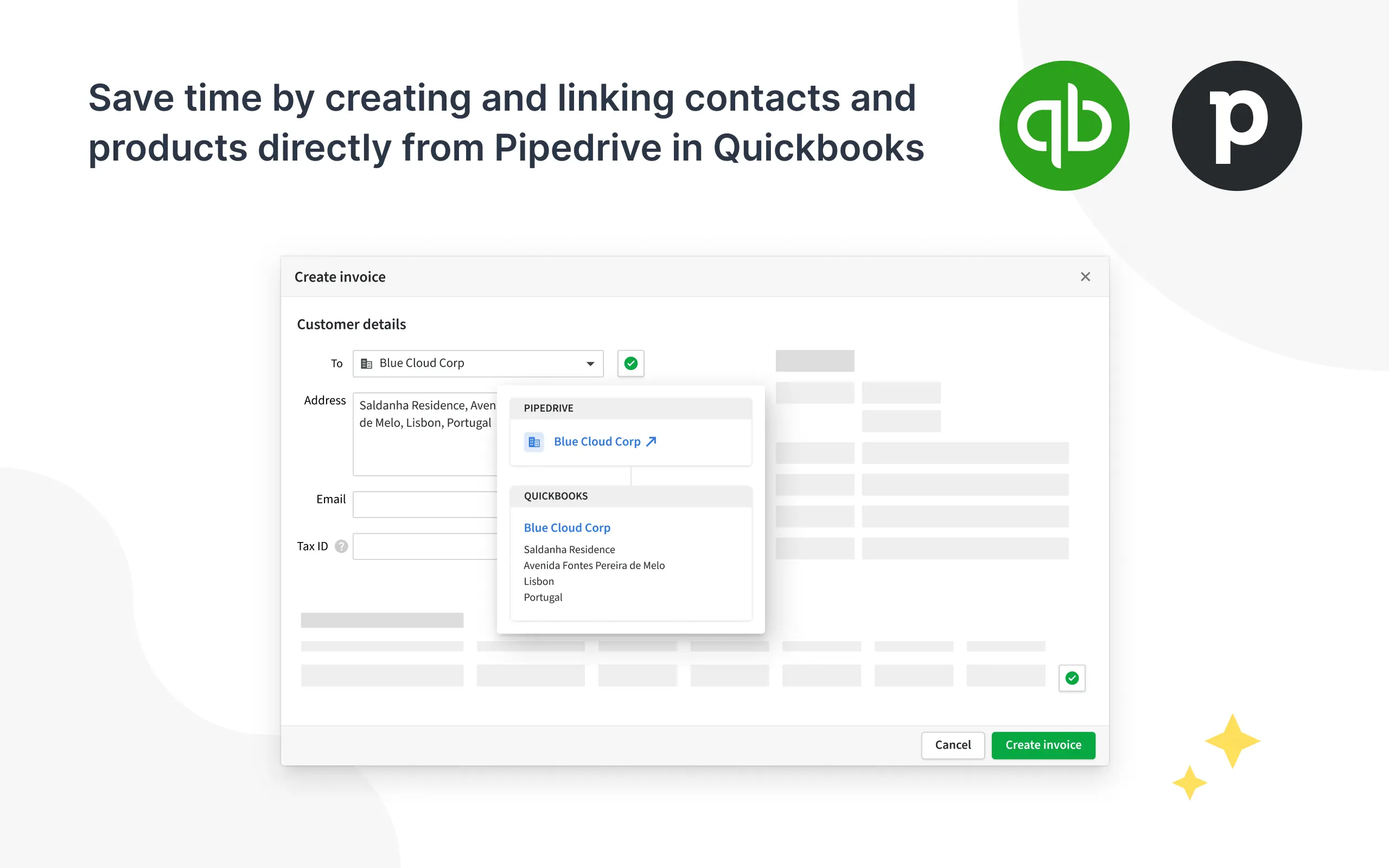
- Customer data syncs bidirectionally—update a client’s email in either system, it updates everywhere
- Real-time financial reporting—CFO sees revenue the moment a deal closes
- Zero data entry errors—the integration doesn’t make typos or forget decimal points
- Save 10-15 hours per month (120-180 hours annually)
- Get paid faster because invoices go out immediately
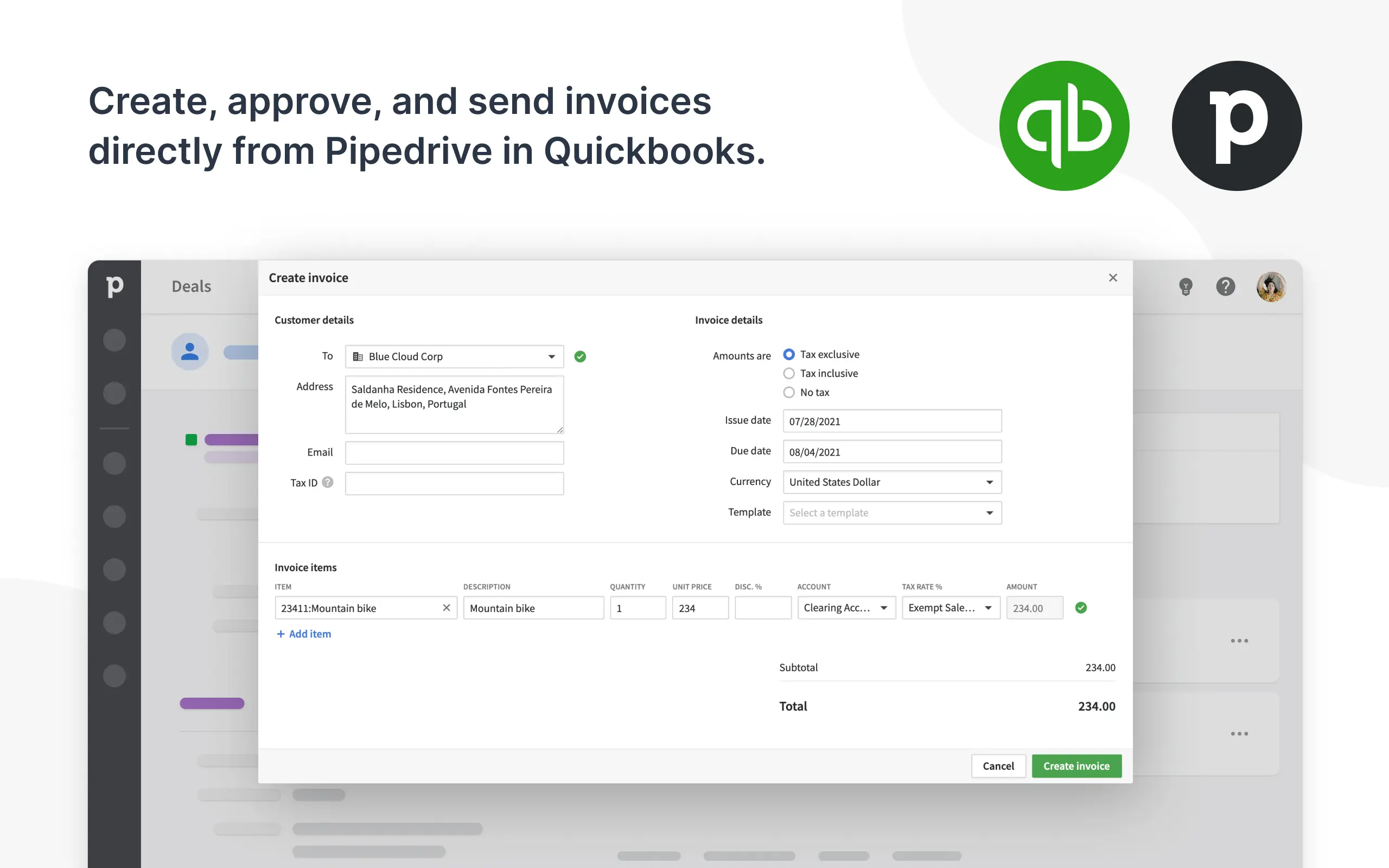
Who benefits most from this integration? Agencies billing clients on retainers or projects, SaaS companies managing subscription invoicing, professional services firms with project-based billing, B2B sales teams following a quote-to-invoice workflow, and any business tired of living in two separate systems for sales and accounting.
3 Ways to Connect Pipedrive + QuickBooks
You have three main options here, and being upfront about which one works best for most businesses makes the decision easier.
Option 1: Native App (Recommended)
Official integration available in the Pipedrive Marketplace with two-way sync between both platforms. Free with all Pipedrive plans and takes under 20 minutes to set up.
Pros
- Easy setup
- Rock-solid reliability
- Official support
- No additional fees
Cons
- Limited customization
- Standard sync options only
Best for: 90% of businesses
Option 2: Zapier Integration
Middleware platform that connects Pipedrive and QuickBooks through automated workflows with custom automation rules.
Pros
- Highly customizable
- Conditional logic
- Multi-app workflows
Cons
- Requires subscription ($20-50+/mo)
- Adds complexity
- Learning curve
Best for: Complex automation needs
Option 3: Custom API Integration
Hire a developer to build a custom connector between platforms using their APIs for complete control.
Pros
- Unlimited customization
- Handles unique requirements
- Full code ownership
Cons
- Expensive ($2,000-5,000+)
- Ongoing maintenance costs
- Requires technical expertise
Best for: Enterprise with specific compliance needs
Start with Option 1. The native integration handles the core use case beautifully. Only move to Zapier or custom development if you’ve hit a limitation preventing something critical.
Ready to Connect Pipedrive & QuickBooks?
Stop manually creating invoices and start automating your workflow today
Get Started with PipedriveHow to Integrate Pipedrive with QuickBooks (Step-by-Step)
Walking through the native integration method provides the cleanest, most reliable approach for most businesses.
Before you start, make sure you have:
- A Pipedrive account on any plan (works on all tiers)
- QuickBooks Online account (not Desktop)
- Admin access to both platforms
- About 20 minutes of uninterrupted time
Important note on QuickBooks versions: This integration works with QuickBooks Online, not QuickBooks Desktop. If you’re using Desktop, search the Pipedrive Marketplace for “QuickBooks Desktop” to find the appropriate connector app. Learn more about QuickBooks integration options.
Step 1: Access the Pipedrive Marketplace
Log into your Pipedrive account and look for the gear icon in the top-right corner—that’s your Settings. Click it, then navigate to “Apps & Integrations” in the left sidebar. Click on “Marketplace” from the tabs at the top.
Step 2: Find the QuickBooks Integration
In the search bar, type “QuickBooks.” Look for the official app called “Pipedrive-QuickBooks Online” with clear branding from both companies. Click on the app card to open the detailed view and review the description, permissions, and user reviews.
Step 3: Install the App
Click the “Install” button (usually in green). Accept the terms of service when prompted, then click “Authorize Installation.” The installation typically takes 10-15 seconds and you’ll see a confirmation message.
Step 4: Connect Your QuickBooks Account
Click the “Connect to QuickBooks” button. This opens QuickBooks’ authentication page—enter your credentials. If you manage multiple company files, select the appropriate one. Review the authorization screen detailing what Pipedrive can access, then click “Authorize.”
Step 5: Configure Sync Settings
After authorization, you’ll reach the integration settings page. Key configurations include:
- Deal-to-Invoice Mapping: Choose which stage triggers invoice creation (typically “Won”)
- Customer Sync: Enable bidirectional contact sync and set duplicate handling rules
- Product Sync: Map Pipedrive products to QuickBooks items and set default tax rates
- Payment Terms: Set default payment terms (Net 30, Net 15, etc.)
Start with conservative settings—enable basics like won deals creating invoices and contacts syncing both ways. Add more automation as you get comfortable.
Step 6: Test the Integration
Before relying on this for live deals, run a test:
- Create a test contact in Pipedrive (use “Test Customer – Delete Me”)
- Create a test deal with this contact
- Add a product/service with a small amount ($1 or $10)
- Move the deal to “Won”
- Check QuickBooks—within 2-3 minutes, you should see a new invoice
If the invoice appears correctly with the right customer, amount, and line items, you’re good to go. If something’s off, revisit your field mappings.
What Gets Synced (And What Doesn’t)
Understanding exactly what data moves between systems helps set realistic expectations based on real-world usage.
What syncs automatically:
- Won deals become invoices in QuickBooks
- Contact information (name, email, phone, company, address)
- Product/service line items with descriptions and prices
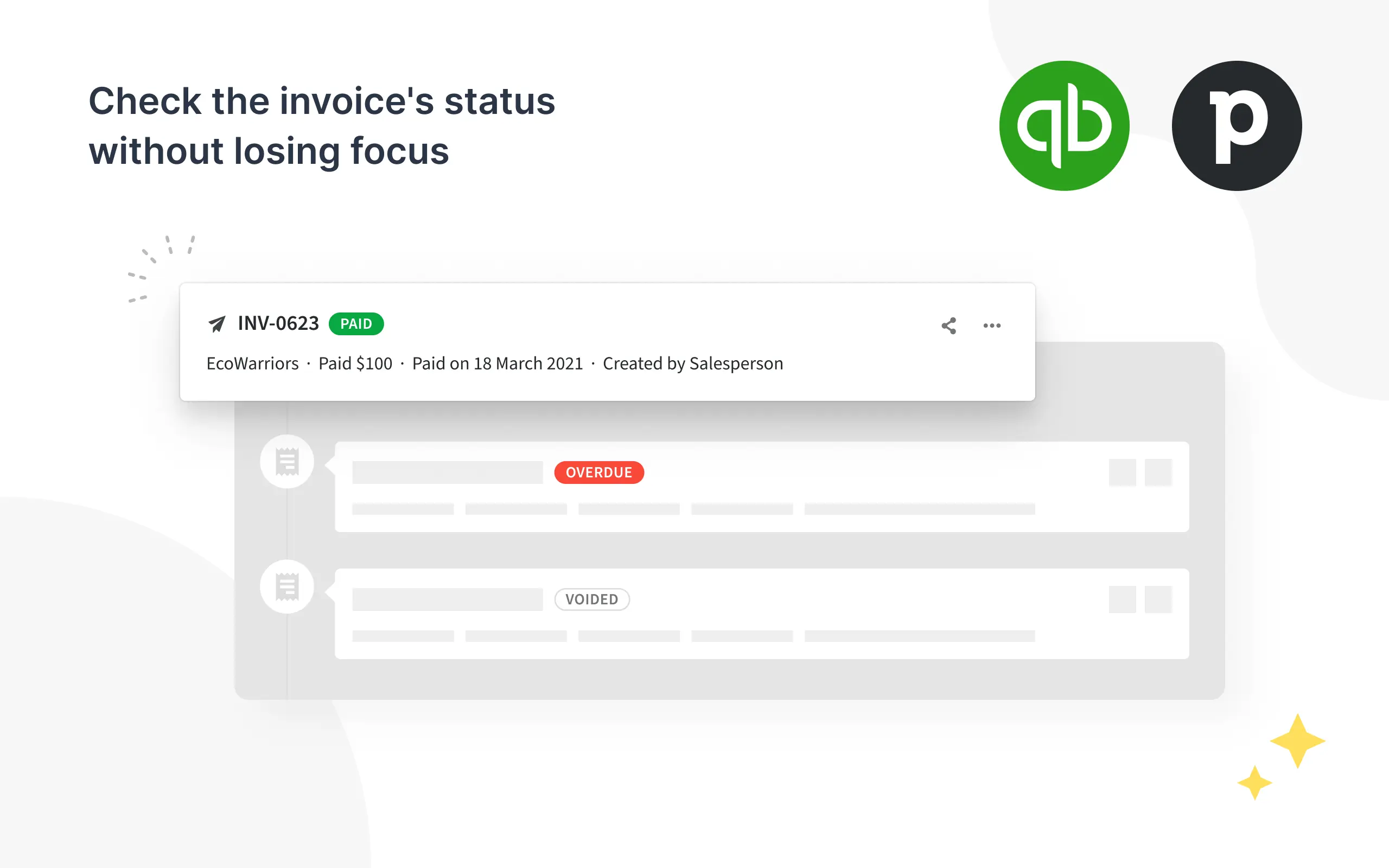
- Payment status updates (when marked paid in QuickBooks, deal updates in Pipedrive)
- Customer notes and custom fields (if mapped)
What doesn’t sync:
- Activities and task history from Pipedrive
- Email correspondence
- Lost deals (they don’t create anything in QuickBooks)
- File attachments
- Deal stages other than “Won” (unless configured)
Sync timing: The integration typically runs every 2-5 minutes. It’s not instantaneous, but fast enough that it feels real-time. When you mark a deal won, expect to see the invoice in QuickBooks within 5 minutes maximum.
For businesses comparing CRM options, check out how Pipedrive stacks up against HubSpot or explore the Pipedrive vs Monday comparison to understand different integration capabilities.
Common Setup Issues (And How to Fix Them)
Troubleshooting this integration enough times reveals the common pitfalls and their solutions.
Issue 1: Duplicate Customers
If a contact exists in both systems before connecting them, you might end up with duplicates.
Fix: Use QuickBooks’ built-in merge tool to combine duplicates, then the integration will maintain the single record going forward.
Issue 2: Products Not Mapping
Your Pipedrive products need to exist as Items in QuickBooks for the mapping to work.
Fix: Before enabling product sync, make sure your QuickBooks Item List includes everything from your Pipedrive product catalog.
Issue 3: Invoices Creating as Drafts When You Want Them Final
This is a setting you control.
Fix: Go back to the integration settings and change the invoice status from “Draft” to “Approved” or “Final.”
Issue 4: Wrong QuickBooks Company File Connected
If you have multiple companies in QuickBooks, you might have connected the wrong one.
Fix: Disconnect the integration, then reconnect and carefully select the correct company file during authorization.
Advanced Tips for Power Users
Once you have the basics running smoothly, here are optimization strategies used with clients:
- Custom field mapping: If you use custom fields in Pipedrive for project codes or department IDs, map these to custom fields in QuickBooks for better reporting
- Automated payment reminders: Configure QuickBooks to send automatic payment reminders for invoices created by the integration—ensures clients get follow-ups even for deals closed outside business hours
- Multi-currency handling: If dealing in multiple currencies, set up currencies correctly in both systems before connecting them. The integration respects currency settings, but they need to match
- Class and location tracking: For businesses using QuickBooks’ class or location features, map Pipedrive custom fields to these dimensions for better financial segmentation
Understanding Pipedrive revenue tracking capabilities can help optimize your financial reporting. For sales teams using LinkedIn, explore the LinkedIn Pipedrive integration to enhance lead generation alongside your accounting workflow.
Is This Integration Worth It?
The honest cost-benefit analysis walked through with clients reveals clear value.
Time savings
Creating even 10 invoices per month manually takes 2-3 hours of work. At a conservative $50/hour value for someone’s time, that’s $100-150/month saved. Annually, we’re talking $1,200-1,800 in recovered productivity.
Error reduction
Manual invoice errors cost businesses hundreds or thousands in missing revenue—either undercharging due to typos or having to issue credits for overcharges. The integration eliminates this entirely.
Cash flow improvement
Invoices that go out same-day get paid faster than those sent days or weeks later. Reducing your average days-to-invoice from 3-5 days to 0 days measurably improves cash flow.
Setup cost
Free, plus 20 minutes of your time.
The ROI is obvious. Unless you’re processing fewer than 5 invoices monthly, this integration pays for itself immediately.
Alternatives to Consider
While the Pipedrive-QuickBooks integration works for most businesses, there are scenarios where alternatives might make more sense:
- If you’re considering switching from Pipedrive: Look at CRMs with native QuickBooks integration built in, like HubSpot or Salesforce. However, these are typically more expensive than Pipedrive
- If you’re on QuickBooks Desktop: You’ll need the specific QuickBooks Desktop connector from the Pipedrive Marketplace, or consider migrating to QuickBooks Online for better integration options
- If you need more robust financial features: Consider dedicated quote-to-cash platforms like PandaDoc or QuoteWerks that integrate with both Pipedrive and QuickBooks and add proposal and e-signature capabilities
Stop Manually Creating Invoices
Set up your Pipedrive-QuickBooks integration today and reclaim hours every week
Start Your Free TrialFinal Thoughts
The Pipedrive-QuickBooks integration is one of those automations that immediately justifies itself. You spend 20 minutes setting it up once, and it saves you hours every single week from that point forward. No more copy-paste between systems, no more invoice errors, no more delayed billing.
Setting this up for agencies managing dozens of client accounts, B2B companies with complex product catalogs, and service businesses with simple retainer billing shows it works well across the board. The native integration handles the vast majority of use cases without needing expensive middleware or custom development.
Set aside 20 minutes this week to get this running. Start with the basic settings outlined above, test it with a dummy deal, then let it handle your real workflow. You can always adjust and optimize the settings as you learn what works best for your business.
If you run into issues during setup, Pipedrive’s support team is responsive and familiar with this integration—it’s one of their most popular connectors. Don’t hesitate to reach out to them if you hit a snag.
Ready to stop manually creating invoices? The integration is waiting in your Pipedrive Marketplace right now.

AI tools expert with over 10 years of experience testing and reviewing technology products.