ClickUp Review 2026: Is It the Best Project Management Tool?
If you’re managing projects across a chaotic mix of spreadsheets, Slack threads, email chains, and three different productivity apps, you’re not alone. Most teams are drowning in tool sprawl—jumping between platforms just to get a clear picture of what’s happening with their projects.
ClickUp positions itself as “the everything app for work,” and at its core, it’s one of the most comprehensive project management platforms available today. This review breaks down what actually works, what doesn’t, and whether it’s the right fit for your team in 2025.
This isn’t a surface-level feature list. You’ll see the key features that matter for project execution, honest pros and cons, pricing breakdowns, and clear guidance on who should (and shouldn’t) choose ClickUp.
Test ClickUp hands-on: Open a free workspace in just a couple of minutes and follow along as you read.
What Is ClickUp?
ClickUp is an all-in-one work management platform built around a robust project management core. Unlike single-purpose tools that do one thing well, ClickUp combines tasks, docs, dashboards, whiteboards, and time tracking in a unified workspace.
It’s designed for teams that want to consolidate their stack—product teams managing roadmaps, engineering teams running sprints, marketing teams coordinating campaigns, agencies juggling client projects, and operations teams tracking internal initiatives.
The platform uses a flexible hierarchy: Workspace → Spaces → Folders → Lists → Tasks → Subtasks. This structure lets you organize work at whatever scale makes sense—whether you’re a five-person startup or a 500-person enterprise.
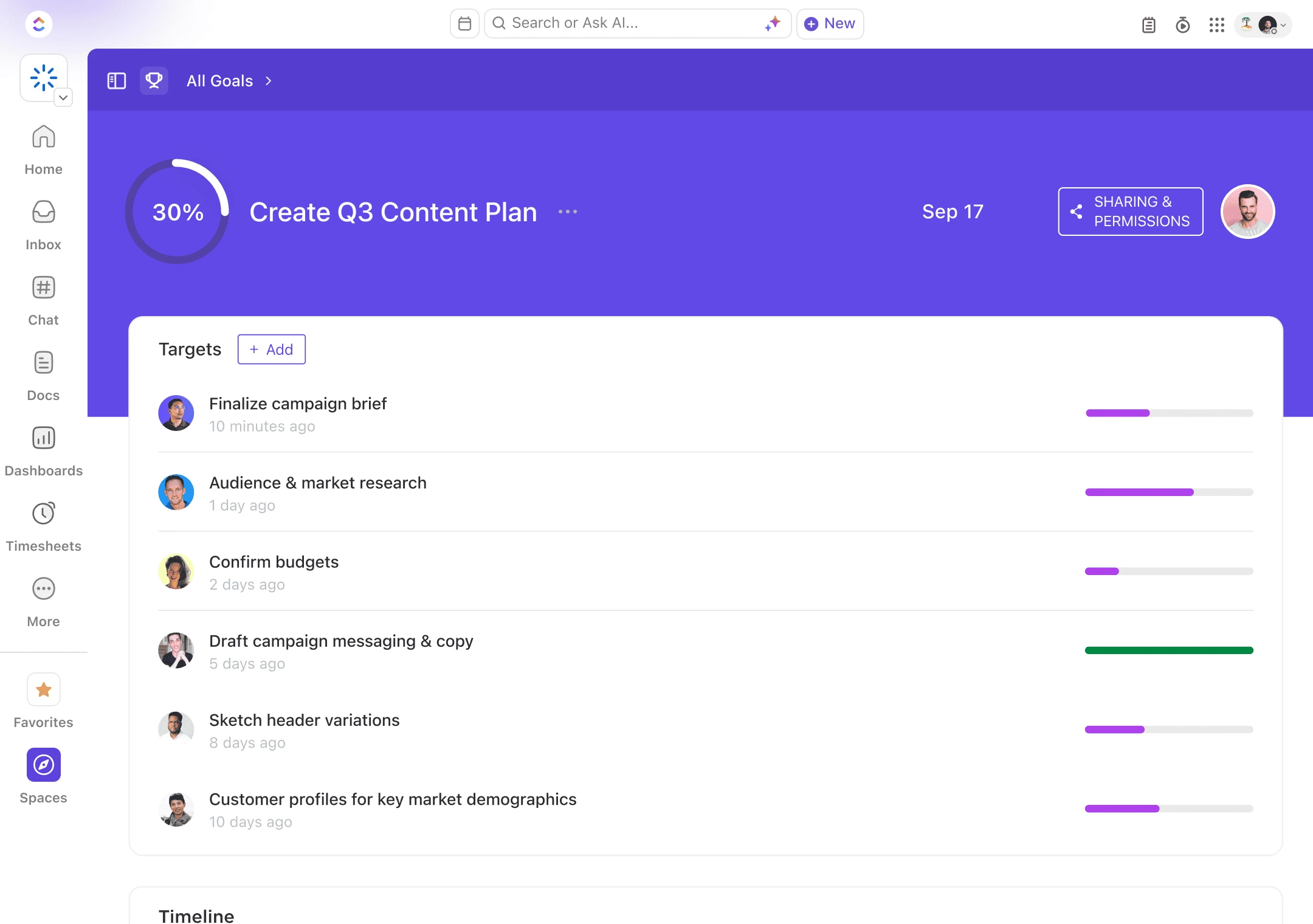
What sets ClickUp apart from tools like Asana, Monday, or Trello is its “one tool for everything” philosophy. Instead of connecting a task manager to a separate doc tool to a separate reporting tool, ClickUp gives you all three natively. For a full breakdown, see our ClickUp vs Asana, ClickUp vs Monday, and ClickUp vs Notion comparison reviews.
Many teams choose ClickUp specifically because they’re tired of managing integrations and paying for multiple subscriptions when one platform can handle most of their project workflows.
Key Features Deep Dive
Tasks, Lists & Views
At the foundation of ClickUp project management are tasks and lists. Tasks are where work actually happens—each one can have assignees, due dates, priorities, custom fields, checklists, attachments, and threaded comments.
What makes ClickUp powerful is how it lets you view the same underlying tasks in multiple formats without duplicating data:
- List view: Classic task list with sorting, filtering, and grouping
- Board view: Kanban-style columns for visual workflow management
- Calendar view: Time-based planning with drag-and-drop scheduling
- Gantt view: Timeline with dependencies for complex project planning
- Timeline view: Horizontal bar chart for capacity and deadline visualization
Concrete example: During a software sprint, developers preferred Board view for their daily standups, the project lead used Gantt to track milestones and dependencies, and the client success team monitored deliverables in Calendar view. Everyone worked from the same task list—no data syncing required.
The ability to switch views instantly is one of ClickUp’s biggest advantages over simpler tools. You’re not locked into a single way of seeing your work.
Docs & Whiteboards

ClickUp Docs are built-in documents that live alongside your tasks. They’re ideal for project briefs, technical specs, meeting notes, SOPs, and collaborative checklists. The key advantage: you can link docs directly to tasks and projects, creating a traceable connection between documentation and execution.
When writing a project kickoff doc in ClickUp, you can embed live task lists, link to related projects, and assign action items—all without leaving the document. When someone updates the task status, it reflects in the doc automatically.
ClickUp Whiteboards add a visual brainstorming layer. They’re perfect for process mapping, sprint planning sessions, and converting ideas into actionable tasks. You can draw flowcharts, add sticky notes, and literally drag objects onto the canvas to create tasks on the spot.
The value here is consolidation. Instead of maintaining Google Docs for specs and switching to ClickUp for tasks, everything lives in one workspace with full context preserved.
Dashboards & Reporting
Dashboards in ClickUp act as project control centers. You build them using widgets that pull live data from your workspace—burndown charts, workload views, task status breakdowns, time tracking summaries, and custom calculations.
For project managers, this means faster status checks and fewer “where are we?” meetings. Build a dashboard for a marketing campaign that shows content pipeline status, budget burn rate, and team capacity in one view. Instead of compiling weekly reports manually, just share the dashboard link.
Key widgets used regularly:
- Burndown charts: Track sprint progress against planned velocity
- Workload view: See who’s overloaded before it becomes a problem
- Status rollup: Instant overview of how many tasks are in progress, blocked, or complete
- Time tracked: Monitor hours against estimates for better future planning
Dashboards scale from simple (3-4 widgets for a small team) to complex (full executive overviews with 15+ widgets pulling from multiple spaces).
Automations
ClickUp automations follow a simple “when/then” logic that eliminates repetitive manual work. You set triggers and actions without writing code.
Practical examples of built automations:
- When a task status changes to “Ready for Review” → assign it to the QA lead and post a notification in the #reviews Slack channel
- When a due date passes and the task isn’t complete → move it to the “Escalations” list and notify the project manager
- When a task is created in the “Client Requests” list → automatically assign it based on priority level and add a “needs-triage” tag
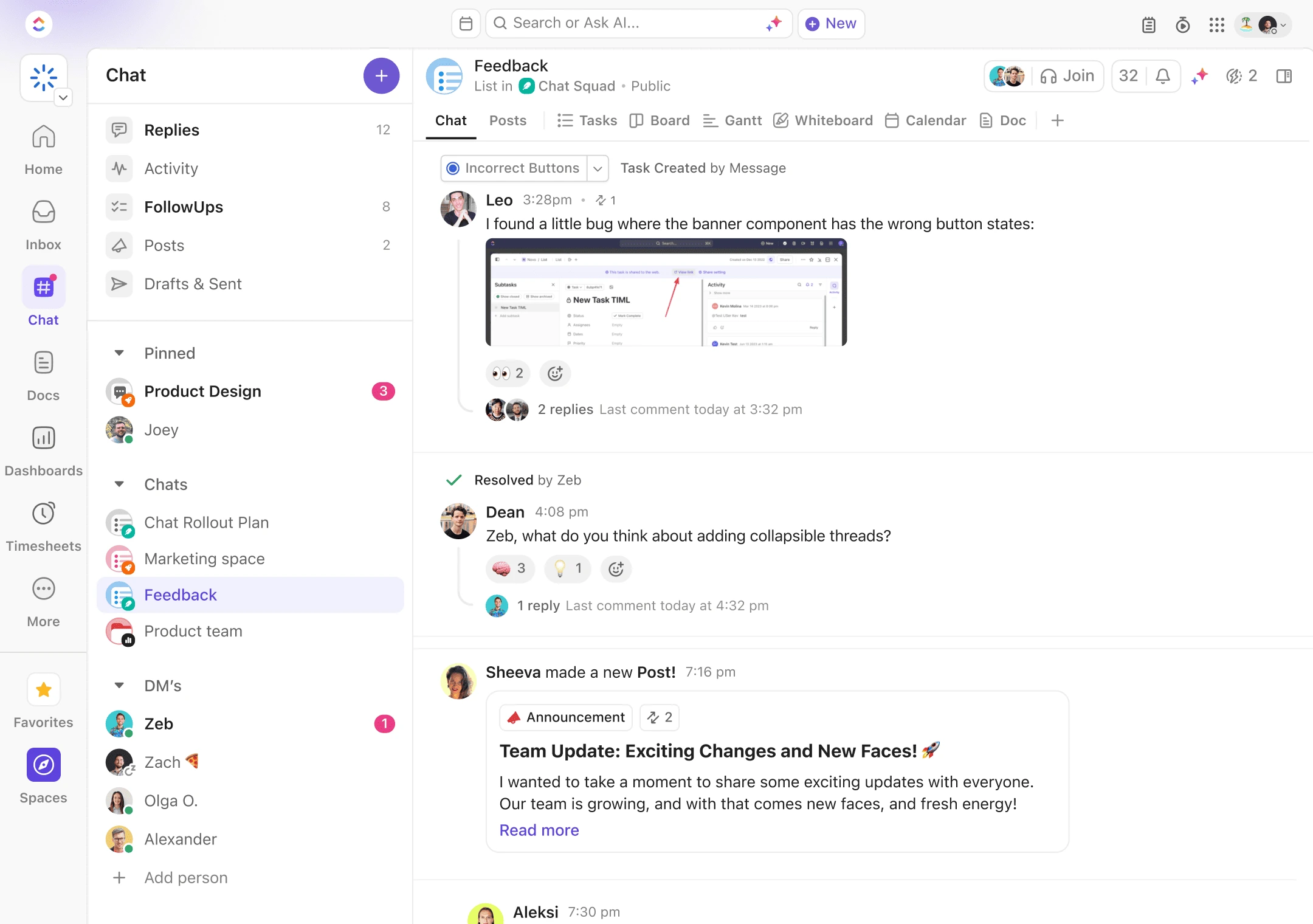
These save hours every week by catching things that would otherwise slip through the cracks. The automation builder is visual and approachable—you don’t need technical skills to set up basic workflows.
For teams running repeatable processes (client onboarding, content production, bug triage), automations are one of ClickUp’s biggest time-savers.
Integrations
ClickUp integrates with 1,000+ external tools, covering the major categories:
- Communication: Slack, Microsoft Teams, Discord
- Development: GitHub, GitLab, Jira, Bitbucket
- Storage: Google Drive, Dropbox, OneDrive, Box
- Calendar & Email: Google Calendar, Outlook, Gmail
- Time Tracking: Toggl, Harvest, Everhour
The goal of these integrations is to turn ClickUp into a central hub rather than adding another silo to your stack. For example, when a GitHub pull request is merged, it can automatically update the linked ClickUp task status. Or when a task is assigned to you in ClickUp, it appears on your Google Calendar.
The quality of integrations varies—native ones (Slack, Google) are rock-solid, while some third-party connectors rely on Zapier or API workarounds. But for core workflows, the connectivity is strong enough to make ClickUp feel like the center of your work ecosystem.
ClickUp Brain (AI)

ClickUp Brain is ClickUp’s integrated AI assistant, and it’s designed specifically for project management contexts—not just generic AI responses.
Here’s what ClickUp Brain does inside your workspace:
- Summarizes tasks and project updates: Ask “What’s blocking Project X?” and it scans tasks, comments, and docs to give you a coherent answer
- Drafts content: Generates task descriptions, meeting notes, project briefs, and comment replies based on context
- Answers questions about your work: “Who’s working on the homepage redesign?” or “When is the Q1 campaign launching?”
- Automates writing: Creates subtasks from a description, expands bullet points into full docs, writes standup summaries
The advantage over generic AI tools like ChatGPT is context. ClickUp Brain knows your projects, your team’s work, and your task history. When it drafts a project update, it’s pulling from actual data in your workspace—not making generic guesses.
ClickUp Brain is most often used for summarizing long comment threads and drafting repetitive task descriptions. It cuts down on administrative writing without requiring copy-paste between tools.
For deeper details on pricing and advanced use cases, check out our ClickUp Brain & API guide.
If these features match how your team works, spin up a free ClickUp workspace to see if it fits your workflow.
Pricing Overview
ClickUp’s pricing is designed to offer strong value, especially when you consider it can replace multiple tools in your stack. The Free plan is genuinely useful (not just a trial), and the paid tiers unlock features progressively as your team grows.
Free Plan
Best for: Small teams, side projects, and trials
What you get: Unlimited tasks, unlimited members, 100MB storage, List/Board/Calendar views, basic integrations, and two-factor authentication
Limitations: No Gantt view, no advanced dashboards, no time tracking, limited automations (100 per month)
Who should use it: Solo founders, small teams testing ClickUp, or anyone managing straightforward projects without complex reporting needs
Unlimited Plan ($7/user/month, billed annually)
Best for: Growing teams that need full project management features
What you get: Unlimited storage, all view types (Gantt, Timeline, Workload), unlimited integrations, unlimited dashboards, goals, time tracking, column calculations, email in ClickUp, 1,000 automations per month
Limitations: No advanced permissions, no custom roles, limited admin controls
Who should use it: This is the sweet spot for most teams—agencies, product teams, marketing departments. You get the full ClickUp experience at a reasonable per-user price.
Business Plan ($12/user/month, billed annually)
Best for: Larger teams needing advanced features and tighter controls
What you get: Everything in Unlimited, plus advanced automations (10,000/month), custom roles, advanced permissions, workload management, team sharing, timeline view for entire spaces, public API access, Google SSO
Limitations: Still no white-labeling or dedicated support
Who should use it: Teams with 20+ members, agencies managing client workspaces, or organizations with security/permission requirements
Enterprise Plan (Custom pricing)
Best for: Large organizations with compliance, security, and support needs
What you get: Everything in Business, plus white-labeling, enterprise API, advanced permissions across workspaces, dedicated success manager, MSA and BAA agreements, custom onboarding, unlimited teams
Who should use it: Companies with 100+ users, regulated industries (healthcare, finance), enterprises requiring SLAs and legal agreements
Most teams start on the Free plan to test workflows, then upgrade to Unlimited once they’re committed. Try ClickUp free and upgrade only when you hit a feature limit that matters.
Pros and Cons
Here’s what works and what doesn’t in ClickUp after extensive testing with real teams.
Pros
- True all-in-one platform: Consolidates tasks, docs, whiteboards, dashboards, and goals—reducing your SaaS stack
- Highly customizable: Custom fields, statuses, views, and workflows adapt to your processes
- Generous Free plan: Legitimately usable for small teams indefinitely
- Contextual AI: ClickUp Brain understands your actual projects
- Template library: Hundreds of pre-built templates for quick starts
- Powerful reporting: Build dashboards matching your KPIs without exporting
Cons
- Steeper learning curve: More features mean more time to onboard
- Can feel overwhelming: Requires intentional rollout
- Feature gating: Advanced automations and API require Business plan
- Mobile limitations: Heavy admin work better on desktop
How to mitigate the cons: Start with one Space and a simple workflow. Don’t enable every view and feature on day one. Use List and Board views for two weeks, then add Calendar or Gantt as needed. ClickUp grows with you—you don’t have to master everything immediately.
Best Use Cases
ClickUp works well for many teams, but it’s especially strong in specific scenarios.
Product & Engineering Teams
ClickUp excels at roadmap planning, sprint management, bug tracking, and release coordination. Engineering teams can use Board view for sprints, Gantt for release timelines, and dashboards for velocity tracking. Product managers love the ability to link user stories to design docs and track feature status across multiple sprints.
Example: A SaaS company runs two-week sprints in ClickUp. Developers use Board view with swim lanes for each engineer, the PM monitors progress in a burndown dashboard, and stakeholders get weekly updates from an automatically generated report. Everything lives in one workspace—no jumping between Jira, Confluence, and Google Sheets.
Best features: Gantt view, sprint templates, custom fields for story points, GitHub integration, dashboards
Agencies & Marketing Teams
For campaign planning, content calendars, client projects, and approval workflows, ClickUp is one of the strongest options. Marketing teams can map out campaigns in Timeline view, track content production in Board view, and share client-facing dashboards that show project status without exposing internal chaos.
Example: A content agency manages 15 clients in ClickUp. Each client has their own Space with content calendars, approval tasks, and a shared dashboard. When a blog post moves from “Draft” to “Client Review,” an automation notifies the client via email and updates the dashboard—no manual follow-up required.
Best features: Calendar view, automations for approvals, client-facing dashboards, Docs for briefs, custom statuses
If you’re currently on Asana or Monday and wondering if it’s worth switching, see our ClickUp vs Asana, ClickUp vs Monday, and ClickUp vs Notion comparisons.
Operations & Internal Projects
ClickUp handles process rollouts, cross-functional initiatives, SOP documentation, and internal project tracking better than most tools. Ops teams benefit from ClickUp’s flexibility—you can model almost any workflow with custom fields, automations, and linked docs.
Example: An operations director used ClickUp to roll out a new onboarding process across four departments. The project included checklists, training docs, stakeholder interviews, and milestone tracking. Gantt view showed dependencies, dashboards tracked completion by department, and Docs held the SOPs—all interconnected.
Best features: Gantt + dependencies, Docs for SOPs, dashboards for cross-functional visibility, recurring tasks
Freelancers & Small Businesses
ClickUp can work for solo freelancers and very small teams, especially if you’re managing multiple clients or complex projects. The Free plan offers plenty of functionality, and features like client portals and time tracking are valuable for consultants.
However: If you’re a solo freelancer managing simple to-do lists, ClickUp is likely overkill. Tools like Todoist or even a well-organized Notion page might be faster to set up and easier to maintain. ClickUp shines when projects have multiple moving parts—clients, deliverables, deadlines, collaboration.
Best features: Time tracking, client-facing tasks, templates, Free plan generosity
Final Verdict
After extensive testing, here’s the conclusion: If you’re looking for a single project management platform to run most of your team’s work, ClickUp is one of the strongest options in 2025.
It’s not the simplest tool—Trello and Asana are easier to learn. It’s not the prettiest—Notion and Monday have more polished interfaces. But ClickUp delivers the best combination of power, flexibility, and value for teams that need serious project management capabilities without juggling five separate tools.
The all-in-one approach works. When your tasks, docs, dashboards, and whiteboards live in the same workspace with full context, you spend less time switching tools and more time executing. The Free plan is generous enough to test thoroughly, and the Unlimited plan at $7/user/month is competitive when you consider what you’re replacing.
Who should choose ClickUp:
- Product and engineering teams running sprints and roadmaps
- Agencies managing multiple client projects
- Marketing teams coordinating campaigns with lots of moving parts
- Operations teams tracking cross-functional initiatives
- Any team tired of tool sprawl and integration maintenance
Who should look elsewhere:
- Solo users managing simple personal to-do lists
- Teams that prioritize simplicity over customization
- Organizations that need a tool everyone can master in one afternoon
Start with the Free plan and test it on a real project for two weeks. If it fits your workflow, upgrade to Unlimited when you need advanced views or more storage.
Frequently Asked Questions
Is ClickUp really free? What’s included in the Free plan?
Yes, ClickUp’s Free plan is genuinely free with no time limit or credit card required. You get unlimited tasks, unlimited members, 100MB storage, and access to List, Board, and Calendar views. It’s functional enough for small teams and solo users to use indefinitely. You’ll hit limits on storage, automations (100/month), and advanced features like Gantt charts, but it’s a legitimate working tool—not just a trial.
Which ClickUp plan is best for small teams?
For most small teams (5-20 people), the Unlimited plan at $7/user/month is the sweet spot. It unlocks unlimited storage, all view types including Gantt and Timeline, time tracking, goals, and 1,000 automations per month. Unless you need advanced permissions or API access, Unlimited gives you the full ClickUp experience at a reasonable price.
Can ClickUp replace tools like Asana, Trello, or Monday?
In most cases, yes—especially if you’re looking to consolidate. ClickUp offers comparable task management to Asana, better customization than Trello, and more features than Monday at a similar price point. The main tradeoff is complexity: ClickUp has a steeper learning curve because it does more. If your team values simplicity over power, Asana or Trello might feel cleaner. But if you want one tool instead of three, ClickUp delivers.
How hard is it to migrate into ClickUp?
ClickUp provides native importers for Asana, Trello, Monday, Jira, and others—most migrations take a few hours for moderately sized workspaces. The bigger challenge is reconfiguring workflows and training your team on ClickUp’s structure. Start by migrating one project first as a pilot, testing it for two weeks, then rolling out to the full team. ClickUp’s support team and community templates help significantly with setup.
What is ClickUp Brain and do I need it from day one?
ClickUp Brain is ClickUp’s AI assistant—it summarizes tasks, drafts content, and answers questions about your workspace. It’s an optional add-on (around $5/user/month). You don’t need it from day one. Start by getting comfortable with core ClickUp first, then add ClickUp Brain later if you find yourself doing repetitive writing or needing quick project summaries. It’s useful but not essential for basic project management.
Is ClickUp good for solo freelancers?
It depends. If you’re managing complex client projects with multiple deliverables, ClickUp’s Free plan offers excellent value—time tracking, client portals, and task management in one place. But if you’re just tracking simple to-dos, ClickUp is overkill. Simpler tools like Todoist, Trello, or a basic Notion setup will serve you better without the setup overhead.
Does ClickUp integrate with Slack, Teams, and Google Drive?
Yes. ClickUp has native integrations with Slack, Microsoft Teams, Google Drive, Google Calendar, and Outlook. You can receive task notifications in Slack, attach Google Drive files directly to tasks, and sync ClickUp tasks to your calendar automatically. These integrations are reliable and well-maintained—among the best in the project management category.

AI tools expert with over 10 years of experience testing and reviewing technology products.