
- → The Problem This Solves
- → What Is MCP and Why Does It Matter?
- → What You Need Before You Start
- → Step-by-Step Setup
- → What Claude Can Access Through Fellow
- → The Best Prompts to Use
- → Combining Fellow With Other Claude Connectors
- → Security and Privacy: What You Need to Know
- → Ask Fellow vs. the Claude Connector: What's the Difference?
- → FAQ
- → Final Thoughts
Fellow has an official, Anthropic-verified connector in Claude’s directory. Once connected, Claude can search your transcripts, pull action items, recall decisions, and prepare you for upcoming meetings — all from a single natural-language prompt inside Claude. Setup takes under 5 minutes and requires zero technical knowledge.
Connect Fellow to Claude →The Problem This Solves
I’ve been using Fellow as my primary AI meeting assistant since May 2026. As I explained in my in-depth Fellow Review 2026, the platform excels at producing highly accurate transcripts, clean AI-generated summaries, and actionable meeting notes. But for the longest time, all of that intelligence stopped at Fellow’s door.
Every time I needed meeting context inside Claude — to draft a follow-up email, prepare for a client call, or remember a decision from three weeks earlier — I had to go through the same tedious manual process:
That is five steps where there should be one.
Fellow’s best feature in 2026 isn’t inside Fellow at all. It’s the official Claude MCP connector that Anthropic has verified and approved in their connector directory. Instead of manually copying and pasting, this protocol allows Claude to securely bridge into your workspace instantly.
What Is MCP and Why Does It Matter?
Before the steps, a quick explanation — because understanding this changes how you use the integration.
MCP (Model Context Protocol) is a secure connector framework that allows AI assistants like Claude to access your meeting information. Fellow’s MCP server enables your AI assistant to retrieve meeting notes, transcripts, action items, and calendar events directly from your Fellow workspace.
Read-Only Access
Think of it like giving Claude a secure, read-only key. Claude can look things up, but it cannot create, edit, delete, or modify anything in your Fellow workspace.
Grounding
Claude’s answers are directly grounded in your actual meeting history, eliminating hallucinations and relying on hard data rather than memory.
Verification
Fellow is an official, Anthropic-verified AI meeting partner. This verification ensures enterprise-grade security and quality standards are maintained.
What You Need Before You Start
Ensure you have the following prerequisites in place:
| Requirement | Description |
|---|---|
| Fellow Account | Must be on the Team, Business, or Enterprise plan (the Claude connector is not available on the Free plan). |
| Claude Account | A Claude for Work account (Team or Enterprise) is required — connectors are not available on personal plans. |
| Admin Access | Admin privileges in both Fellow and Claude, or coordination with your workspace admin to complete the 2-step setup. |
Step-by-Step Setup
The setup is exceptionally straightforward, requiring two quick admin toggles and a 30-second user authorization.
Enable MCP in Fellow Admin
An admin must open Workspace Settings → Security in Fellow and toggle on “Allow users to create MCP connections.”
This single toggle activates MCP connectivity for your entire workspace. Admins retain full visibility and can revoke access per user at any time.
Add Fellow as a Connector in Claude Admin
In Claude, an admin opens Settings → Connectors → Browse connectors, searches for Fellow.ai, and clicks “Add to your team.”
Because this is an Anthropic-verified connector, there is no custom URL to paste, developer mode to toggle, or OAuth credential configuration needed.
Individual Users Connect Their Account 30 seconds
Once enabled by your admin, every team member can connect in seconds:
- Open Claude and click the Connectors icon in the chat box interface.
- Select Fellow from the available connectors list.
- Toggle it On and authenticate with your Fellow credentials.
What Claude Can Access Through Fellow
The integration strictly respects your organization’s existing access controls. Claude only has read access to the data that you personally have permission to view within Fellow:
The Best Prompts to Use
This is where the integration pays for itself. Here are the exact prompts I run on a weekly basis inside my Claude workspace:
“What did we decide about the Q3 launch timeline in last week’s strategy meeting?”
“What action items was I assigned this week across all my meetings?”
“I have a 1:1 with Sarah tomorrow. Based on our last three meetings, what open action items and unresolved topics should I raise?”
“Write a follow-up email to the Acme Corp team based on the concerns they raised in yesterday’s client call.”
“What blockers came up in standups this month? Group them by theme.”
“Based on my last five sales calls, what patterns do you see in how I handle objections?”
Combining Fellow With Other Claude Connectors
The real productivity leap happens when you stack Fellow alongside other active Claude connectors — like Linear, Google Drive, or Gmail — within a single conversation.
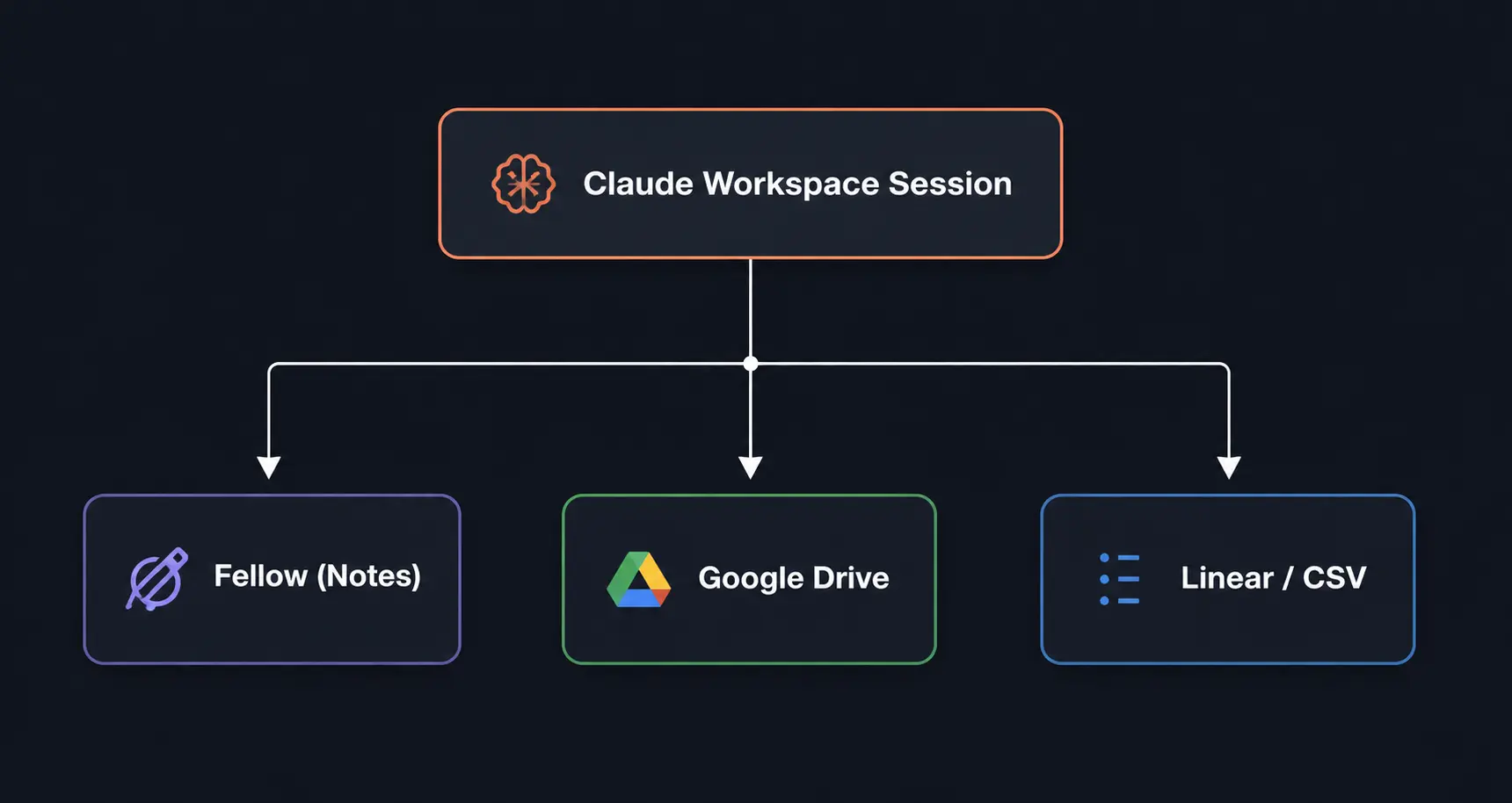
Multi-Connector Examples
“Based on my planning meetings this week in Fellow, which Linear issues should I prioritize?”
“What decisions from yesterday’s product meeting in Fellow relate to the Q4 strategy doc in my Drive?”
“Send a follow-up email based on the sales call I just finished in Fellow and our previous email conversations with this client.”
Security and Privacy: What You Need to Know
A common hurdle for security-conscious organizations is data privacy. Fellow’s robust security posture, which earned high praise in my full Fellow Review 2026, extends completely to this integration:
This makes Fellow the most secure notetaker for regulated industries like investment banking, private equity, and hedge funds.
Ask Fellow vs. the Claude Connector: What’s the Difference?
Fellow includes a native AI assistant called Ask Fellow, extensively evaluated in my Fellow Review. While they sound similar, they serve entirely different, parallel functions.
| Ask Fellow (Native) | Claude Connector (MCP) | |
|---|---|---|
| Primary Interface | Lives inside the Fellow application. | Lives inside the Claude.ai chat UI. |
| Integrations Layer | Searches native meeting notes and history. | Intersects meeting notes with third-party apps. |
| Best Used For | Quick searches when already reviewing notes. | Complex reasoning, drafting, and cross-tool workflows. |
| System Profile | Optimized for fast, cross-meeting retrieval. | Optimized for creative generation and deep analysis. |
FAQ
Final Thoughts
After testing more than 200 digital tools over the last 15 years, the Fellow x Claude connector is one of the few integrations I recommend without qualification.
Meeting notes have historically been a dead end: you record them, they sit in a database, and they rarely translate into active workflows. This integration changes that. Your meeting history becomes an interactive, queryable database. Your action items are tracked, your prep is automated, and your follow-ups practically write themselves.
If you are already utilizing Fellow to capture meetings and Claude to process information, connecting them is the single most powerful efficiency upgrade available to your team today.
Connect Fellow to Claude Now →