
A deep dive into Fellow's most distinctive feature — capturing meetings without a visible AI participant, with full enterprise governance.
Try Fellow Botless Recording Free →What You Need to Know: Fellow's botless recording captures audio directly from your device — no bot joins the call. It works on Zoom, Google Meet, MS Teams, Slack huddles, in-person, and any audio platform, with the same SOC 2 Type II, HIPAA, and GDPR governance as bot-based recordings. Internal participants always see a recording indicator; external guests simply don't see a bot. You have options based on what you need to capture — including bot recording when you want video output.
The Bot Problem Nobody Talks About
Every time I run a client demo over Zoom, the same thing happens. A little box appears in the participant list: "Notetaker has joined." The client pauses. Someone asks, "Is that recording us?" The meeting loses its rhythm before it even starts.
I've managed automation workflows for 50+ clients over 15 years. I've tested nearly every major AI meeting tool — Otter, Fireflies, Fathom, and a dozen others. They all solve the same problem: transcription. What they don't solve is the experience of being recorded by a visible bot in every conversation, regardless of context.
That friction matters. Not just for client calls. It matters in the quick 1:1 where you want honest feedback. In the Slack huddle that runs 8 minutes and produces two critical decisions. In the in-person planning session where pulling out a laptop to launch a recorder feels awkward.
Why this guide exists. I published my full Fellow review on June 3, 2026, after three weeks of testing the Enterprise plan. The overall tool impressed me — but botless recording deserved its own deep dive. It's the feature that changes the conversation from "AI notetaker" to "enterprise-grade meeting intelligence." Here's exactly what it is, how it works, and why it matters for teams that take privacy seriously.
What Is Botless Recording, Really?
Botless recording is exactly what it sounds like: capturing meeting audio without sending a bot into the call as a visible participant. Instead of a third-party AI joining as "Notetaker" in your participant list, the recording happens at the device level through the Fellow desktop app.
The result looks the same on the output side: you get a full audio recording, a speaker-labeled transcript, an AI-generated summary, extracted action items, and decisions — all searchable in your Fellow workspace. The difference is entirely in how the capture happens and who sees it.
Bot Recording
- Bot joins call as a participant
- Full audio and video output
- External guests see it
- Best for structured demos and formal team calls
Botless Recording
- Desktop app captures audio directly
- No bot in participant list
- External guests don't see it
- Same governance as bot recording
What's nice about Fellow is you have options based on what you need to capture. If you want full video output for an external-facing demo, the standard bot keeps that capability. If you want zero visible participant, botless covers it. Both run on the same governed infrastructure underneath.
Key distinction: Botless doesn't mean unmonitored. Internal participants always see a recording indicator in Fellow. External guests simply don't see a bot in their participant list. Governance stays intact on both sides.
Why Most "Botless" Tools Create More Problems Than They Solve
Before Fellow introduced governed botless recording, teams basically had three options — each with a significant trade-off.
Use a Bot — and Live With the Friction
Bots work well for formal calls and team-wide meetings. They're clunky for quick syncs, sensitive conversations, or any meeting where a visible AI participant disrupts the dynamic. The "Notetaker has joined" message creates hesitation that never fully goes away.
Use a Personal Recording App — and Lose Governance
Tools like voice memos, personal recorders, or ungoverned browser extensions capture audio with no internal disclosure, no retention policy, no audit trail, and no centralized access. Your IT team has zero visibility. Meeting data becomes siloed on someone's device — or someone's personal cloud account.
Take Manual Notes — and Lose Accuracy
The classic fallback. It works, but it costs time, introduces human error, and still doesn't capture in-person conversations, Slack huddles, or impromptu hallway decisions.
The Fellow team put it plainly: most botless options on the market act more like personal capture tools than meeting software — quiet processes running on someone's device, generating recordings that no one else can see, access, or govern. Without internal disclosure, that behavior edges uncomfortably close to spyware. That's the exact gap Fellow closes.
How Fellow's Botless Recording Actually Works
Here's the practical step-by-step from my testing and from Fellow's official documentation.
Install the Fellow Desktop App
Botless recording requires the Fellow desktop app for Mac or Windows. You'll find it under Profile → User Settings → Apps and Integrations. During setup, Fellow asks for two permissions:
- Microphone access — captures your own audio
- Screen recording access — captures other participants' audio from your system output
Both permissions stay local to your device and operate under your organization's governance policies.
Start a Botless Recording
When you're ready to record, Fellow shows a clear confirmation modal before anything is captured. The modal spells out exactly what will happen: your microphone will be recorded, all system audio will be captured, you must provide disclosure to participants, and your teammates in Fellow will see a recording indicator.
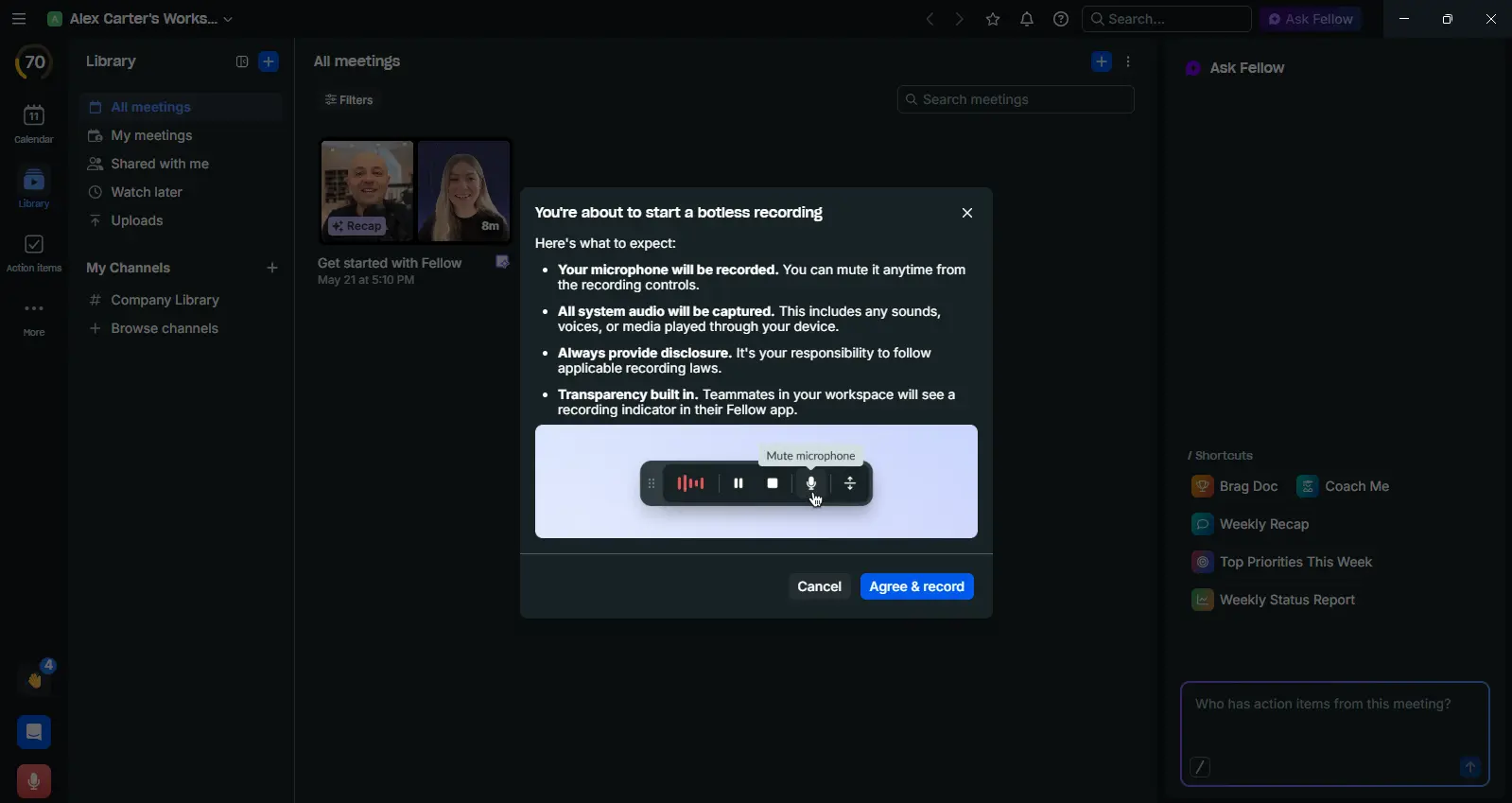
That last point — "Teammates in your workspace will see a recording indicator in their Fellow app" — is what separates this from every ungoverned botless tool I've tested. Transparency is baked in at the UI level, not left to the user's discretion. You hit "Agree & record" and the waveform activates immediately.
Record During a Scheduled or Impromptu Meeting
Fellow handles two distinct scenarios:
- For scheduled meetings: open the meeting from your calendar in Fellow, hover on "Record now" in the meeting note, and select "Botless instead of Bot." The interface keeps Talking Points, Action Items, and Notepad visible while recording — so you can still add context manually during the call.
- For impromptu meetings: when Fellow detects microphone activity, it shows a "Meeting Detected" notification. One click starts a botless capture. A new note is created automatically — private to you by default, shareable on demand.
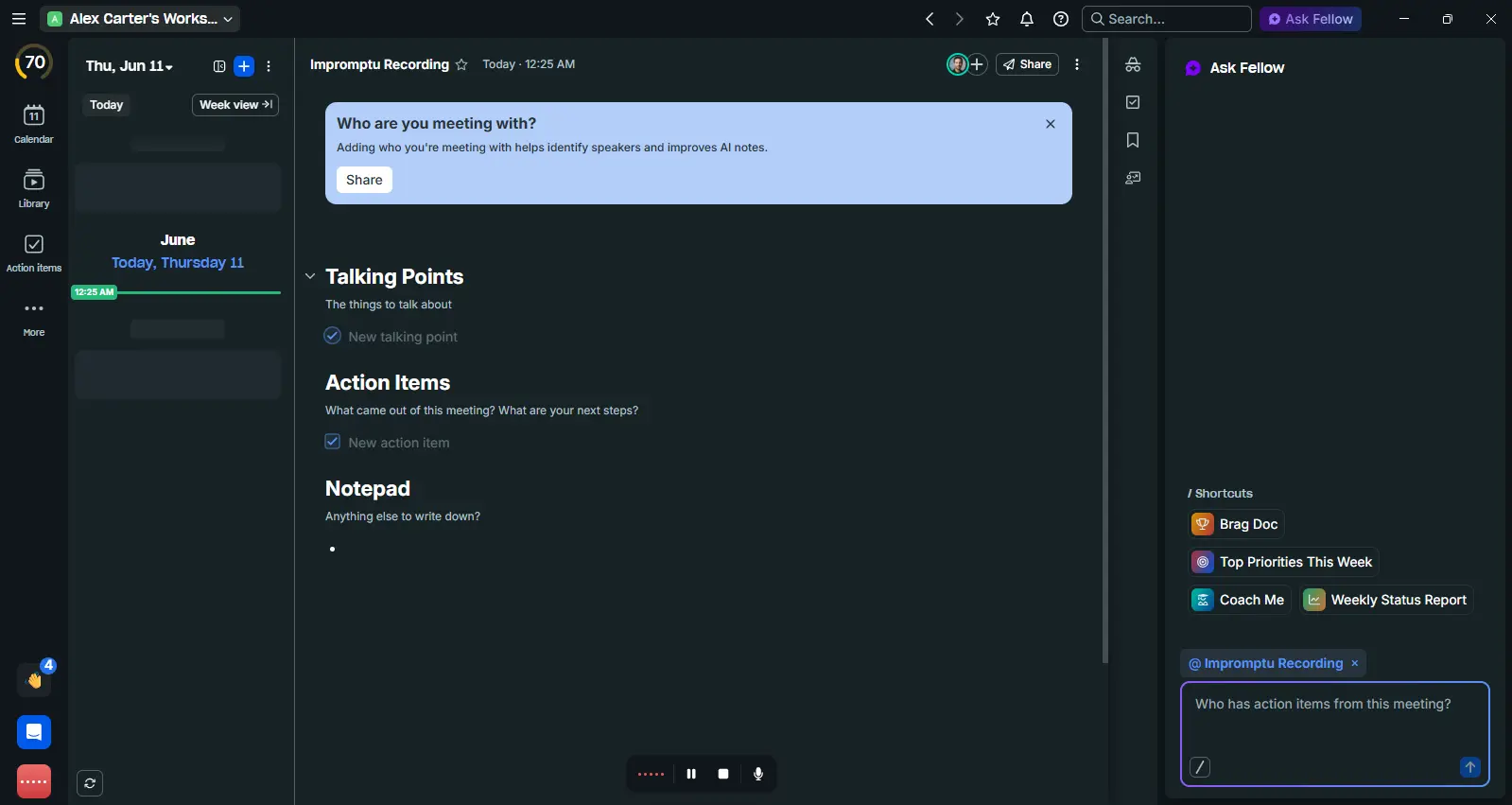
Notice the Private Notes panel visible on the right side of that screenshot. You can jot private thoughts, draft agenda items, or flag personal follow-ups during the meeting without them appearing in the shared recap. It's a small feature that changes how attentively you can engage with the actual conversation.
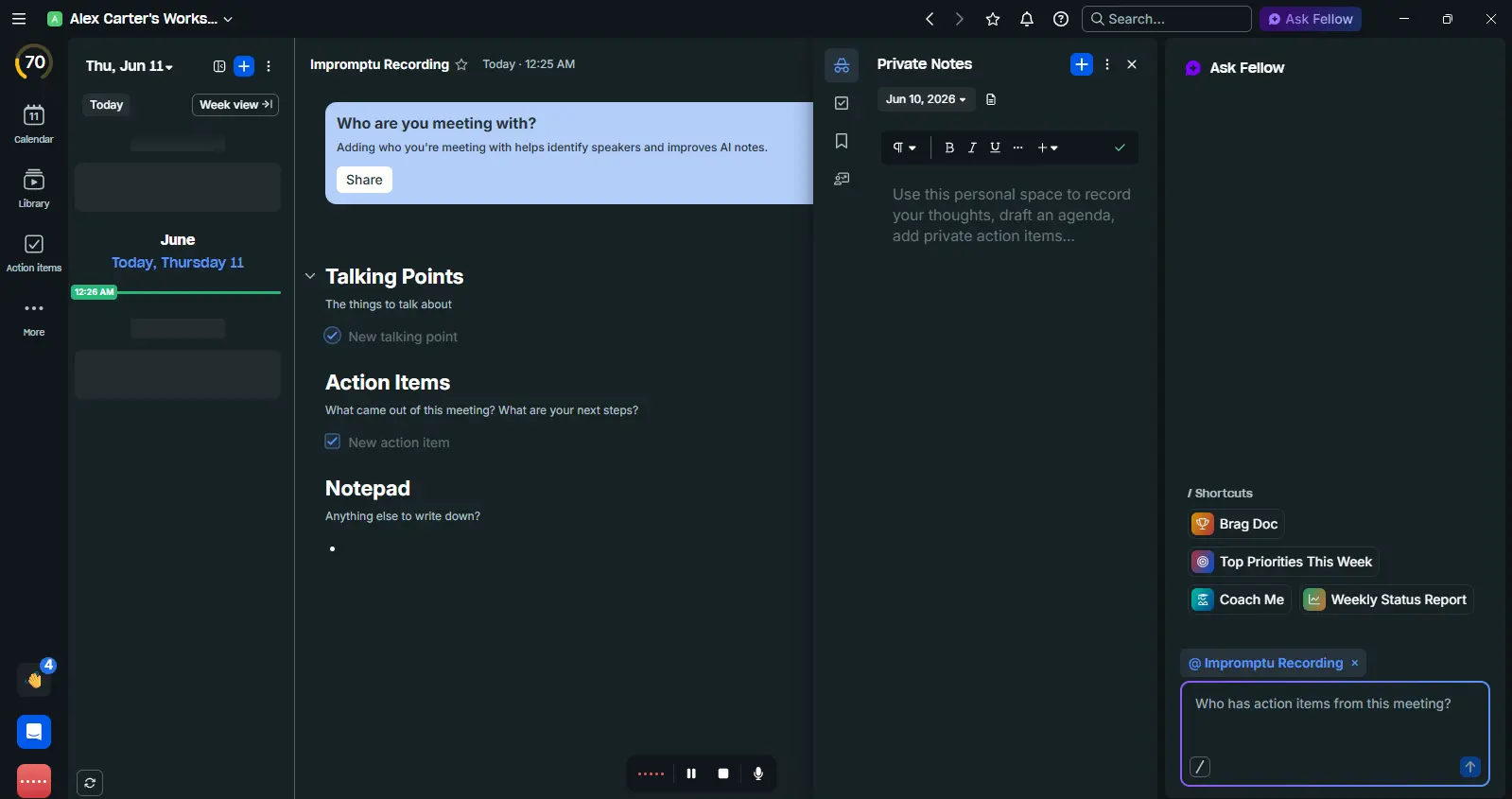
Recording Controls Mid-Meeting
- Pause / Resume — pause at any time without stopping the session, resume when ready
- Stop — end the recording when the meeting ends
- Mute in Fellow — privately pause your mic from being captured without stopping the recording. Useful for a quick side conversation that shouldn't appear in the transcript
Access the Output
After the meeting ends, Fellow processes the audio and delivers a transcript, AI summary, action items, and decisions — all searchable and accessible from your Fellow workspace alongside every other meeting you've recorded. You can also customize the format of your AI summary based on what's actually useful to you — so the recap surfaces the info that matters for your role rather than a one-size-fits-all template. By default, a recap email is not sent for botless recordings. Change this under More Menu → Automations → Send Recap.
The Governance Layer: What Sets Fellow Apart
This is the part that matters most for IT leaders, compliance officers, and anyone managing data in a regulated industry. Botless recording in Fellow is not a shadow feature that runs outside your organization's control. It's fully governed — the same as everything else in Fellow.
Encryption & Storage
Every botless capture is encrypted and stored within Fellow's secure infrastructure — never on local devices, never in personal storage.
Admin-Defined Policies
Retention schedules, access controls, sharing permissions, and compliance standards enforced automatically across every recording.
Internal Transparency
Fellow always displays a recording indicator to internal participants, even without a bot present.
Audit Trails
Every botless capture has a full audit trail — who recorded, when, which participants, what access has been granted or revoked. Essential for HIPAA audits.
Retention policies apply automatically. When I checked the admin settings after enabling botless recording, the retention policy I'd set for bot recordings was already applied. No separate configuration. No parallel data silo. The recordings showed up in the same library, searchable alongside everything else.
Transcript Redaction, available on the Enterprise plan, lets admins automatically strip sensitive terms — names, account numbers, PHI — from transcripts before they're stored or shared, which matters for any team operating under strict compliance review.
5 Use Cases Where Botless Recording Wins
Sensitive Client Calls
When a client sees a bot join their call, there's an immediate shift. They wonder who has access to the recording. In regulated industries — financial advisory, legal, healthcare — that question isn't just social friction. It's a compliance conversation. Botless recording removes the visible participant entirely. The transcript and summary are generated on your side, governed by your organization's policies.
Slack Huddles
Slack huddles are where a surprising amount of real work happens. A 7-minute sync between two engineers produces a technical decision affecting the next sprint. Most AI tools can't capture huddles at all — bots can't join Slack audio channels. Botless recording solves this directly. Fellow detects the audio, you start the capture with one click, and the conversation is transcribed and searchable alongside every other meeting.
In-Person Meetings and Hybrid Rooms
The hardest meetings to capture are the ones without a conferencing link: the whiteboard session, the office planning meeting, the conference room conversation with distributed attendees who aren't on video. A bot can't join a physical room. With botless recording active on your laptop — or via mobile device using the Fellow app — in-person audio is captured with the same quality and governance as any virtual meeting.
Candidate Interviews
Candidates are already in an evaluative situation. Adding a visible AI recorder raises questions about data usage, consent, and professionalism — especially for senior roles. Botless recording gives hiring teams a documented, searchable record of every interview while maintaining the professional environment the role demands.
Impromptu 1:1s and Ad Hoc Decisions
The most important decisions in fast-moving organizations don't always happen in scheduled meetings. They happen in ad hoc conversations and spontaneous check-ins that never get documented. Fellow's "Meeting Detected" notification catches these — when your microphone activates, Fellow prompts you to start a botless capture with a single click.
How Fellow's Botless Compares to Other Tools
| Fellow | Fireflies | Fathom | Otter.ai | Granola | |
|---|---|---|---|---|---|
| Botless recording | ✓ All platforms | ⚠ Google Meet only | ✕ No | ✕ No | ⚠ Desktop calls only |
| Works on Slack huddles | ✓ Yes | ✕ No | ✕ No | ✕ No | ✕ No |
| In-person recording | Desktop + mobile | ✕ No | ✕ No | ⚠ Mobile only | ✕ No |
| Enterprise governance | ✓ Same as bot | ✕ No admin controls | ✕ No botless | ✕ No botless | ⚠ Limited admin controls |
| Internal recording indicator | ✓ Always visible | ✕ No | ✕ No botless | ✕ No botless | ✕ No |
| Private Notes during recording | ✓ Yes | ✕ No | ✕ No | ✕ No | ✕ No |
| SOC 2 + HIPAA compliant | ✓ Both | ✕ Neither | ✕ Neither | ⚠ No HIPAA | ⚠ SOC 2 only |
| Audit trail for botless | ✓ Full | ✕ None | ✕ No botless | ✕ No botless | ⚠ Limited |
| Trains on your data | ✓ Never | ✕ Yes | ✓ Never | ✕ Yes | ✓ Never |
Fireflies does offer a limited botless option, but it only works on Google Meet via a Chrome extension and has no enterprise governance layer. Granola takes a desktop-first, individual-user approach to ambient note-taking, but it lacks Slack huddle support and the deeper admin governance layer — retention policies, full audit trails — that regulated teams need. If your team is on Teams, Zoom, or Slack and wants to avoid a visible bot, Fellow is the only option with full platform support and enterprise-grade governance built in.
Who Needs This Most?
Ideal for
- Financial services firms — hedge funds, PE, investment banking managing sensitive client data
- Legal firms — attorney-client confidentiality and privileged communication requirements
- Healthcare and healthtech — HIPAA compliance for conversations involving PHI
- Enterprise IT teams — organizations that can't have ungoverned recording tools
- Sales teams — client-facing calls where a visible bot creates friction
- Recruiting teams — candidate interviews where professionalism and data privacy both matter
Less critical if
- Your meetings are entirely internal and bot presence is already normalized
- You only need basic transcription with no compliance requirements
- You're a solo user or very small team without an IT governance framework
My Take After Testing It
I published my full Fellow review on June 3, 2026, covering the Enterprise plan across three weeks of real-world testing. Botless recording was one of the features I flagged as deserving more attention than a review section allows.
Going in, I was skeptical. Every "botless" tool I'd tried before was essentially an ungoverned screen recorder with a transcript on top — convenient for the individual, invisible to everyone else in the organization.
In practice, I used botless recording for three specific scenarios during my testing in May and June 2026:
- A 12-minute Slack huddle with a client contact who would have found a bot intrusive
- An in-person planning session where I opened the desktop app and hit record before we started
- A candidate screening call where I wanted a record without the candidate seeing an AI participant
In all three cases, transcript quality was comparable to bot-recorded meetings. The AI summary was structured, accurate, and required minimal cleanup — maybe 2 minutes of review per session. The Private Notes feature turned out to be more useful than I expected. Being able to draft a quick side note privately during the meeting, without it appearing in the shared recap, changes how attentively you can engage with the actual conversation.
What surprised me most: The governance piece in Fellow is real. When I checked the admin settings after enabling botless recording, the retention policy I'd set for bot recordings was already applied. No separate configuration. No parallel data silo. Those three conversations — across completely different contexts — all ended up in the same governed, searchable workspace. That's what Fellow actually delivers.
One thing to know: You are responsible for providing a recording disclosure to external participants in compliance with local laws. The confirmation modal Fellow shows before every botless capture makes this requirement explicit — internal transparency is automatic, but external disclosure is still your obligation.
Frequently Asked Questions
Final Thoughts
Botless recording is not a gimmick feature. For most teams, it will become the default — not because bots are bad, but because the right tool for every meeting is the one that fits the context. A formal product demo deserves full video capture. A 10-minute Slack huddle doesn't need a bot. An in-person whiteboard session can't have one at all.
What Fellow delivers is not just flexibility. It's the first time botless recording comes with the same security posture, governance layer, and organizational oversight that enterprise teams actually require. That combination — botless capture with bot-level governance — is genuinely new in this category.
The confirmation modal, the internal recording indicator, the Private Notes panel, the automatic impromptu detection — these aren't features bolted on after the fact. They reflect a coherent philosophy: every conversation deserves to be captured, and every capture deserves to be governed.
Bottom line: The meeting bot was a reasonable solution for a specific problem. Fellow's botless recording is a better solution for every meeting — and the only one built for teams that can't afford to compromise on compliance.