

Most AI coding agents are blind to the thing they build. They write a checkout form, tell you it works, and have never seen it render. Playwright MCP fixes that. It hands the agent a real browser it can drive, read and debug, using the same Playwright engine many teams already trust for end-to-end tests.
This guide is the version I wish I had when I started: how the server actually works, how to set it up in Claude Code, Cursor, Codex and VS Code, which flags are worth knowing, seven workflows with prompts you can paste, and the security settings most tutorials skip. Where I ran something myself, I show the real output instead of a screenshot of a slide.
Install Playwright MCP if your agent builds, tests or debugs anything that runs in a browser. It is free and takes one command. Don’t use it as the engine of your CI test suite, and read the security section before you point it at a logged-in browser.
@playwright/mcp 0.0.84 (Playwright 1.65.0-alpha) on Windows 11 with Node 24. I drove it over stdio against the public TodoMVC demo, listed its tools under every capability flag, and copied the output samples below from those runs. I did not open every client’s settings screen, so the Cursor, Codex and VS Code snippets follow the official docs.What Playwright MCP is, and what it is not
Three pieces get blurred together in most explanations, so it helps to separate them:
- Playwright is Microsoft’s browser automation library. It drives Chromium, Firefox and WebKit and is widely used to write end-to-end tests.
- MCP (Model Context Protocol) is an open standard that lets an AI app call external tools.
- Playwright MCP (
@playwright/mcp) is the server that exposes Playwright as a set of tools an AI agent can call: navigate, click, type, read the console, inspect network traffic and so on.
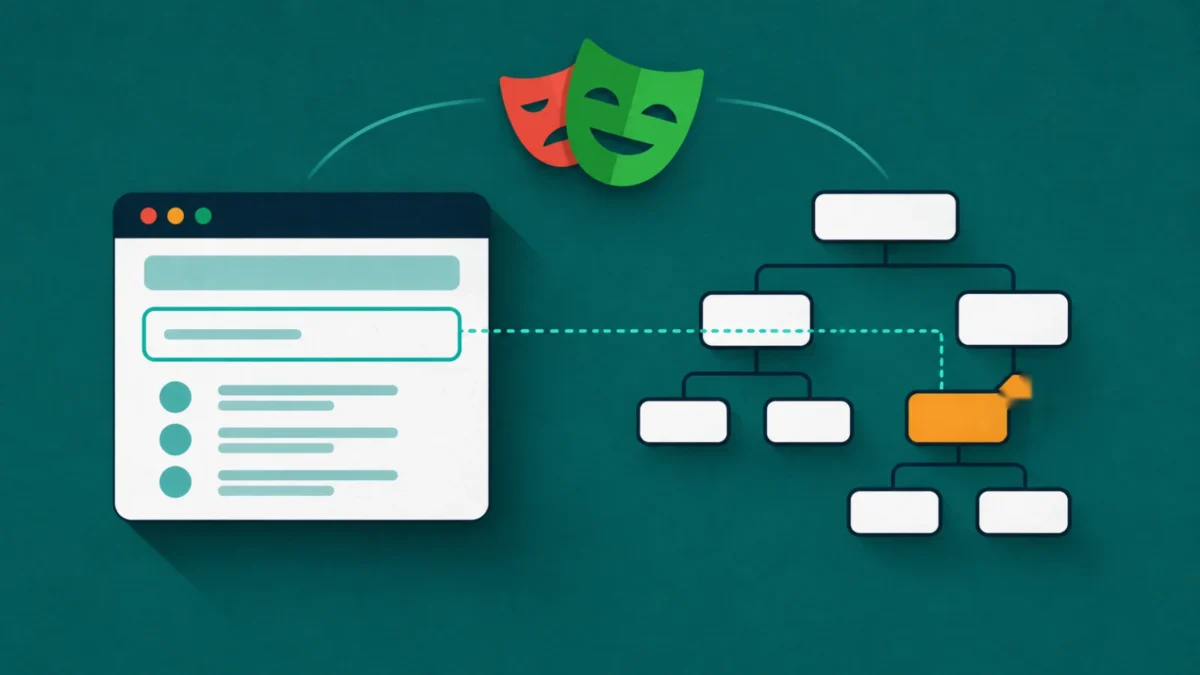
The design choice that matters is how the agent sees the page. Playwright MCP doesn’t send screenshots to a vision model by default. It sends the page’s accessibility tree: a structured text outline of roles, names and states, with a short reference (ref=e8) on every element the agent can act on. The agent says “type into e8” and the server resolves that to the right element.
| Approach | What the agent receives | Strength | Weakness |
|---|---|---|---|
| Snapshot mode (default) | Accessibility tree as text, with element refs | No vision model needed, precise targets, small payloads | Blind to purely visual UI such as canvas or charts |
Vision mode (--caps=vision) | Screenshots plus coordinate-based mouse tools | Works on canvas apps and visual layouts | Needs a vision-capable model, less deterministic |
It also isn’t a scraping platform, a test runner or a security sandbox. The project’s own README says it is not a security boundary. I come back to that below.
What it looks like in practice (real output)
Instead of describing the protocol, here is what came back when I told a client to open the TodoMVC demo and add an item. First the page snapshot, trimmed to the interesting part:
### Page
- Page URL: https://demo.playwright.dev/todomvc/#/
- Page Title: React • TodoMVC
- Console: 1 errors, 0 warnings
### Snapshot
- generic [ref=e6]:
  - heading "todos" [level=1] [ref=e7]
  - textbox "What needs to be done?" [active] [ref=e8]
- contentinfo [ref=e9]:
  - paragraph [ref=e10]: Double-click to edit a todo
Then the response to browser_type with target: "e8", text: "Buy milk" and submit: true:
### Ran Playwright code
```js
await page.getByRole('textbox', { name: 'What needs to be done?' }).fill('Buy milk');
await page.getByRole('textbox', { name: 'What needs to be done?' }).press('Enter');
```
### Page
- Page URL: https://demo.playwright.dev/todomvc/#/
- Page Title: React • TodoMVC
- Console: 1 errors, 0 warnings
### Snapshot
- [Snapshot](.playwright-mcppage-2026-11-06T18-02-01-739Z.yml)
Three details in that output explain most of the server’s value:
- Every action returns the Playwright code that performed it. The agent’s exploration is already a draft test. You don’t translate “what the AI did” into code afterwards; you copy it. This is the foundation of the AI test-writing workflow later in this series.
- Locators are semantic. It chose
getByRole('textbox', { name: ... }), not a brittle CSS path. That is the same locator style Playwright recommends for stable tests. - The console count rides along on every response. “Console: 1 errors” appeared without anyone asking. An agent verifying a UI change sees a new JavaScript error immediately instead of only when you read DevTools.
One more thing from the same run: after browser_navigate and browser_type, the snapshot came back as a file path, while a direct browser_snapshot call returned the full YAML inline. The agent only pays the context cost of reading the page when it asks to read it.
Set it up in two minutes
You need Node.js (the docs page asks for 20 or newer; the repository README says 18 minimum) and an MCP client. Every client uses the same server command, npx @playwright/mcp@latest. Only the place you register it differs.
| Client | How to add it |
|---|---|
| Claude Code | claude mcp add playwright npx @playwright/mcp@latest |
| Cursor | Settings, then MCP, then Add new MCP Server. Pick the command type and enter npx @playwright/mcp@latest. A one-click install link is on the Playwright MCP page. |
| Codex | codex mcp add playwright npx "@playwright/mcp@latest", or a [mcp_servers.playwright] table in ~/.codex/config.toml |
| VS Code | code --add-mcp '{"name":"playwright","command":"npx","args":["@playwright/mcp@latest"]}' |
| Claude Desktop, Windsurf, Cline, Gemini CLI and others | Paste the standard config below into the client’s MCP settings file |
The standard config, accepted by most clients:
{
  "mcpServers": {
    "playwright": {
      "command": "npx",
      "args": ["@playwright/mcp@latest"]
    }
  }
}
Claude Code details
To pass flags, put them after a double dash so Claude Code doesn’t try to parse them itself:
claude mcp add playwright -- npx @playwright/mcp@latest --headless --isolatedOn native Windows, npx is a script rather than an executable, and Claude Code expects it wrapped in cmd /c. When I generated an MCP config for a Windows project with Playwright’s own tooling, it wrote exactly that shape:
{
  "mcpServers": {
    "playwright": {
      "command": "cmd",
      "args": ["/c", "npx", "@playwright/mcp@latest"]
    }
  }
}
If you searched for “claude code puppeteer” or “puppeteer mcp claude code” before landing here: the reference Puppeteer MCP server (@modelcontextprotocol/server-puppeteer) lives in an archive repository that was made read-only on May 29, 2025, and exposes seven tools. Moving to Playwright MCP is a two-line swap, covered in the comparison guide.
Cursor and Codex details
In Cursor, the same standard config can live in a project-level MCP file so your team shares it, or in your global settings so it follows you everywhere. Prefer project-level when you want teammates to get the same flags. In Codex, the TOML form is useful when you want flags kept in version control:
[mcp_servers.playwright]
command = "npx"
args = ["@playwright/mcp@latest", "--headless", "--isolated"]
Check that it works
Paste this into your agent:
Open https://demo.playwright.dev/todomvc, add three todos, mark one
complete, then tell me exactly what the footer says.
A browser window opens (headed is the default), the agent adds the items, and it reports the footer text. If nothing happens, jump to troubleshooting.
The flags that change how it behaves
The server has dozens of options, each also settable through a PLAYWRIGHT_MCP_* environment variable. These are the ones I’d actually remember:
| Flag | What it does | When to use it |
|---|---|---|
--headless | No visible window (headed is the default) | CI, servers, background work |
--browser | chrome, firefox, webkit or msedge | Reproducing a Safari-only bug with webkit |
--isolated | Keeps the profile in memory; nothing is saved | Clean-room runs and parallel agents |
--storage-state | Loads saved cookies and localStorage into an isolated session | Starting already logged in without sharing your real profile |
--user-data-dir | Sets the persistent profile location | Separate profiles per project or per agent |
--extension | Connects to your existing Edge or Chrome tabs through the Playwright Extension | Using a real logged-in session. High risk, see security. |
--caps | Turns on optional tool groups: vision, pdf, devtools, plus testing, network and storage | Only what the task needs |
--device / --viewport-size | Emulates a device such as “iPhone 15” or a window size | Mobile and responsive checks |
--allowed-origins | Semicolon-separated list of origins the browser may visit | Keeping an agent on staging. Not a security boundary. |
--secrets | Dotenv file of values to redact from responses | Keeping passwords out of the transcript |
--image-responses | allow, omit or only | omit for text-only models |
--port | Runs a standalone HTTP server instead of stdio | Headed browsers on machines with no display, or IDE worker processes |
--config | Loads all of the above from a JSON file | Sharing one setup across a team |
The profile behaviour trips people up. By default Playwright MCP uses a persistent profile, so logins survive between sessions, which is convenient. But a persistent profile can only be used by one browser instance at a time. If you want two agents running at once, give each its own --user-data-dir or run both with --isolated.
Four configs worth copying
| Situation | Args after @playwright/mcp@latest |
|---|---|
| Everyday local development | None. Persistent profile, headed, log in once |
| Clean, repeatable runs | --isolated --headless |
| Start logged in, share nothing | --isolated --storage-state=./auth.json |
| Writing tests | --caps=testing,network --console-level=error |
The tools your agent gets, and why fewer is better
I listed the tools under each capability flag on 0.0.84. A bare install exposes 25 tools:
| Group | Tools |
|---|---|
| Navigate and read | browser_navigate, browser_navigate_back, browser_snapshot, browser_find, browser_take_screenshot, browser_tabs |
| Interact | browser_click, browser_type, browser_fill_form, browser_press_key, browser_hover, browser_drag, browser_drop, browser_select_option, browser_file_upload, browser_handle_dialog |
| Observe | browser_console_messages, browser_network_requests, browser_network_request, browser_wait_for |
| Environment | browser_resize, browser_emulate_media, browser_close |
| Code execution | browser_evaluate, browser_run_code_unsafe |
Then each --caps value adds more. These totals are the tool count when that one capability is switched on:
| Capability | Total tools | What it adds |
|---|---|---|
testing | 30 | browser_generate_locator and four browser_verify_* assertions |
network | 29 | Route mocking (browser_route, browser_unroute) and offline switching |
storage | 42 | Cookies, localStorage, sessionStorage and full storage-state save/restore |
vision | 31 | Coordinate-based mouse tools for canvas and visual UI |
pdf | 26 | browser_pdf_save |
devtools | 38 | Tracing, video recording, element highlighting and annotation |
Why this matters: every tool definition sits in the agent’s context for the whole session. The default 25 tools came to about 21,000 characters of JSON schema in my run, which is roughly 5,000 tokens by the usual four-characters-per-token rule of thumb (an estimate, not a measured token count). Turning on storage adds 17 more definitions. Enable a capability when the task needs it, not as a default. I go deeper on this trade-off, including what a recent benchmark re-run found, in the Playwright MCP vs CLI comparison.
Seven workflows that show what it is actually good for
“It can click buttons” isn’t a use case. These are the situations where having a browser in the loop changes the outcome. Each includes a prompt you can paste.
1. Make the agent verify its own UI work
This is the highest-value habit. Without a browser, the agent writes a form, runs the type-checker and declares victory. With one, it can look.
I just changed the signup form. Start the dev server, open
http://localhost:3000/signup, submit it empty, and confirm each required
field shows an error message. Then fill it with valid data and confirm
you land on /welcome. Report any console errors. Fix what's broken and
re-verify before you stop.
The loop matters more than the browser: act, observe, fix, observe again. The console-error line on every response means a React hydration warning or a failed fetch doesn’t slip past.
2. Reproduce a bug you can’t see
When a bug report says “checkout sometimes fails”, the agent can walk the flow, then pull evidence from the same session:
Go through checkout on staging as a guest with the test card. When
it fails, list the console messages and every network request that
returned a 4xx or 5xx, with the response body of the failing one.
browser_network_requests lists requests since page load and browser_network_request fetches the detail of one. You get the failing call and its payload without opening DevTools.
3. Explore once, keep the test
Because each action returns its Playwright code, you can ask for the artifact directly:
Walk through "add item to cart, apply a coupon, remove the coupon".
Then give me a single Playwright test in TypeScript using only the
locators you actually used, with an assertion after each step.
This is the seed of a larger workflow, including Playwright’s planner, generator and healer agents, covered in How to Write Playwright Tests with AI.
4. Test the error states you can’t trigger on demand
With --caps=network, the agent can mock a route or go offline:
Mock GET **/api/orders to return a 500 with {"error":"down"}.
Reload the orders page and tell me what the user sees. Then switch the
browser offline and tell me whether the page explains what happened.
Error and offline states are the ones teams skip because they are annoying to reproduce. Here it is one sentence.
5. Check responsive and dark-mode behaviour
Start the server with --device="iPhone 15", or have the agent call browser_resize and browser_emulate_media to flip between color schemes:
Open the pricing page at 390px wide, then at 1280px. In each, tell me
whether the plan cards stack, whether anything overflows horizontally,
and whether the CTA button stays above the fold. Repeat in dark mode.
6. Use the snapshot as a free accessibility check
The snapshot is built from the same accessibility tree that screen readers use. If the agent can’t find your button, a screen reader user may not either. An icon-only button with no accessible name appears as an unnamed button, and a custom control built from bare div elements appears as generic.
Open the settings page and list every interactive element in the
snapshot that has no accessible name, or that appears only as
"generic". Group them by section.
It’s not a replacement for a full audit, but it finds the obvious gaps in seconds and explains why an agent might struggle with your UI.
7. Work inside a logged-in session, carefully
Internal dashboards and admin tools are where an agent is most useful and where mistakes cost the most. There are three ways in, in increasing order of risk:
- Seeded state. Log in once yourself, save the storage state, and start the server with
--isolated --storage-state=./auth.json. The agent gets a session but not your real profile. - Persistent profile. The default. Log in once in the agent’s own browser profile and it remembers.
- Extension mode.
--extensionattaches to your real Edge or Chrome tabs. It is powerful, and it means anything the page says reaches an agent sitting in your actual accounts.
Prompting habits that separate good results from flaky ones
- State the success condition. “Confirm the footer reads ‘2 items left'” beats “check that it works”. The agent stops guessing and starts asserting.
- Ask for evidence. “Quote the text you saw” or “list the failing request” keeps the agent honest about what it observed versus what it assumed.
- Prefer snapshots over screenshots. Tell the agent to read the page with
browser_snapshotunless the question is visual. It is cheaper and more precise. - Search instead of re-reading. On a big page,
browser_findsearches the snapshot by text or regex. In a third-party re-run, a scoped find returned about 450 characters on a page whose full accessibility tree ran to roughly 97,000. - Refresh after navigation. Element refs belong to the snapshot they came from. If the agent clicks something that no longer exists, ask it to snapshot again.
- Keep sessions short and scoped. One flow per conversation. Long browsing sessions accumulate page content in context.
- Always ask for the code. End the prompt with “give me the Playwright code for what you did”. It costs nothing and gives you a regression test.
Using it from your own agent (LangChain, LangGraph)
You are not limited to chat clients. Any MCP-aware framework can load the server’s tools. With LangChain’s MCP adapter, the shape looks like this. I haven’t run this snippet here, and LangChain’s agent constructors have been renamed between releases, so treat it as a sketch and check the adapter docs for your version:
from langchain_mcp_adapters.client import MultiServerMCPClient

client = MultiServerMCPClient({
    "playwright": {
        "transport": "stdio",
        "command": "npx",
        "args": ["@playwright/mcp@latest", "--headless", "--isolated"],
    }
})

tools = await client.get_tools()   # hand these to your LangGraph agent
Run it headless and isolated in this setting. An unattended agent shouldn’t inherit a persistent profile.
When Playwright MCP is the wrong tool
- An agent needs to see or act on a live page
- You’re exploring an app you don’t know yet
- You want the agent to verify what it just built
- You need console and network evidence from a real session
- Your client has no shell (Claude Desktop, for example)
- You’re running the same regression suite every commit. Use plain Playwright tests; don’t pay a model to re-decide each click
- You’re scraping thousands of pages. Use a crawler
- Your agent has a shell and context is tight. Consider the Playwright CLI
- You need Chrome performance traces. Consider Chrome DevTools MCP
The CLI and DevTools alternatives are compared properly, with a decision table, in Playwright CLI vs MCP vs Chrome DevTools MCP vs Browser Use.
Security: what to lock down before you rely on it
An agent with a browser is an agent that reads untrusted web pages, and those pages can contain text written to manipulate it. The Playwright MCP README is direct about the limits: it says the server is not a security boundary. A practical checklist:
browser_run_code_unsafeis on by default. It appeared in my default tool list. The docs describe it as equivalent to remote code execution because it runs arbitrary JavaScript in the Playwright server process. Only connect clients you trust, and require approval for tool calls where your client allows it.- Don’t mix a logged-in profile with untrusted browsing. A persistent profile retains logins. If an agent reads a hostile page while your real accounts are open, you’ve given that page a route to act on them. Use
--isolatedby default. - Treat page content as untrusted input. That includes tools that pages register themselves through the experimental WebMCP API. If you don’t want them,
--no-webmcpdisables the collection. - Limit where it can go.
--allowed-originsand--blocked-originsreduce accidents, but the project says they are not a security boundary and don’t affect redirects. - Keep secrets out of the transcript.
--secretsand--redact-url-paramshelp, though the docs describe them as conveniences rather than protections. - File access is restricted by default. The server limits file access to workspace roots and blocks
file://navigation. Leave--allow-unrestricted-file-accessoff unless you need it. - For real isolation, use a container. The official Docker image runs headless Chromium only, which is a reasonable trade for unattended agents.
Troubleshooting
| Symptom | Likely cause | Fix |
|---|---|---|
| Second agent can’t open a browser | The persistent profile is in use by another instance | Run with --isolated, or give each agent its own --user-data-dir |
| Server won’t start on native Windows | npx isn’t directly executable | Use "command": "cmd" with "args": ["/c", "npx", ...] |
| Sandbox error in a container | Chromium’s sandbox isn’t available there | Add --no-sandbox. The official Docker example does |
| Headed browser fails on a server with no display | Nothing to draw to | Run the server with --port 8931 somewhere with a display and point your client at http://localhost:8931/mcp |
| Client drops the HTTP connection | Default 5-second heartbeat timeout | Raise PLAYWRIGHT_MCP_PING_TIMEOUT_MS; 0 disables it |
| Headless browser vanished after a break | It closes after an hour idle | Set --idle-timeout; 0 disables it |
| Agent clicks the wrong thing or fails on a stale ref | Refs belong to an older snapshot | Ask it to take a fresh browser_snapshot, or use browser_find |
Where to go next
You now have the working model: an agent that reads the page as structured text, acts through short refs, and returns the code behind every step. The two decisions that follow are which browser tool fits your setup and how to turn exploration into tests you can trust. Those are the next two guides in this series.
Pick the right tool, then turn it into real tests
Choosing between Playwright MCP, the Playwright CLI, Chrome DevTools MCP and Browser Use is mostly a question of where your agent runs. Then see how planner, generator and healer agents write tests that survive a code review.
Compare the options → Next: How to write Playwright tests with AIQuestions people ask about Playwright MCP
Is Playwright MCP free?
Yes. It is an open-source package you run with npx. You pay only for the AI model your client uses.
Does Playwright MCP need a vision model?
No. By default it works from the accessibility tree, which is text. That is one of its design goals. Add --caps=vision only for canvas or purely visual interfaces.
How is Playwright MCP different from using Playwright directly?
Playwright is the library you write code against. Playwright MCP lets an AI agent drive that library live, one tool call at a time, without you writing a script first. It also returns the Playwright code for each step, so the two connect.
Which browsers does it support?
Chrome, Firefox, WebKit and Edge, chosen with --browser. Extension mode works with Edge and Chrome only, and the Docker image supports headless Chromium only.
Does it work with Cursor, Codex and Claude Code?
Yes. All three register the same npx @playwright/mcp@latest command. See the setup table above for each client’s exact steps.
Can it use my logged-in Chrome?
Yes, through --extension and the Playwright Extension, which attaches to your existing tabs. That is the highest-risk mode. Prefer --isolated --storage-state unless you need the live session.
Should I use Playwright MCP or the Playwright CLI?
The Playwright project itself recommends the CLI with skills for coding agents that have shell access, and MCP for persistent, exploratory work and clients without a shell. The comparison guide covers the trade-offs, including how the token numbers have changed.
Sources
- Playwright documentation: Getting started with MCP
- microsoft/playwright-mcp on GitHub (flags, tools, Docker, security notes)
- Archived Puppeteer MCP server
- Playwright CLI vs Playwright MCP re-benchmark on DEV Community (the scoped-find figures)


3 comments
Comments are closed.