ClickUp Complete Guide 2026: Review & Features
Finding the perfect project management tool feels like searching for a unicorn. You need something powerful enough to handle complex workflows, yet simple enough that your team will actually use it. Most tools force you to choose between features and usability, or between affordability and power.
ClickUp promises to be the “one app to replace them all” – combining project management, documentation, time tracking, and collaboration in a single platform. But does it deliver on this ambitious promise, or does it collapse under its own weight? I’ve spent the past three months testing ClickUp across multiple team sizes and use cases to give you an honest, comprehensive answer.
This guide covers everything you need to know before investing in ClickUp. Whether you’re a solo freelancer evaluating the free plan, a marketing team comparing it against Asana, or an enterprise organization considering a full migration, you’ll find actionable insights backed by real-world testing. I’ll walk you through ClickUp’s core features, pricing tiers, strengths and weaknesses, and help you determine if it’s the right fit for your specific needs.
Table of Contents
What is ClickUp? Platform Overview
The platform’s core philosophy centers on customization and flexibility, allowing teams to mold ClickUp to their exact workflows rather than adapting their processes to rigid software constraints. Unlike traditional project management tools that focus solely on task lists or Kanban boards, ClickUp provides 15+ different views of your work including List, Board, Calendar, Gantt, Timeline, Workload, and even Mind Map views.
This multi-dimensional approach means marketing teams can visualize campaigns on calendars, developers can track sprints on boards, and executives can monitor resource allocation through workload charts – all within the same platform.
Core Functionality
At its foundation, ClickUp handles standard project management tasks exceptionally well. You can create tasks, assign them to team members, set due dates, attach files, and track progress through customizable statuses. However, ClickUp extends far beyond basic task management with integrated time tracking, goal setting, document creation, wikis, and real-time collaboration tools.
ClickUp’s hierarchical structure organizes work into Spaces (departments or major areas), Folders (projects or categories), Lists (task groups), Tasks, and Subtasks. This nested organization accommodates everything from simple to-do lists to complex multi-team initiatives. Custom fields let you add any data type to tasks – text, numbers, dropdown menus, dates, checkboxes, formulas, and more – transforming tasks into database records when needed.
Target Users
ClickUp serves an incredibly diverse user base thanks to its adaptable nature. Marketing teams leverage ClickUp for campaign planning, content calendars, and creative approvals. For teams evaluating marketing-specific features, our ClickUp vs Asana comparison provides detailed insights into which tool better serves marketing workflows.
Software development teams use ClickUp for agile sprint planning, bug tracking, and release management. Creative agencies appreciate ClickUp’s proofing tools and client portal features for managing multiple client projects simultaneously. Remote teams benefit from real-time collaboration features, while freelancers find the free plan offers professional-grade functionality at no cost.
Company Background
Founded in 2017 by Zeb Evans and Alex Yurkowski, ClickUp has experienced explosive growth in the crowded project management space. The company has raised over $400 million in venture funding and achieved a $4 billion valuation, positioning it as one of the fastest-growing SaaS companies globally.
This financial backing fuels aggressive feature development – ClickUp releases new features and updates weekly, often outpacing competitors who update quarterly. The constant innovation means users access cutting-edge productivity features often months before competitors. However, this pace also contributes to occasional bugs and a steeper learning curve as the interface adapts to accommodate new capabilities.
Key Features Breakdown
Task Management & Organization
ClickUp’s hierarchical structure provides unprecedented organizational flexibility. At the highest level, Spaces represent major divisions like departments, clients, or business areas. Within Spaces, Folders group related projects or initiatives. Lists contain collections of related tasks, Tasks represent individual work items, and Subtasks break complex work into manageable pieces.
The platform offers 15+ distinct views to visualize your tasks, each serving different purposes. List view provides a traditional spreadsheet-like interface perfect for detailed task management. Board view delivers Kanban-style columns for visualizing workflow stages. Calendar view helps with deadline planning and scheduling. Gantt charts map project timelines and dependencies.
Custom statuses replace ClickUp’s default “To Do / In Progress / Complete” with workflow-specific stages like “Pitch / Drafting / Review / Approved / Published” for content teams or “Backlog / Sprint / Development / QA / Deployed” for software teams. Task dependencies create relationships where certain tasks must complete before others begin, automatically adjusting schedules when delays occur.
Customization & Flexibility
ClickUp’s customization capabilities rival database applications while maintaining project management simplicity. Custom fields transform basic tasks into rich data objects. Add text fields for project codes, dropdown menus for priority levels, number fields for budget tracking, date fields for milestones, checkboxes for requirements, and even formula fields that calculate values based on other fields.
Custom task types let you differentiate between various work items. Create separate task types for “Blog Posts,” “Bug Reports,” “Client Meetings,” and “Design Reviews,” each with different default fields and templates. ClickApps function as modular features you enable per Space – activate Time Tracking for client work but disable it for internal projects.
Automation & Workflows
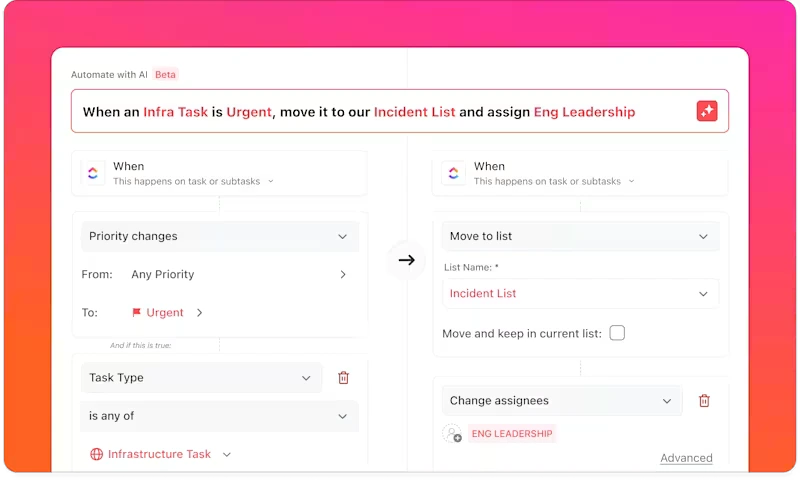
ClickUp’s automation engine eliminates repetitive manual tasks through trigger-action sequences. Choose from 100+ pre-built automation templates or create custom automations using ClickUp’s visual builder. Common automations include status changes triggering assignee updates, due date modifications notifying teams, or subtask completion automatically moving parent tasks forward.
Email automation integrates your inbox with ClickUp. Automatically create tasks from emails matching specific criteria, send email notifications when task statuses change, or forward task comments to external stakeholders via email. The free plan includes 100 automation actions monthly, Unlimited plan offers 1,000, Business provides 25,000, and Enterprise removes limits entirely.
Collaboration Tools
Real-time collaboration distinguishes ClickUp from simpler task managers. Comments create threaded discussions within tasks, keeping all relevant conversation attached to the work itself. @mentions notify specific team members, drawing their attention to important updates. Assigned comments transform discussion points into actionable items without creating separate tasks.
Proofing and markup tools streamline creative review processes. Upload images, PDFs, or videos directly to tasks, then use annotation tools to mark specific areas requiring changes. Designers see exactly which elements need revision, eliminating ambiguous feedback like “make it pop.”
Time Tracking & Reporting
Built-in time tracking (included free across all plans) eliminates the need for separate time tracking software. Click the timer to start tracking time against any task, or manually add time entries for work completed offline. Time estimates establish expected duration for tasks, which ClickUp compares against actual tracked time to identify estimation accuracy.
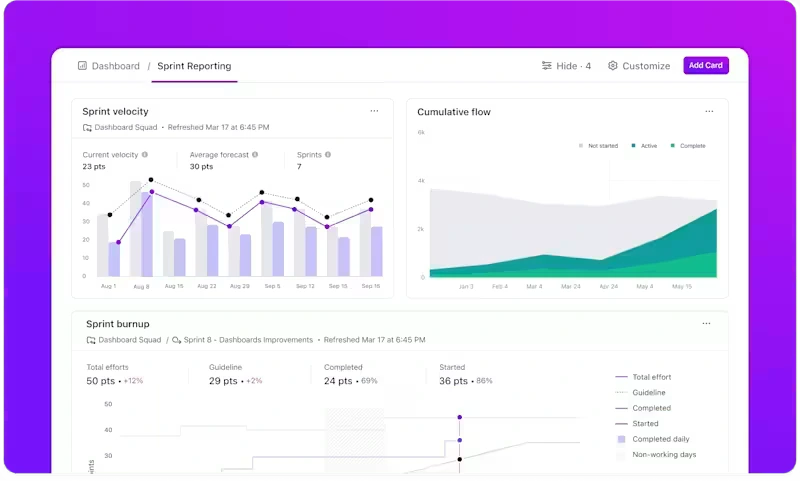
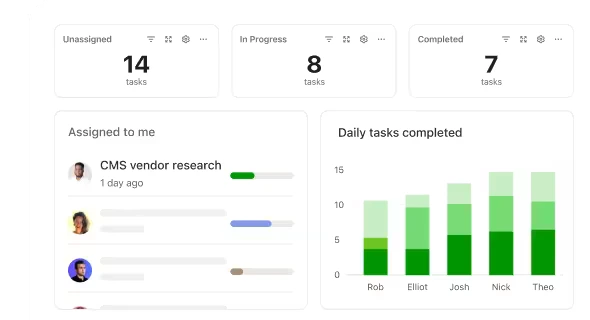
Custom dashboards with 50+ widget types transform raw data into actionable insights. Create dashboards showing team workload distribution, project progress, time tracked by project, completed tasks by assignee, or custom metrics using calculation widgets. Workload view shows each team member’s capacity based on task estimates, highlighting overallocation before it becomes a problem.
ClickUp AI (Brain)
ClickUp Brain integrates artificial intelligence throughout the platform as a $5 per user monthly add-on. The AI writing assistant helps draft task descriptions, email responses, and document content. Task summarization condenses lengthy comment threads into brief summaries, helping team members quickly grasp current status without reading entire histories.
Auto-generating subtasks analyzes complex tasks and suggests logical breakdown into smaller steps. Smart search understands natural language queries across your entire workspace. While ClickUp Brain shows promise, it’s still evolving. Some teams find it invaluable for accelerating routine writing tasks, while others consider it an unnecessary add-on cost.
Docs & Knowledge Management
ClickUp Docs provides wiki and documentation capabilities comparable to Notion or Confluence. Create rich documents with formatting, embeds, tables, code blocks, and media. Real-time collaborative editing lets multiple people work simultaneously, with changes appearing instantly. Nested pages organize documentation hierarchically.
For teams evaluating ClickUp primarily as a knowledge management tool, compare ClickUp vs Notion to understand which platform better serves documentation-heavy workflows. ClickUp excels when your primary need is project management with documentation as a supporting feature, rather than vice versa.
ClickUp Pricing Breakdown 2026
Free Forever Plan
ClickUp’s free plan genuinely delivers value rather than serving as a limited trial. You get unlimited tasks and unlimited users, making it viable for small teams indefinitely. The 100MB storage limitation restricts file attachments but doesn’t affect task creation. Basic dashboards provide limited reporting, and integrations are capped at essential connections like Google Drive and Slack.
The free plan includes 100 automation actions monthly – sufficient for automating basic workflows like status change notifications or recurring task creation. Most importantly, the free plan never expires and doesn’t require credit card registration. However, growing teams quickly encounter storage limits and will need upgraded integrations.
Unlimited Plan ($7/user/month)
The Unlimited plan, billed annually at $7 per user monthly, represents ClickUp’s sweet spot for small to medium teams. This tier removes storage restrictions entirely, providing unlimited file storage for all task attachments and documents. Unlimited integrations connect ClickUp with your entire software ecosystem without restrictions.
Gantt charts and Timeline views activate at this tier, essential for project planning and deadline visualization. The Unlimited plan increases automation actions to 1,000 monthly, handling more sophisticated workflow automation. For most teams, the Unlimited plan provides everything needed without paying for unnecessary enterprise features.
Business Plan ($12/user/month)
The Business plan, billed annually at $12 per user monthly, targets growing companies requiring advanced collaboration and administrative features. Google SSO (Single Sign-On) streamlines authentication for Google Workspace organizations. Advanced automation increases to 25,000 actions monthly, supporting complex, high-volume workflow automation.
Workload management shows team capacity and resource allocation across projects. The Business plan makes sense for teams of 10+ users who need sophisticated resource management and automation, or organizations requiring Google SSO for security policies.
Enterprise Plan (Custom Pricing)
Enterprise pricing requires contacting ClickUp sales, with costs varying based on user count and specific requirements. This tier provides white labeling to remove ClickUp branding and apply your company’s identity. Advanced permissions offer granular control over who can access, edit, or view specific content. Dedicated success managers provide personalized onboarding and ongoing optimization support.
Enterprise pricing typically starts around $19 per user monthly for organizations with 100+ users, with volume discounts for larger deployments. Most organizations under 50 users don’t require Enterprise features and should start with Business tier first.
| Feature | Free | Unlimited | Business | Enterprise |
|---|---|---|---|---|
| Price | $0 | $7/user | $12/user | Custom |
| Storage | 100MB | Unlimited | Unlimited | Unlimited |
| Users | Unlimited | Unlimited | Unlimited | Unlimited |
| Integrations | Limited | Unlimited | Unlimited | Unlimited |
| Automations | 100/month | 1,000/month | 25,000/month | Unlimited |
| Dashboards | 1 | Unlimited | Unlimited | Unlimited |
| Custom Fields | Limited | Unlimited | Unlimited | Unlimited |
| Gantt/Timeline | ✗ | ✓ | ✓ | ✓ |
| Google SSO | ✗ | ✗ | ✓ | ✓ |
| Workload View | ✗ | ✗ | ✓ | ✓ |
| White Labeling | ✗ | ✗ | ✗ | ✓ |
For a 10-person team, ClickUp costs $70 monthly (Unlimited plan), compared to Asana at $109.90, Monday.com at $120, or Wrike at $240. This price-to-feature ratio makes ClickUp exceptional value for budget-conscious teams. For detailed pricing analysis including hidden costs and discount strategies, see our complete ClickUp pricing guide.
ClickUp vs Top Competitors
ClickUp vs Asana
Asana prioritizes simplicity and elegant user experience, making it easier to learn but less customizable than ClickUp. Asana’s interface feels more polished and refined, while ClickUp occasionally appears cluttered due to extensive features. ClickUp offers significantly more functionality at lower cost – Asana charges $10.99 per user for Premium while ClickUp’s $7 Unlimited plan includes more features. Read our detailed ClickUp vs Asana comparison for marketing-specific workflow analysis.
ClickUp vs Monday.com
Monday.com emphasizes visual appeal with colorful, intuitive boards that non-technical users grasp immediately. Monday’s pricing starts higher ($12 per user for Standard vs ClickUp’s $7 Unlimited), though both platforms offer similar core functionality. Choose Monday.com for teams prioritizing beautiful interfaces and quick adoption, or ClickUp for teams wanting maximum flexibility and lower costs. See complete ClickUp vs Monday comparison for detailed feature analysis.
ClickUp vs Notion
Notion serves primarily as a knowledge management and documentation platform with task management as a secondary feature, while ClickUp prioritizes project management with documentation as a supporting capability. Use Notion if documentation and wikis are your primary need, or ClickUp if project management and task tracking take priority. Compare ClickUp vs Notion features to determine which better serves your specific use case.
ClickUp vs Trello
Trello delivers beautifully simple Kanban boards perfect for straightforward task tracking, but lacks ClickUp’s depth for complex projects. Trello costs $10 per user for Premium (vs ClickUp’s $7 Unlimited), yet provides fewer features. Trello wins decisively for teams wanting minimal complexity and basic board-based task management.
ClickUp vs Jira
Jira dominates software development project management with specialized features for agile teams, sprint planning, and issue tracking built specifically for developers. ClickUp handles software development workflows competently but lacks Jira’s specialized developer tooling. However, ClickUp costs significantly less and works better for mixed teams where developers collaborate closely with non-technical teams.
For a comprehensive comparison of all alternatives including Basecamp, Wrike, Airtable, and others, visit our ClickUp alternatives guide with detailed feature matrices and use case recommendations.
Who Should Use ClickUp?
Perfect For
- Marketing teams managing campaigns – Benefit tremendously from ClickUp’s Calendar views, custom fields for tracking campaign metrics, and document integration. See marketing-specific features for detailed workflows.
- Remote teams – Appreciate ClickUp’s real-time editing, proofing tools, and comprehensive communication features that reduce reliance on external chat applications.
- Agencies managing multiple clients – Leverage ClickUp’s hierarchical structure to separate client workspaces while maintaining unified reporting.
- Power users – Find ClickUp’s flexibility allows configuring workflows that precisely match their unique processes rather than forcing adaptation to rigid software.
- Budget-conscious teams – Get exceptional value from ClickUp’s generous free plan and affordable paid tiers delivering more features per dollar than virtually any competitor.
Not Ideal For
- Users wanting absolute simplicity – Should consider Asana, Trello, or Basecamp instead. ClickUp’s extensive features create interface complexity that overwhelms users preferring streamlined, focused tools.
- Teams resistant to learning curves – Simpler alternatives may achieve better actual usage despite fewer capabilities. How difficult is ClickUp to learn? provides realistic timeline expectations.
- Small budgets needing enterprise features – Organizations needing white labeling, advanced security, or SAML SSO face challenges as Enterprise tier requires custom pricing.
Industry-Specific Use Cases
Software development teams utilize ClickUp for sprint planning with Board and List views, bug tracking with custom fields and priorities, and release management through Gantt timelines. Integration with GitHub, GitLab, and Bitbucket connects code commits directly to tasks.
Content production teams leverage Calendar view for editorial calendars, custom statuses for content stages (Ideation → Drafting → Editing → Published), and Docs for style guides and templates.
Event planning benefits from Timeline view for milestone visualization, dependencies ensuring setup tasks complete before event dates, and custom fields tracking vendors, budgets, and attendee counts.
Consulting firms use ClickUp for client project tracking with separate Spaces per client, time tracking for billable hours, and custom reporting dashboards for client status meetings.
Pros and Cons: Honest Assessment
ClickUp Strengths
- Exceptional value – Delivers more features at lower cost than virtually any competitor
- Unmatched flexibility – Customize for any workflow through custom fields, statuses, views, and automations
- Generous free plan – Unlimited users with unlimited tasks makes free tier viable long-term
- Powerful automation – 100 free automation actions monthly with intuitive visual builder
- All-in-one platform – Consolidate project management, time tracking, docs, and goals in one tool
- Active development – New features release weekly, keeping ClickUp cutting-edge
- Multiple views – 15+ view options mean everyone works in preferred format
- Time tracking included – Built-in tracking free across all plans eliminates separate subscriptions
ClickUp Weaknesses
- Steep learning curve – Feature density overwhelms new users; expect 1-2 weeks for comfort
- Performance issues – Large workspaces (1,000+ tasks) sometimes experience slowdowns
- Mobile limitations – App lacks many desktop features; advanced workflows require desktop access
- Notification overload – Default settings generate overwhelming volume; requires careful configuration
- Customer support – Free plan users access only community forums; paid tiers get email support
- Too much customization – Paradox of choice affects some teams who waste time perfecting setups
ClickUp Alternatives to Consider
- Asana – Choose if your team prioritizes ease of use and elegant design over feature depth. Simpler interface accelerates adoption though you’ll sacrifice customization and pay more per user.
- Monday.com – Consider for visually-oriented teams wanting beautiful, intuitive boards without configuration complexity. Costs more but offers slicker out-of-box experience.
- Notion – Pick if knowledge management, documentation, and wikis are primary needs. Database and relational features exceed ClickUp’s for custom systems.
- Trello – Select for teams wanting dead-simple Kanban boards without complexity. Handles basic task tracking elegantly but lacks depth.
- Jira – Choose for pure software development teams needing specialized agile tooling. Developer-specific features outpace ClickUp’s generalist approach.
- Basecamp – Consider for teams wanting simplicity with flat pricing. $299 monthly for unlimited users makes it economical for larger teams.
- Airtable – Pick if you need database functionality with relational tables more than traditional project management.
For detailed comparisons of all these tools with specific use case recommendations, feature matrices, and pricing analysis, see our complete ClickUp alternatives guide.
Getting Started with ClickUp
Setup Checklist
- Create free account – Start with ClickUp’s free tier to test functionality before committing financially. No credit card required means zero risk.
- Choose workspace structure – Plan your hierarchy before creating Spaces. Use Spaces for departments (Marketing, Sales, Product). Start simple and expand as needs clarify.
- Enable relevant ClickApps – Activate only immediately necessary features. Time Tracking, Custom Fields, and Automations are common starting points.
- Import existing tasks – ClickUp imports from Asana, Trello, Monday.com, Wrike, and CSV files. Migration maintains continuity.
- Set up automations – Start with simple automations like status change notifications. Begin with 5-10 automations, then expand.
- Invite team members – Add people after establishing basic structure so they see organized workspaces rather than empty interfaces.
- Create first project from template – Use one of 100+ pre-built templates for common use cases to accelerate setup.
Learning Resources
- ClickUp University – Free video courses covering basic navigation to advanced automation
- Template library – Browse 100+ pre-built workflows for marketing, development, HR, sales, and operations
- ClickUp webinars – Live training sessions with Q&A opportunities
- YouTube tutorials – Thousands of community-created tutorials for specific techniques
- Community forum – Active user community answers questions and shares tips
Expect 2-3 weeks for full team adoption with consistent daily use. Power users master advanced features within 4-6 weeks. Tips to learn ClickUp faster provides strategies for accelerating proficiency and avoiding common beginner mistakes.
Frequently Asked Questions
Yes, ClickUp offers a genuinely free plan with unlimited users and unlimited tasks – not a limited trial that expires. The free plan includes 100MB storage and basic features sufficient for small teams managing straightforward projects. Unlike many “freemium” tools offering barely functional free tiers, ClickUp’s free plan remains viable long-term for teams under 5 people with minimal file storage needs. See complete free plan breakdown for detailed feature comparison.
ClickUp has a moderate to steep learning curve depending on how deeply you utilize its features. Basic task management takes 1-2 days to grasp. Becoming productive with intermediate features requires 1-2 weeks of consistent use. Mastering advanced capabilities takes 3-4 weeks. The learning investment pays dividends through powerful customization. Learn ClickUp faster with our guide covering common stumbling blocks and acceleration strategies.
“Better” depends entirely on your priorities. ClickUp offers more features at lower cost ($7 vs $10.99 per user), making it superior for budget-conscious teams wanting deep customization. Asana provides easier onboarding with more polished user experience, making it better for teams prioritizing simplicity. Full comparison explores specific use cases where each tool excels.
Yes, ClickUp can consolidate project management, time tracking, documentation, wikis, goals, and basic collaboration tools into one platform. Many teams successfully replace Asana/Trello + Toggl + Notion/Confluence + standalone automation tools with ClickUp alone. However, highly specialized needs may still require dedicated software. Most teams find ClickUp replaces 3-5 tools effectively.
Yes, ClickUp provides enterprise-grade security. SOC 2 Type II compliance demonstrates audited security controls meeting industry standards. GDPR compliance ensures European data protection regulation adherence. Business and Enterprise plans include advanced security features like SSO, two-factor authentication, and granular permissions. However, the free plan lacks some security features – organizations with strict requirements should use Business or Enterprise tiers.
ClickUp offers limited offline functionality. Desktop and mobile apps cache recent data, allowing you to view previously loaded tasks and make basic edits while offline. Changes sync automatically when connectivity restores. However, full offline mode doesn’t exist – you cannot load new tasks or access uncached data without internet connection.
ClickUp provides 1,000+ native integrations including Slack, Google Workspace, Microsoft Teams, Zoom, GitHub, GitLab, Salesforce, HubSpot, Zendesk, and virtually every popular business application. Additionally, Zapier and Make connectivity enables connections to thousands more applications. Most teams find needed integrations available natively without requiring third-party tools.
ClickUp Brain is the platform’s AI assistant available as a $5 per user monthly add-on. It helps with writing, task summarization, auto-generating subtasks, smart search, and AI project updates. ClickUp Brain shows promise but remains optional rather than essential. Some teams find it accelerates routine writing significantly, while others consider it unnecessary overhead. Try ClickUp without Brain first, then add if specific use cases justify the additional cost.
Final Verdict: Is ClickUp Worth It?
Bottom Line
Few competitors match ClickUp’s feature breadth, and none deliver comparable functionality at lower cost. However, that power comes with complexity that overwhelms users preferring simple, focused tools.
Ideal for: Marketing teams managing multi-channel campaigns, agencies juggling multiple client projects, remote teams requiring robust collaboration, power users wanting maximum customization, budget-conscious organizations refusing to compromise on capabilities.
Not ideal for: Teams wanting plug-and-play simplicity without configuration, organizations resistant to change or learning new software, users needing only basic task management, teams requiring flawless mobile experiences.
My Recommendation
Start with ClickUp’s free plan to test the platform with your team for 2-4 weeks. This trial period reveals whether ClickUp’s flexibility suits your workflow and whether your team embraces or resists the learning curve. Most growing teams eventually hit storage or integration limits and will benefit from upgrading to the Unlimited plan at $7 per user monthly.
The Unlimited plan offers unbeatable value compared to competitors charging $10-25 per user monthly for similar features. Business plan ($12/user) makes sense only when you specifically need Google SSO, advanced automation volumes exceeding 1,000 monthly actions, or workload management features.
Ready to Get Started?
Try ClickUp free for 30 days with all premium features unlocked. No credit card required.
Start Your Free ClickUp Trial →For Specific Use Case Comparisons:
- Marketing teams: ClickUp vs Asana comparison
- All alternatives: Complete ClickUp alternatives guide
- Pricing details: ClickUp pricing breakdown with hidden costs

Co-Founder and Lead Reviewer at BoostStash. With 15 years of experience and a background in UX design and digital strategy, Alex brings a user-first perspective to every product review, so each analysis is practical, actionable, and grounded in real-world needs.