ClickUp Automation: 10 Recipes for Busy Leaders 2025
Talented leaders often burn hours on repetitive admin work—chasing status updates, manually assigning follow-ups, and sending the same reminder emails every week. ClickUp’s automation engine transforms project management software from a glorified checklist into an operations team that works 24/7, never forgets a deadline, and routes work without constant intervention.
This guide shares 10 automation workflows refined for teams ranging from 5 to 50+ people. These copy-paste recipes solve specific pain points encountered while managing complex projects, client deliverables, and cross-functional teams. Each workflow details the exact trigger, actions, and configuration steps needed to deploy in any workspace today.
1. Weekly Status Email Automation
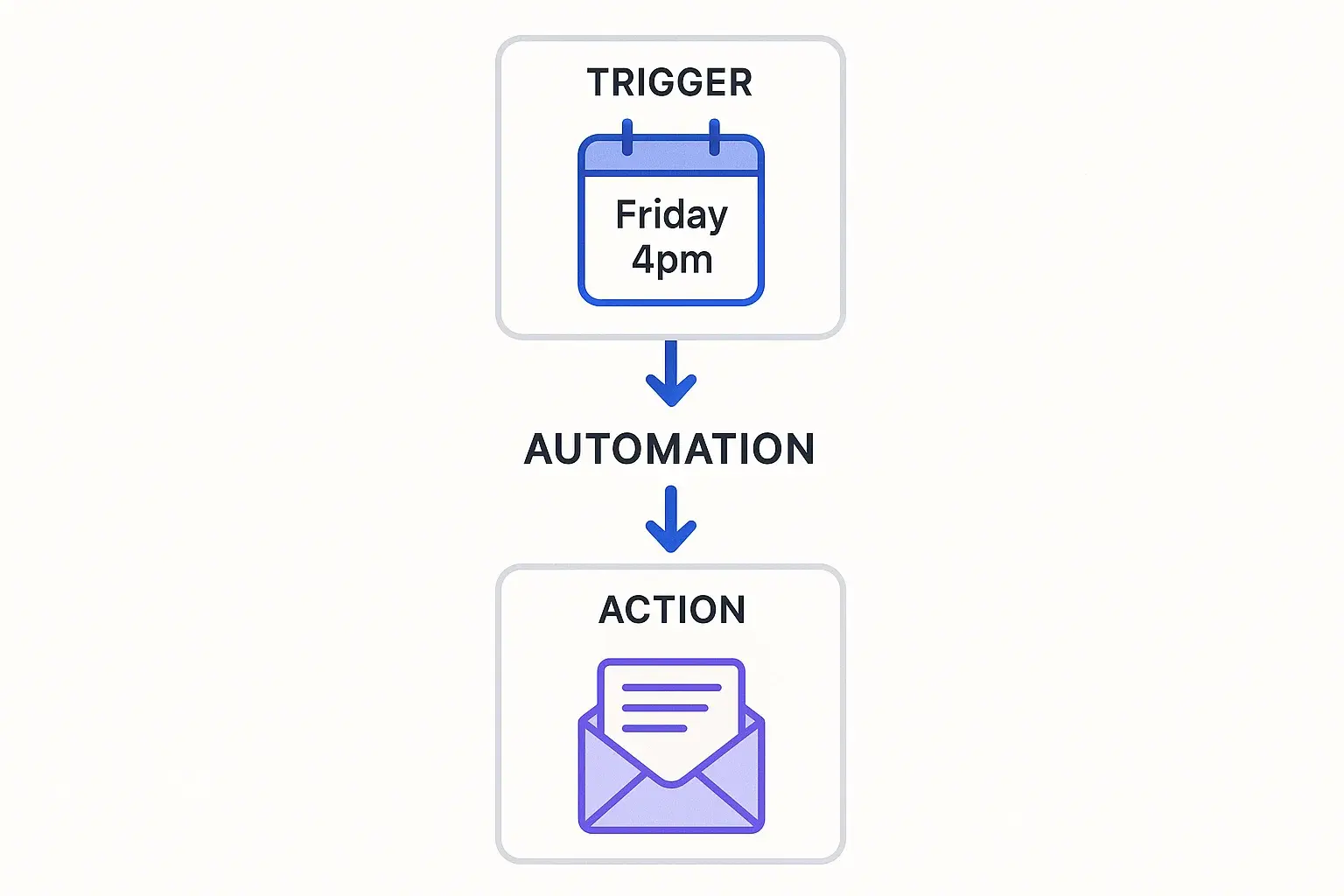
Managers who need consistent Friday updates without manually compiling task progress can deploy this automation for client projects where stakeholders expect weekly summaries. The system generates reports automatically, ensuring clients receive updates like clockwork without manual export or copy-paste work.
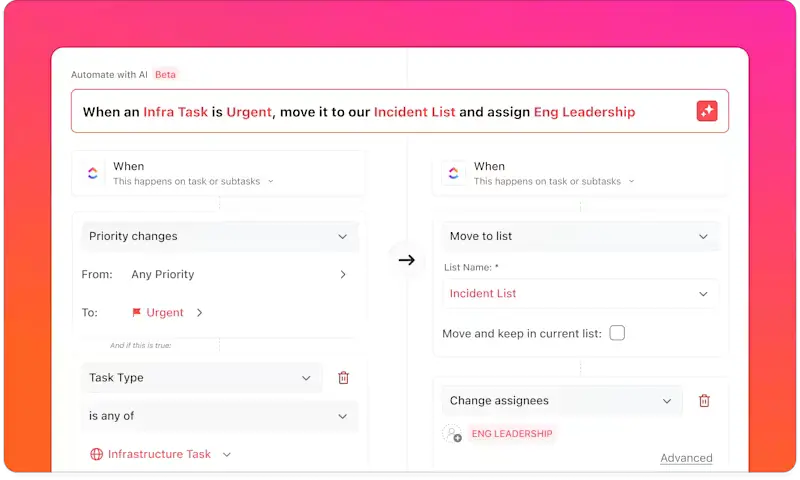
Automation Flow
- Trigger: Recurring schedule (every Friday at 4 PM)
- Conditions: Only include tasks in “In Progress” or “Done” status from the current week
- Actions: Generate summary of completed tasks, send email to specified recipients, optionally post to a Slack channel for visibility
Pro tip: Add a custom field for “Client-Facing” and only include those tasks in the email to keep internal work separate from external reporting.
2. Recurring Sprint Setup Automation
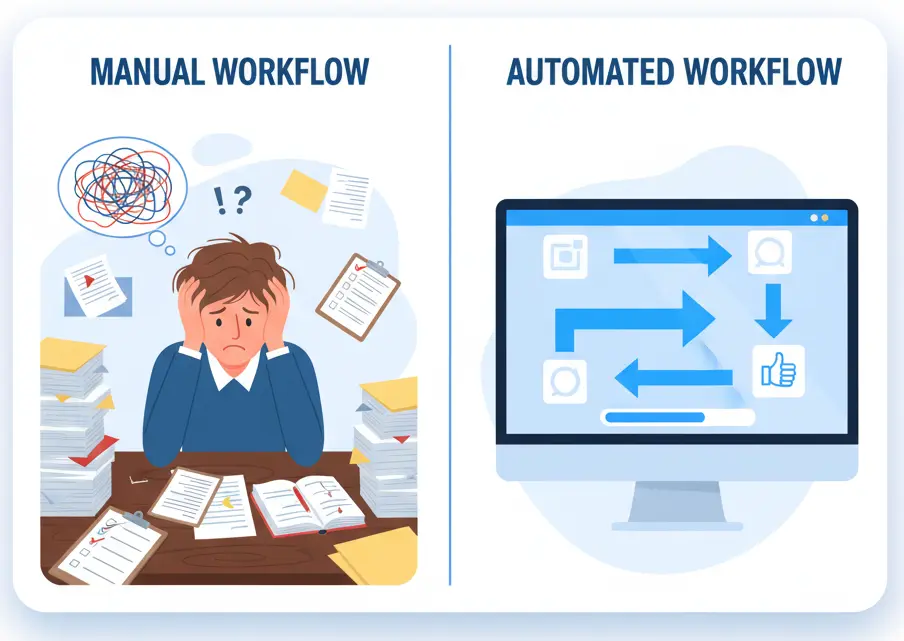
Agile teams running two-week sprints waste 20 minutes every cycle creating folders, lists, and baseline tasks. This automation builds the entire sprint structure automatically—generating standard lists, creating recurring tasks for planning and retrospectives, and assigning sprint leads without manual intervention.
3. Slack New Task Alerts
Distributed teams who live in Slack often miss ClickUp notifications, especially for high-priority projects where instant visibility is critical. This automation posts messages to designated Slack channels immediately when new tasks are created, including task name, assignee, due date, and direct link for one-click access.
Configuration Example
Response time drops from hours to minutes when notifications cut through inbox noise. Different emojis for priority levels (🔥 for urgent, ⚡ for high, 📋 for normal) help teams scan alerts visually without reading full descriptions.
Want instant Slack visibility for your team?
Connect ClickUp to Slack in 60 Seconds →4. Client Onboarding Task Sequence
Agencies and service businesses with standardized onboarding processes need systematic workflows to ensure nothing falls through the cracks when bringing on new clients. This automation creates sequential tasks, assigns them to appropriate team members, and sets due dates with proper spacing to deliver consistent white-glove experiences.
5. Time Tracking Reminder Automation
Teams that bill hourly or need accurate time data for capacity planning eliminate the “forgot to log time” problem with gentle daily reminders. This automation checks for tasks marked “In Progress” or “Done” without time entries and adds comments tagging assignees to improve billing accuracy.
Time entry compliance went from 60% to 95% within two weeks when implementing end-of-day reminders. Scheduling reminders for end-of-day rather than task completion works better since people often wrap up multiple tasks and log time in batches.
Boost your time tracking compliance and recover lost billable hours
Start Automating with ClickUp →6. AI-Powered Project Summary
Project managers presenting to executives or closing out complex initiatives can generate intelligent summaries without manual compilation using ClickUp’s AI features. The system analyzes all tasks, comments, and time data to create executive summaries highlighting key metrics, blockers overcome, and team performance automatically.
The AI-generated summary pulls context that would take an hour to compile manually, identifying patterns and highlighting major milestones in narrative form that executives prefer. For more details on leveraging ClickUp’s AI capabilities, see the ClickUp AI API Guide.
7. Overdue Task Escalation
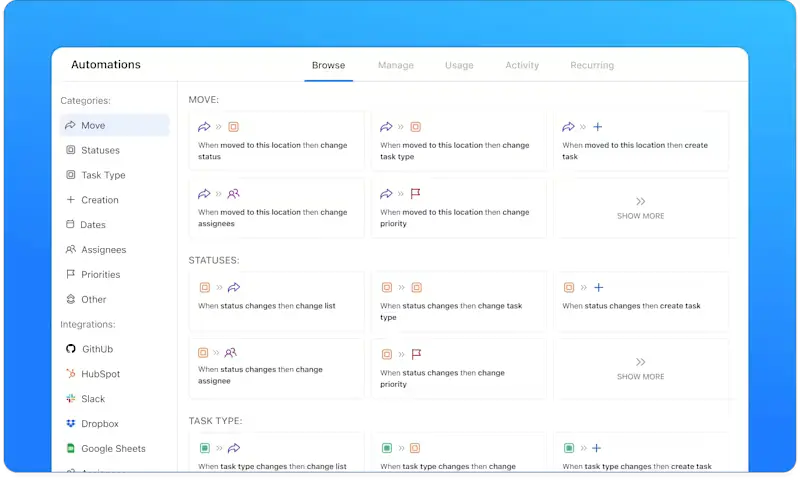
Leaders managing multiple projects need visibility into stalled work before it becomes a crisis. Automatic escalation prevents things from falling through cracks by changing priority levels, assigning to team leads for review, and sending notifications to both assignees and managers when tasks become two days overdue.
This creates healthy accountability without micromanagement—assignees get a nudge, managers get visibility, and leaders can review escalations in one filtered view rather than checking every task manually. Tasks marked “Blocked” should pause the escalation timer to avoid spamming people about delays outside their control.
8. Campaign Launch Checklist Generator
Marketing teams running recurring campaigns with standardized pre-launch workflows eliminate the “Did we remember everything?” panic with auto-generated checklists. This automation creates sequential tasks assigned to appropriate functions, sets due dates working backward from launch date, and establishes dependencies so tasks complete in proper sequence.
Launch campaigns flawlessly—never miss a critical task again
Automate Your Marketing Workflows →9. Form-to-Task Pipeline
Teams fielding external requests like IT support tickets, content requests, or bug reports need structured intake that immediately becomes actionable work. This automation creates tasks from form data, auto-populates custom fields, assigns to appropriate team members based on selections, and adds requesters as watchers for updates.
Requests go from submission to assigned work in seconds. The requester gets immediate confirmation, and the right specialist sees it in their queue without manual routing. Using conditional logic in forms to show or hide fields based on previous answers keeps forms short while capturing necessary detail.
10. Resource Allocation Alerts
Managers balancing team capacity across multiple projects need warnings before people become overloaded or deadlines pile up. This automation performs daily scans of assigned tasks per team member and creates capacity review tasks for managers when individuals have 10+ active tasks or total estimated hours exceed 40 per week.
Checking these alerts every Monday morning enables proactive workload management. Combining this automation with ClickUp’s Workload view helps visualize capacity and make reallocation decisions in real time before team members reach burnout levels.
Best Practices for ClickUp Automations
Start simple and test rigorously by building each automation with one trigger and one action first. Test on sample projects before deploying across entire workspaces—elaborate 8-step automations often fail because one condition was configured incorrectly.
Use conditions liberally by adding filters like “only if priority = High” or “only for tasks in List X” to prevent spam. Teams stop trusting automations when they trigger too often or inappropriately, so precise targeting maintains credibility.
Integrate with existing tools since ClickUp’s power multiplies when connected to Slack, Google Calendar, email, and other platforms teams already use. Route information to where people actually look rather than where it lives in project management systems alone.
Document automations by creating a simple reference listing what each automation does and who to contact if it misbehaves. This documentation prevents confusion about automatic task reassignments when onboarding new team members.
Common Pitfalls to Avoid
Automation overload occurs when teams create 40+ automations resulting in tasks that trigger 5 different actions simultaneously. Users get bombarded with notifications and lose trust in the system—aim for 10-15 high-impact automations rather than automating every minor workflow.
Ignoring permissions causes automations to fail silently when trying to assign tasks to people who don’t have access to specific Spaces or Lists. Always test with actual user accounts rather than admin accounts that bypass permission restrictions.
Not communicating changes leads to misunderstandings when deploying new automations that affect how people work. A simple announcement prevents team members from thinking they’re being micromanaged when escalation automations launch unexpectedly.
Build Your Self-Managing Workflow
The automations shared represent years of iteration across different team sizes and project types. Choose the 2-3 workflows that solve the biggest pain points rather than implementing all 10 simultaneously—incremental deployment builds confidence and allows for refinement.
ClickUp’s automation engine provides the ability to scale decision-making and oversight across more projects than humanly manageable alone. The system enforces consistency, catches forgotten details, and keeps work moving even when attention is focused elsewhere, creating a self-managing operations engine that multiplies impact.
Automate your team in 10 minutes and deploy these workflows today
Start Your Free ClickUp Trial Now →Frequently Asked Questions
Can I automate with a free ClickUp plan?
ClickUp’s free plan includes 1 automation per workspace, which is enough to test the concept but not sufficient for meaningful implementation. The Unlimited plan ($7/user/month) includes unlimited automations and is recommended for serious workflow automation. Business and Enterprise plans add advanced features like conditional logic and AI-powered actions.
Do ClickUp automations work with integrations like Slack?
Yes, ClickUp connects with Slack, Microsoft Teams, Google Calendar, Gmail, Zapier, and 1,000+ other tools. Automations can trigger based on external events like form submissions and push outputs to wherever teams actually work. The Slack integration is particularly robust for real-time notifications and task updates.
Is my data secure when using automations?
ClickUp automations run within existing permission structures—they can only access data and spaces that the automation creator can access. The system doesn’t expose data outside workspaces unless explicitly configured to send emails or post to external channels. ClickUp maintains SOC 2 Type II certification and complies with GDPR requirements.
What happens if an automation fails or creates an error?
ClickUp logs all automation activity so users can review what triggered and what actions executed. If an automation fails (for example, trying to assign to a non-existent user), it fails silently rather than creating duplicate tasks or broken workflows. Failure details appear in automation logs for troubleshooting.
Can I temporarily disable automations without deleting them?
Every automation has a toggle switch to enable or disable it without deletion. This is useful when running special projects that would trigger unwanted automations or when testing new workflows. Disabling automations during major workspace reorganizations prevents them from interfering with manual changes.