ClickUp 4.0 Review: Worth It in 2025? (Honest)
I’ve spent 15 years reviewing digital tools, and I’m tired of the hype.
Every software company claims their “revolutionary update” will change how you work. Most of the time? It’s just a new coat of paint with a few tweaks nobody asked for.
So when ClickUp announced version 4.0, promising to consolidate tasks, chat, docs, video, and AI into one platform, I rolled my eyes. Another “all-in-one” tool that does everything poorly instead of one thing well?
I decided to test it anyway and I’ll admit, I was completely wrong.
After three weeks of daily use managing my business and client projects, ClickUp 4.0 isn’t just an update. It’s genuinely the first project management platform that made me cancel five other subscriptions without regret.
Let me show you why and more importantly, whether it’s actually worth your time and money.
Quick Navigation
- What Is ClickUp 4.0, Really?
- The Interface Overhaul: Three Sidebars
- My Tasks: Personal Workspace
- The Planner: AI Time Blocking
- Chat: Internal Communication
- SyncUp: Video Calls
- Ambient AI Agents
- What I Actually Love
- What Needs Improvement
- Who Should Use ClickUp 4.0
- Pricing Breakdown
- How to Get Started
What Is ClickUp 4.0, Really?
Strip away the marketing speak, and here’s what ClickUp 4.0 actually is: a unified workspace that combines your task management, team chat, documents, video calls, calendar, and AI assistants into a single interface.
The core promise? End “work sprawl” that exhausting routine of bouncing between Slack for messages, Asana for tasks, Google Docs for collaboration, Zoom for meetings, and Calendly for scheduling. All while losing your mind trying to remember which conversation happened where.
ClickUp CEO Zeb Evans calls work sprawl “the silent killer of productivity,” and honestly? He’s not wrong. Research shows the average knowledge worker switches between apps 1,200 times per day. That’s not a typo 1,200 times. Every switch costs 15-20 minutes of focus time.
ClickUp 4.0’s solution: converge everything into one platform so you never have to context switch again.
Sounds ambitious. Does it actually work? Let’s dig in.
The Interface Overhaul: Three Sidebars That Actually Make Sense
The first thing you’ll notice is the completely redesigned navigation. ClickUp 4.0 introduces three distinct sidebar areas:
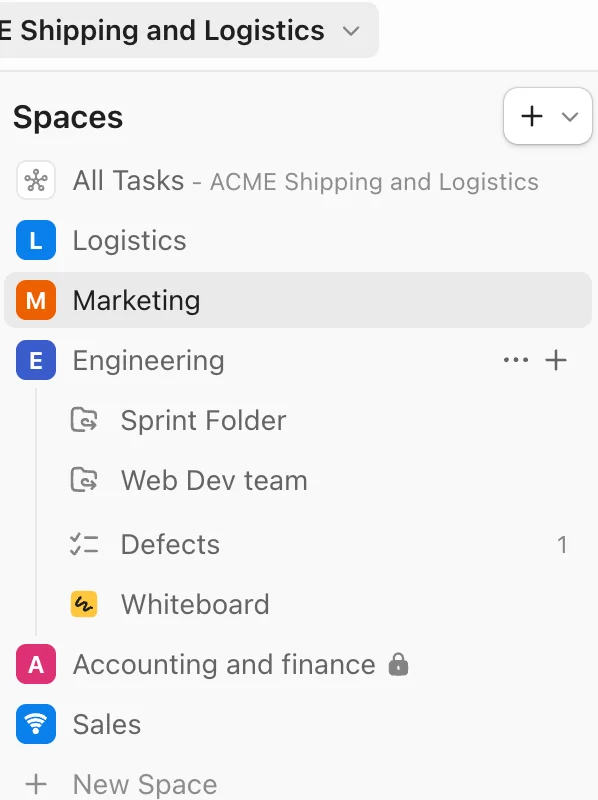
1. Global Navigation: Your Command Center
This vertical bar lives on the left side of your screen and stays open no matter where you are in ClickUp. It’s your instant access point for:
- Chat
- AI Sidebar
- Planner
- Hubs (Docs, Goals, Dashboards)
- App Center
You can pin or unpin features based on what you actually use. I’ve pinned Chat, AI, and the Planner everything else stays in the “More” menu to reduce clutter.
Why this matters: You’re never more than one click away from any tool. Need to check a chat message while reviewing a task? Click Chat. Want AI to summarize something? Click AI. No opening new tabs, no losing your place.
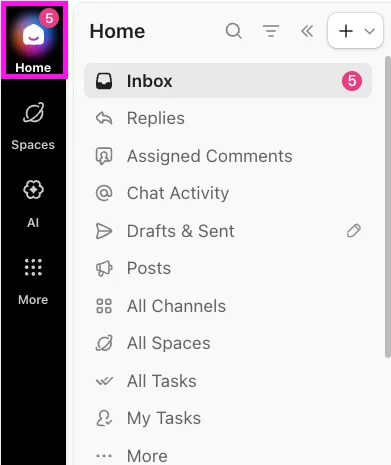
2. Home Sidebar: Your Personal Dashboard
This is your personalized command center, showing:
- Inbox (notifications and reminders)
- Chat Activity
- Drafts and Sent messages
- All Channels
- My Tasks
The killer feature? You can completely customize it. Pin and unpin sections, create custom sections with emojis, reorganize everything to match how you work. You can even filter to show only unread messages or DMs.
I’ve created custom sections for “Urgent Today,” “Client Projects,” and “Content Pipeline.” Every morning, I open the Home Sidebar and immediately see what needs my attention no hunting, no guessing.
3. Spaces Sidebar: Your Team Structure
This sidebar focuses on your organizational hierarchy Spaces, Folders, Lists, and tasks. It’s where you navigate your team’s work structure and create new items.
The verdict on the three-sidebar approach: I was skeptical at first. Three sidebars seems like overkill. But after a week, it clicked. Each sidebar has a clear purpose, and they work together seamlessly. Global is for tools, Home is for you, Spaces is for teams.
My Tasks: Finally, A Personal Workspace That Works
ClickUp renamed “Home” to “My Tasks,” and this is way more than a cosmetic change. My Tasks now includes three dedicated pages:
Assigned to me: Every task on your plate in one consolidated view. No more hunting through different projects to remember what you’re supposed to be doing.
Today & Overdue: Shows your My Work and Agenda cards what needs attention right now. I check this every morning before looking at anything else.
Personal List: This is the secret weapon. It’s a private workspace that functions like a regular List, but it’s yours alone. You can add multiple views, create custom fields, and organize it however you want.
I use my Personal List as my daily capture system. Random ideas, tasks that don’t belong in team projects yet, personal reminders everything goes here first. Then I process it weekly and move items to appropriate team projects.
It’s like having a personal assistant that never loses track of anything.
The Planner: AI That Actually Blocks Time For You
Here’s where ClickUp 4.0 starts feeling genuinely different from other tools.
The Planner isn’t just another calendar view. It’s an AI-powered time-blocking assistant that analyzes your high-priority tasks and automatically suggests when you should work on them.
I tested this by marking 8 tasks as “high priority” on Monday morning. By Tuesday, the Planner had:
- Analyzed my calendar
- Identified open time blocks
- Suggested specific windows for each task
- Even adjusted when meetings got added
I didn’t have to manually block time or shuffle things around. The AI did it for me.
But here’s the real magic: The Planner integrates with your actual calendar. It sees your meetings, your blocked time, your work patterns and plans around them intelligently.
For someone like me who struggles with time management, this is borderline life-changing. I’m spending less time planning my day and more time actually doing the work.
Chat: Internal Communication That Doesn’t Suck
Let’s be honest most built-in chat features in project management tools are terrible. They’re afterthoughts, clunky add-ons that nobody actually uses because Slack exists.
ClickUp 4.0’s Chat is different. It’s genuinely good enough to replace Slack for most teams.
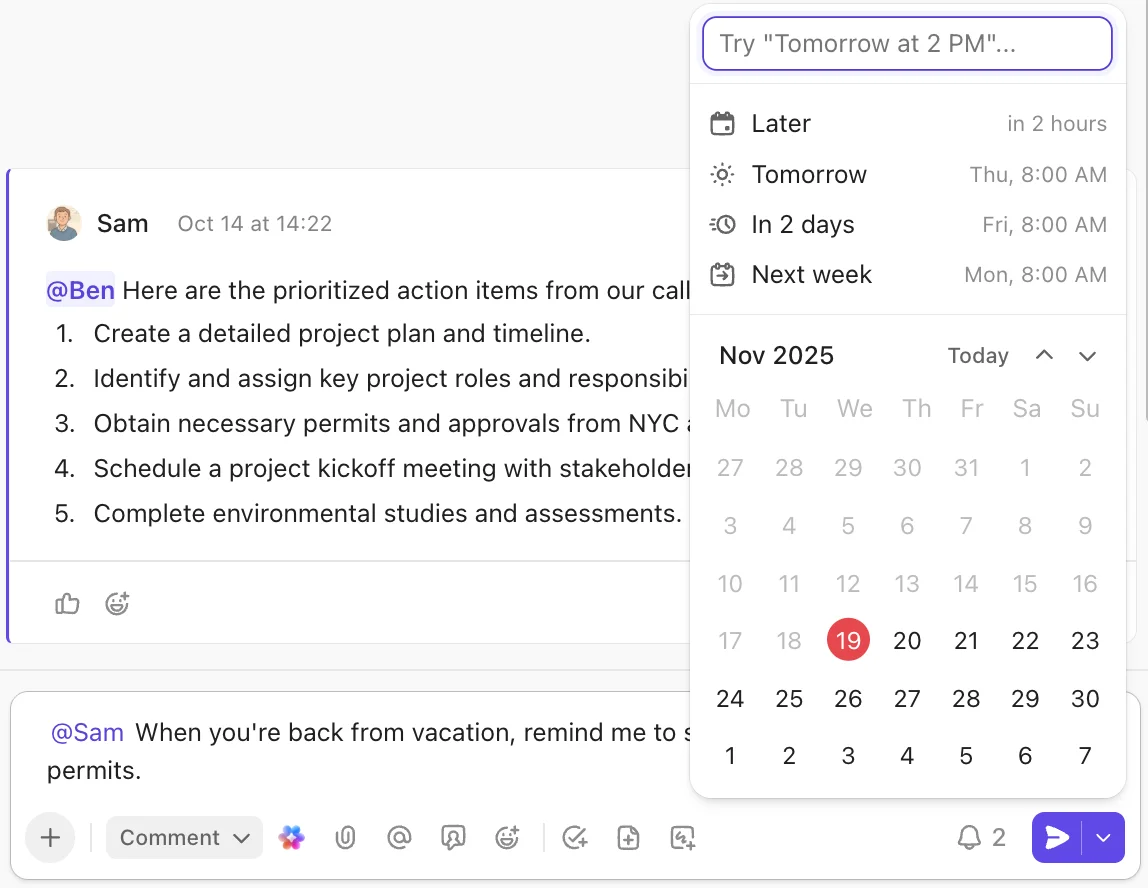
New features in 4.0:
- Schedule messages to be sent later (perfect for respecting time zones)
- Message channels via unique email addresses for each channel
- Save messages for later and they appear in your Inbox’s Later tab
- Add cards to channels to surface important bookmarks and notes
- Assigned Comments page to see every message directed at you across your entire workspace
But the killer feature is this: ClickUp AI can summarize entire chat threads.
I tested this on a 47-message conversation about a website redesign. The AI summary captured the key decisions, action items, and open questions in three sentences. That’s hours of reading time saved.
Even better? You can ask ClickUp Brain questions like “What did the team decide about the homepage design?” and it’ll search through all your chats, tasks, and docs to give you a contextualized answer.
SyncUp: Video Calls That Actually Connect to Your Work
Native video calling (SyncUp) is now built directly into ClickUp, accessible right from Chat.
“Great,” you’re thinking. “Another Zoom clone.”
Not quite. Here’s what makes SyncUp different:
The AI Notetaker records and transcribes your meetings automatically. It pulls out:
- Meeting summaries
- Key takeaways
- Action items
- Decisions made
Then and this is the part that matters it instantly converts those action items into ClickUp tasks and assigns them to the right people.
I tested this with a 45-minute strategy meeting. We discussed 8 different action items across multiple projects. By the time the meeting ended, all 8 were already created as tasks, assigned to team members, with context from the meeting attached.
Zero post-meeting admin work. No more “let me send you the notes and action items later.”
The transcripts are fully searchable via ClickUp Brain, so you can ask “What did Sarah say about the Q1 budget?” and it’ll find the exact moment in the meeting.
Redesigned Tasks & Docs: Cleaner, Faster, Better
Tasks in ClickUp 4.0 feature:
- Collapsible sections so you’re not overwhelmed
- Redesigned right sidebar for comments, activity, integrations, and relationships
- Cleaner layout that makes it easier to see what’s happening at a glance
Docs got similar treatment comments now live in the right sidebar instead of cluttering the document.
You can also schedule comments and emails to be sent at specific dates and times. I use this constantly. I’ll review someone’s work late at night, write feedback, then schedule it to send at 9 AM when they’re actually online. No more accidentally waking up team members with Slack notifications.
The mobile app automatically updates to the 4.0 layout if your workspace is on 4.0. The mobile experience is genuinely usable now something I couldn’t say about version 3.0.
The Real Game-Changer: Ambient AI Agents
Everything I’ve mentioned so far is good. Solid improvements to an already powerful platform.
But this next feature is what separates ClickUp 4.0 from every other project management tool on the market:
Ambient AI Agents.
These aren’t chatbots you have to prompt. They’re intelligent agents that run in the background, monitoring your workspace and proactively helping without being asked.
What Ambient AI Agents Actually Do:
- Listen for questions in chat and automatically provide rich, contextualized answers
- Surface real-time insights and actionable recommendations
- Generate weekly project updates automatically
- Respond to team questions using data from your entire workspace
- Integrate with 20+ external apps like Google Drive, GitHub, and Salesforce for complete context
Here’s a real example from my own workspace:
I set up an agent to monitor our content calendar project. A team member asked in chat: “What’s the status on the Q1 campaign?”
Within 30 seconds, the agent responded with:
- 12 completed tasks
- 5 in-progress items
- 2 blockers (with details)
- Next 3 action items needed
I didn’t do anything. The agent was just monitoring the project, understood the question, and provided a comprehensive answer with full context.
This is what AI should be working in the background, surfacing information when needed, without requiring constant prompting and management.

ClickUp Brain: Your AI Assistant Everywhere
ClickUp Brain (the core AI assistant) is now accessible from:
- The toolbar
- Chat
- Location headers
- The /Slash command
It can:
- Provide real-time project summaries without you opening tasks
- Draft project plans based on your requirements
- Answer questions across your entire workspace
- Perform Deep Search to find information buried in docs and tasks even years-old content
The AI now supports multiple models: GPT-5, Opus 4.1, o3, and o1-mini. You can choose which model to use depending on the complexity of the task.
For simple questions, I use the faster models. For complex strategic planning or content creation, I use GPT-5 or Opus 4.1.
Experience Ambient AI Agents yourself – try ClickUp 4.0 free
Get Started NowWhat I Actually Love About ClickUp 4.0 (The Real Benefits)
1. I’ve Consolidated 5 Tools Into One
Since switching to ClickUp 4.0, I’ve eliminated:
- Asana ($13.49/user/month) – Task management
- Slack ($8.75/user/month) – Team chat
- Notion ($10/user/month) – Knowledge base and docs
- Loom ($15/month) – Async video (now using ClickUp Clips)
- Calendly ($12/month) – Meeting scheduling (now using Planner)
Total savings: $59.24 per user per month
For my 6-person team, that’s $355.44/month or $4,265.28/year in subscription costs eliminated.
But the real value isn’t the money it’s the cognitive overhead of not context-switching between 5 different tools anymore.
2. The AI Is Actually Useful (Not Just Marketing Hype)
I’ve tested every AI project management feature out there. Most feel like gimmicks you spend more time prompting the AI than you’d spend just doing the work yourself.
ClickUp’s AI especially the Ambient Agents genuinely saves time because it works proactively. I’m not constantly asking it questions. It’s monitoring my workspace and surfacing insights when they’re relevant.
3. Customization Without Overwhelming New Users
ClickUp has always been criticized for being “too complex” and “overwhelming for beginners.”
Version 4.0 strikes a better balance. You can customize heavily if you want, but the default settings are sensible enough that small teams can get started without a degree in ClickUp-ology.
I onboarded a new team member last week. She was up and running in about 2 hours that’s a massive improvement from the 2-3 day learning curve in version 3.0.
4. The Converged Navigation Actually Works
I was skeptical about the three-sidebar approach. It seemed like overkill.
But in practice, it’s intuitive. After a day or two, your muscle memory kicks in:
- Need a tool? Global Navigation.
- Need your personal stuff? Home Sidebar.
- Need team structure? Spaces Sidebar.
It’s logical, and it keeps everything accessible without cluttering the interface.
What Still Needs Improvement (The Honest Downsides)
1. Learning Curve for New Users (Still Real)
Even with improvements, ClickUp is not simple. If you’re migrating from Monday or Trello, expect a 2-3 week adjustment period.
The power and flexibility come at the cost of complexity. Small teams (under 5 people) should seriously consider whether they need this level of capability.
2. AI Credit System Could Get Expensive
Here’s the pricing reality most reviews won’t tell you:
- Manual AI usage (things you trigger yourself like AI writing or Brain searches) is unlimited with the AI Standard add-on
- Automatic AI usage (Ambient Agents running in the background) consumes credits based on activity
If your agents are particularly active answering lots of questions, generating frequent updates credits can burn quickly.
My recommendation: Monitor your credit usage carefully in the first month. You’ll quickly see whether your usage patterns are sustainable or if you need to adjust agent settings.
3. Not Available to All Existing Workspaces Yet
New workspaces get ClickUp 4.0 automatically. But existing workspaces need to request access from ClickUp support.
This tells me they’re still working out bugs. If you’re running critical business operations, I’d recommend testing in a sandbox workspace first before migrating your entire team.
4. Some Long-Requested Features Still Missing
The community has been asking for nested folders (folders within folders) for years. ClickUp says it’s “coming soon,” but it’s not here yet.
If you’re a power user with complex organizational needs, some features you might expect are still pending.
Who Should Actually Use ClickUp 4.0?
After three weeks of intensive testing, here’s my honest assessment of who this tool is for (and who should skip it):
Perfect For:
- Medium to large teams (10-100+ people) drowning in tool sprawl
- Fast-growing startups that need scalability
- Remote-first companies needing async communication
- Teams with complex workflows like marketing agencies or software development
- Organizations already using ClickUp 3.0
Not Ideal For:
- Solo entrepreneurs or tiny teams (1-3 people)
- Budget-conscious teams worried about costs
- Teams needing immediate stability
- Organizations preferring best-of-breed tools
- Teams that hate complexity
Perfect fit? Start your free ClickUp 4.0 trial here
Create Free AccountClickUp 4.0 Pricing: What You Actually Need to Know
Let’s talk real numbers because pricing can get confusing:
Base Plans:
- Free Forever: $0 (great for personal use or testing)
- Unlimited: $7/user/month (most popular for small teams)
- Business: $12/user/month (for mid-size teams)
- Enterprise: Custom pricing (large organizations)
AI Add-On Costs:
- Manual AI usage is unlimited with the AI Standard add-on
- Automatic AI usage (those amazing Ambient Agents) consumes credits
- All workspaces get an AI trial period, after which you need a paid plan + AI add-on
My Recommendation:
Start with the Unlimited plan ($7/user/month) + AI add-on for one month. Track your AI credit consumption closely.
If your agents are burning through credits faster than expected, you’ll know within the first week and can adjust settings before costs get out of hand.
For most teams, the cost savings from eliminating other tools ($50-100/user/month) will more than cover ClickUp’s pricing.
See current pricing and start your free trial
View PricingHow to Get Started with ClickUp 4.0 (The Right Way)
I’ve helped dozens of teams migrate to ClickUp. Here’s the approach that actually works:
Step 1: Create a Free Account
Start with a new workspace (it’ll have 4.0 automatically). Spend a day exploring with no pressure. Click everything. Break things. Learn the interface.
Step 2: Import ONE Project (Not Everything)
Don’t migrate your entire company on day one. Import a single, active project from your current tool.
Use real work to learn how ClickUp handles tasks, docs, and communication. This way, you’re learning while being productive.
Step 3: Set Up Your First Ambient Agent
Create an agent to monitor that project. Have it answer questions or provide status updates automatically. This is where you’ll see the real value of ClickUp 4.0.
Step 4: Add Your Team Gradually
Once you’re comfortable (usually after 1-2 weeks), invite your team one department at a time:
- Marketing first
- Then product/operations
- Then engineering/technical teams
This prevents everyone from being overwhelmed simultaneously.
Step 5: Monitor AI Credit Usage
After the first week, check your AI credit consumption. If it’s higher than expected, adjust your agent settings or prompts to be more efficient.
Step 6: Consolidate Other Tools
Once ClickUp is running smoothly for core work, start migrating:
- Chat from Slack
- Docs from Notion/Google Docs
- Video from Zoom/Loom
- Calendar from Calendly/Google Calendar
Do this gradually one tool every 2-3 weeks.
Common Questions About ClickUp 4.0 (Answered Honestly)
Q: Is ClickUp 4.0 really better than Asana, Monday, or Notion?
For teams of 10+ people dealing with tool sprawl? Yes, absolutely. The convergence approach and AI features are genuinely differentiated.
For small teams or solo users? Maybe not. Simpler tools might serve you better. For more insights on how it compares, check out our detailed ClickUp review.
Q: How long does it take to learn ClickUp 4.0?
Basic functionality: 2-3 hours. Comfortable daily use: 1-2 weeks. Power user mastery: 4-6 weeks.
The learning curve is real but manageable if you follow the gradual rollout approach I outlined above.
Q: Can ClickUp 4.0 actually replace Slack?
For internal team communication? Yes, for most teams.
For external communication with clients or partners? You’ll probably still need Slack or email.
The Chat functionality is solid, but Slack’s network effects (everyone’s already on it) are hard to overcome for external conversations.
Q: What about data security and compliance?
ClickUp is:
- GDPR compliant
- ISO 42001 certified
- HIPAA compliant
- AICPA SOC 2 certified
Third-party AI providers don’t store or learn from your information. For most businesses, the security is enterprise-grade and sufficient.
Q: What if I hate it after signing up?
You start with a free plan no credit card required. Test it risk-free.
If you upgrade to a paid plan and decide it’s not for you, ClickUp has a straightforward cancellation process. No long-term contracts on the Unlimited or Business plans.
My Final Verdict: Is ClickUp 4.0 Worth It in 2025?
I’ve tested every major project management platform over 15 years: Asana, Monday, Notion, Jira, Trello, Basecamp, Wrike, Smartsheet the complete list would take pages.
ClickUp 4.0 is the first platform that made me seriously consider consolidating my entire productivity stack into one tool.
The converged workspace approach works. The AI especially Ambient Agents is genuinely useful, not marketing fluff. And the ability to replace 5+ subscriptions with one platform is compelling both financially (saving $300-500/month for my team) and cognitively (no more context switching).
But it’s not perfect. The learning curve is real. AI costs need monitoring. And as with any major platform update released just weeks ago, there are occasional bugs.
Here’s My Recommendation:
If you’re a team of 10+ people currently juggling multiple tools, ClickUp 4.0 is absolutely worth testing. The time savings from reduced context switching alone will pay for itself within a month.
If you’re a solo entrepreneur or very small team (under 5 people), seriously evaluate whether you need this level of power. Sometimes simpler tools like Todoist, Things, or Notion are better fits.
If you’re currently using ClickUp 3.0, upgrade to 4.0. The improvements are substantial, and migration is straightforward.
Ready to Try ClickUp 4.0?
I’m using ClickUp 4.0 to run my business and manage all my client projects right now. The productivity gains are real, measurable, and consistent.
If you’re ready to eliminate tool sprawl and see if one platform can truly replace your entire productivity stack, start with their free plan and test it yourself.
Click here to create your free ClickUp 4.0 workspace (no credit card required)
Get Started FreeYou’ll get instant access to:
- The new converged workspace interface
- AI tools and Ambient Agents (trial period)
- All the features I covered in this review
- Unlimited tasks and users on the free plan
Pro tip: Once you create your account, spend your first hour exploring the Global Navigation. Click everything. Open every sidebar. The interface makes way more sense once you understand where each tool lives.
Need Help Getting Started?
I’ve helped dozens of teams migrate to ClickUp and optimize their workflows. If you have questions or want guidance on:
- Migrating from your current tool
- Setting up Ambient AI Agents effectively
- Optimizing your workspace structure
- Reducing AI credit consumption
Drop a comment below I read and respond to every one.
You can also check out my other in-depth guides on AI-powered productivity tools and automations. I’m constantly testing new solutions and sharing what actually works.
Start your ClickUp 4.0 free trial now
Try ClickUp FreeFull disclosure: This article contains affiliate links.