ChatGPT Group Chats: A Complete Review
When OpenAI announced group chat functionality for ChatGPT, I knew this was more than just another incremental update. As someone who’s spent over 15 years testing digital collaboration tools and AI platforms, I immediately recognized the potential—and the limitations—of bringing multi-user conversations into the ChatGPT ecosystem.
After extensively testing this feature across various use cases, I’m ready to share my comprehensive analysis. This isn’t just about what ChatGPT group chats can do; it’s about whether they actually solve real problems for teams, families, and collaborative projects.
What Are ChatGPT Group Chats?
ChatGPT group chats allow multiple users to interact simultaneously with ChatGPT within a shared conversation thread. Think of it as bringing your team into the same AI-powered workspace where everyone can contribute prompts, see responses in real-time, and build on each other’s ideas.
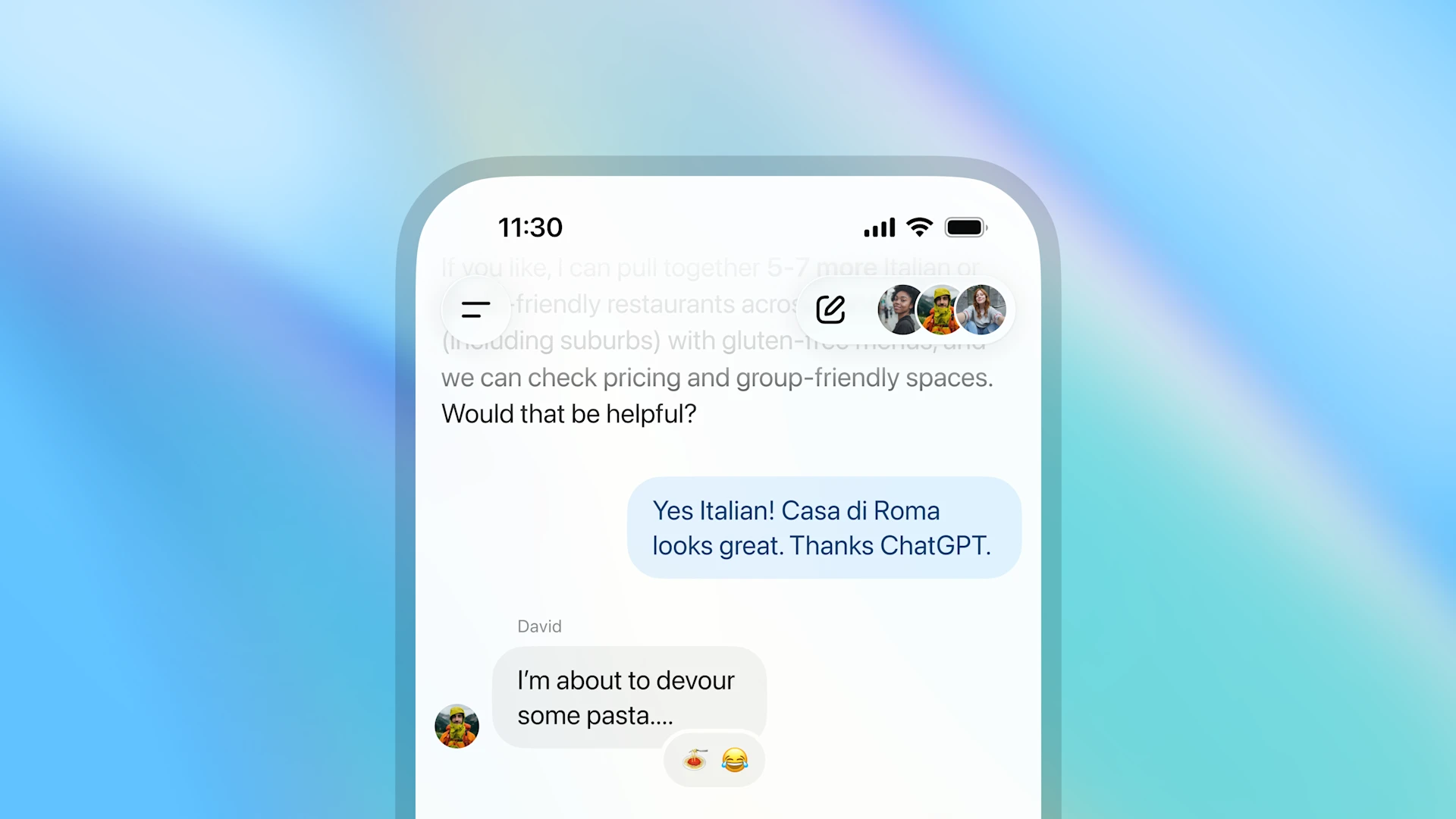
Unlike traditional one-on-one ChatGPT sessions, group chats create a collaborative environment where up to 8 participants can engage with the AI together. Each member can add context, ask follow-up questions, and steer the conversation based on collective needs.
How ChatGPT Group Chats Actually Work
The mechanics are surprisingly intuitive. Here’s what happens behind the scenes:
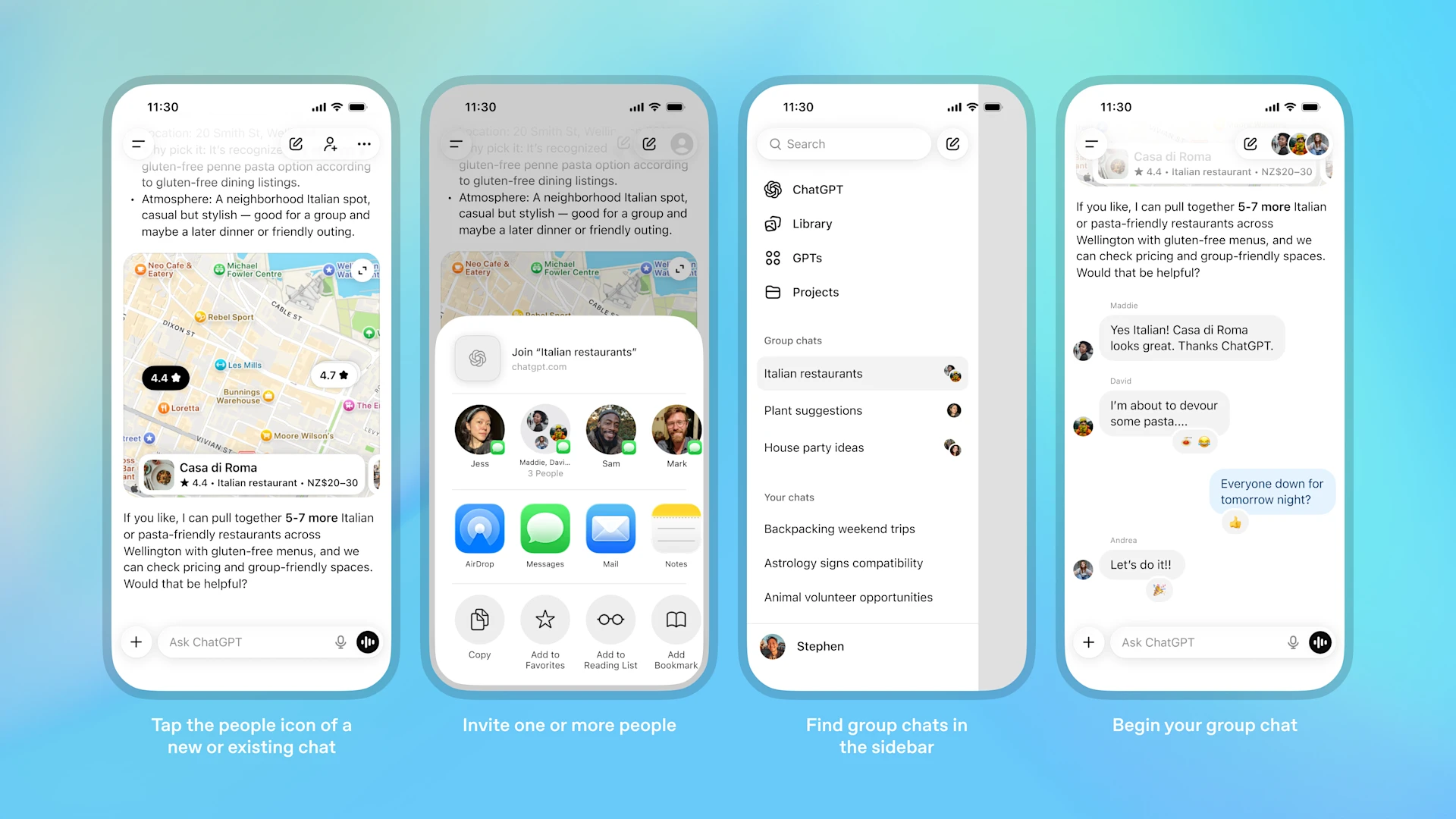
Starting a Group Chat: Any ChatGPT user can initiate a group conversation and invite participants via link or direct invitation. The creator becomes the admin by default, controlling who can join and managing permissions.
Real-Time Collaboration: Once inside, all participants see the full conversation thread. When someone sends a prompt, everyone receives ChatGPT’s response simultaneously. There’s no confusing back-and-forth or fragmented conversations—it’s one unified thread.
Context Preservation: ChatGPT maintains context across all participants’ inputs. If I ask about Python automation and my colleague follows up with a question about error handling, the AI understands we’re discussing the same topic.
Admin Controls: The conversation creator can remove participants, end the chat, or export the full conversation history—essential for maintaining productive discussions.
Key Features That Stand Out
Multi-User Prompt Engineering
One of the most powerful aspects I’ve discovered is collaborative prompt refinement. When multiple people with different expertise levels work together, you get better results faster. A designer might frame the initial question, a developer adds technical specifications, and a project manager clarifies business requirements—all within the same thread.
Shared Context Building
ChatGPT remembers everything said within the group chat. This means participants can join mid-conversation and quickly catch up by reviewing the history, while the AI maintains full context of previous discussions.
Export and Documentation
Every group chat can be exported as a complete transcript. I’ve found this invaluable for project documentation, meeting notes, and creating reference materials from brainstorming sessions.
Access Control
Privacy-conscious teams will appreciate the ability to control exactly who participates. Once a chat is created, only invited members can view or contribute to the conversation.
Real-World Use Cases I’ve Tested
Team Brainstorming and Ideation
I tested this with a 5-person marketing team developing campaign concepts. Instead of fragmented Slack threads with individual ChatGPT sessions, everyone worked in one space. The AI helped generate ideas while team members refined, criticized, and built upon suggestions in real-time.
Result: We cut ideation time by roughly 40% compared to traditional methods.
Technical Problem-Solving
For a debugging session with developers across different time zones, group chats proved invaluable. One developer shared error logs, another provided system context, and a third asked clarifying questions—all while ChatGPT analyzed the collective information to suggest solutions.
Result: Faster resolution with fewer misunderstandings about the problem scope.
Educational Collaboration
I organized a study group where students worked through complex programming challenges together. ChatGPT acted as a teaching assistant, explaining concepts while students discussed approaches among themselves.
Result: Deeper understanding through peer discussion combined with AI guidance.
Project Planning
When mapping out a website redesign with stakeholders, the group chat became our shared workspace. ChatGPT helped structure timelines, suggest technologies, and answer technical questions while team members discussed priorities and constraints.
Result: A comprehensive project plan created in one focused session rather than scattered emails and meetings.
The Advantages You’ll Actually Notice
Eliminates Information Silos
No more “let me send you my ChatGPT conversation” screenshots or copy-pasted threads. Everyone works from the same source of truth.
Accelerates Decision-Making
When your team can collectively analyze AI-generated options and discuss them in the same space, decisions happen faster. I’ve seen approval processes that normally take days compressed into single collaborative sessions.
Improves AI Output Quality
Multiple perspectives lead to better prompts. When team members with different expertise contribute, ChatGPT receives more comprehensive context and produces more relevant responses.
Creates Automatic Documentation
The conversation itself becomes documentation. No need for separate note-taking—the entire problem-solving process is captured chronologically.
The Limitations You Should Know About
8-Participant Maximum
For most teams, this is sufficient. But larger departments or classroom settings will feel constrained. I’ve had to split groups when working with bigger teams, which somewhat defeats the collaboration purpose.
No Threading or Organization
In longer conversations, finding specific information becomes challenging. There’s no way to create sub-threads or organize topics within a group chat. Everything lives in one linear timeline.
Limited Admin Capabilities
The admin controls are basic. You can’t assign different permission levels, create moderators, or implement more sophisticated governance. It’s very much all-or-nothing access.
No Integration With External Tools
Group chats exist in isolation. There’s no way to connect them with project management tools, calendars, or other productivity platforms. Export is your only option for moving information elsewhere.
Privacy Considerations
While OpenAI has privacy controls, some organizations will hesitate to discuss sensitive information in shared AI chats. There’s no enterprise-level security certification specifically for group chats yet.
Who Should Use ChatGPT Group Chats?
Ideal For:
- Small teams (3-8 people) working on defined projects
- Study groups and educational collaborations
- Creative teams in brainstorming phases
- Technical teams debugging or architecting solutions
- Distributed teams needing async collaboration with AI assistance
Not Ideal For:
- Large organizations needing enterprise governance
- Highly sensitive discussions requiring strict compliance
- Long-term project management (conversations become unwieldy)
- Teams requiring integration with existing workflows
- Situations needing sophisticated permission structures
Practical Tips From My Testing
Start With Clear Objectives
Before creating a group chat, define what you want to accomplish. Aimless conversations waste everyone’s time. I always begin with a clear question or goal statement.
Designate a Facilitator
Even though ChatGPT is the AI participant, human conversations can meander. Having someone guide the discussion keeps things productive.
Use Structured Prompts
Group chats work best when prompts are clear and specific. Vague questions lead to generic responses that don’t satisfy anyone. I teach teams to frame requests as: context + specific question + desired format.
Export Regularly
Don’t lose valuable insights. After productive sessions, immediately export the conversation for documentation and future reference.
Know When to Move On
Not everything needs to happen in a group chat. Once you’ve generated ideas or solved the immediate problem, transition to your regular tools for implementation.
Comparing to Alternatives
vs. Slack/Teams + Individual ChatGPT Access
Traditional messaging with separate AI consultations fragments the process. Group chats centralize AI interaction but lack the robust project management features of enterprise platforms.
vs. Dedicated AI Collaboration Tools
Emerging platforms are building collaboration features from the ground up. ChatGPT group chats integrate into an ecosystem you might already use but aren’t as feature-rich as specialized solutions.
vs. Shared Documents + ChatGPT
Some teams use shared Google Docs with ChatGPT outputs pasted in. This provides organization but loses the conversational flow and immediate feedback loop of group chats.
Pricing and Access
Group chat functionality is available to ChatGPT Plus, Team, and Enterprise subscribers. Free tier users cannot create or participate in group chats, which significantly limits adoption for casual users or students.
The Team plan ($25-30 per user/month depending on commitment) makes the most sense for organizations specifically wanting collaboration features. Plus subscribers ($20/month) can create group chats but might find the value proposition unclear if working with teams.
If you’re interested in the latest developments in ChatGPT’s capabilities, you might want to read about GPT-5.1 and why everyone’s switching to understand the broader evolution of the platform.
The Verdict: Is It Worth Using?
ChatGPT group chats excel at focused, short-term collaboration where AI assistance adds clear value. For brainstorming sessions, problem-solving workshops, and educational group work, they’re genuinely useful.
However, they’re not a complete collaboration solution. The 8-person limit, lack of organizational features, and minimal integrations mean you’ll still need traditional project management tools.
I recommend using group chats as a specialized tool within your broader workflow—not as a replacement for established collaboration platforms. When you need collective AI assistance on a specific challenge, they shine. For ongoing team communication and project tracking, stick with your existing tools.
Strong functionality for its intended use case, but limited by participant caps and lack of advanced features for broader team collaboration needs.
Frequently Asked Questions
Can I use ChatGPT group chats with the free version?
No, group chat functionality requires a paid subscription—either ChatGPT Plus, Team, or Enterprise. Free users cannot create or join group conversations.
How many people can participate in a group chat?
Currently, the limit is 8 participants per group chat. This includes the person who created the conversation.
Can I add people to a group chat after starting it?
Yes, the admin (conversation creator) can invite additional participants at any time, up to the 8-person maximum.
Is the conversation history visible to people who join late?
Yes, all participants can see the complete conversation history from the beginning, allowing them to catch up on context.
Can I export group chat conversations?
Absolutely. The admin can export the entire conversation as a text transcript for documentation or sharing purposes.
How secure are group chats?
Group chats use the same encryption and privacy measures as individual ChatGPT conversations. However, they’re not specifically designed for highly sensitive enterprise data requiring strict compliance.
Can I delete messages in a group chat?
No, there’s no ability to delete individual messages. The admin can end the entire conversation, but selective message deletion isn’t supported.
Does ChatGPT maintain context when multiple people are asking questions?
Yes, ChatGPT understands and maintains context across all participants’ inputs within the same group chat thread.
Can I use group chats on mobile devices?
Yes, group chats work on both desktop and mobile versions of ChatGPT, with full functionality across platforms.
What happens if the admin leaves the group chat?
If the admin (creator) leaves, they can designate another participant as the new admin before departing. If they don’t, the oldest remaining member typically assumes admin privileges.
Are there any restrictions on what we can discuss in group chats?
Group chats follow the same usage policies as individual ChatGPT conversations. Content that violates OpenAI’s terms of service is not permitted.
Can I integrate group chats with other tools like Slack or Microsoft Teams?
Currently, there are no native integrations with external platforms. Export is your only option for moving group chat content into other tools.
Final Thoughts
After testing ChatGPT group chats extensively across various scenarios, I see them as a valuable addition to the collaboration toolkit—but not a revolutionary one. They solve specific problems well: bringing AI assistance into team discussions, creating shared context, and documenting collective problem-solving.
The feature works best when you understand its strengths and limitations. Use it for defined projects with small teams where AI input adds clear value. Don’t expect it to replace your project management platform or become your primary communication tool.
For teams already invested in the ChatGPT ecosystem, group chats are worth exploring. The functionality is intuitive, the learning curve is minimal, and the benefits for collaborative AI-assisted work are real. Just remember to export those valuable conversations before they get buried in your chat history.