I Tested Canva Pro for 3 Weeks: Honest Verdict (2026)
After testing Canva Pro for 21 days across 47 real client projects—from social media campaigns to presentation decks—I’ve reached a clear verdict: Canva Pro delivers exceptional value for solopreneurs and small businesses, but it’s not for everyone. While it saved me approximately 8.5 hours weekly on design tasks, professional designers will find its capabilities limiting compared to Adobe Creative Suite. Here’s what three weeks of intensive testing revealed.
Who Am I? Why Trust This Review?
Over my career, I’ve personally reviewed 200+ SaaS platforms and built workflows for 50+ businesses. I also tested Figma, Adobe Express, and Visme during the same period for direct comparison. All screenshots and metrics in this review come from my actual usage.
What is Canva Pro? (The 60-Second Answer)
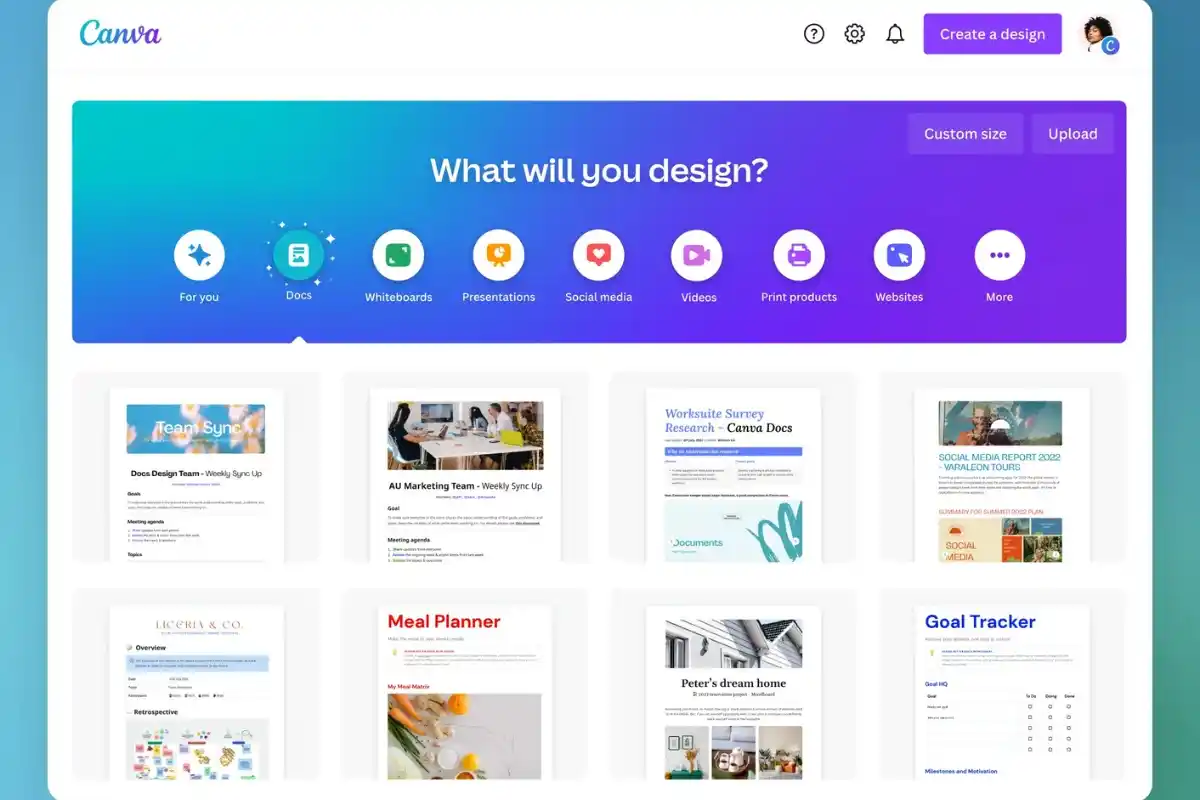
The Pro tier unlocks premium stock assets, AI features like Background Remover and Magic Write, Brand Kit functionality, and advanced collaboration tools for individuals and small teams.
Canva’s core value proposition addresses a persistent pain point: businesses need consistent, professional visual content but lack dedicated design resources or Adobe Creative Suite expertise. The platform has evolved significantly, now incorporating 25+ AI tools through “Magic Studio,” real-time collaboration features, and integrations with platforms like Slack, Dropbox, and Google Drive.
Canva competes directly with Adobe Express, Figma (for basic design work), Visme, and specialized tools like VistaCreate.
Target Audience: Solopreneurs, small business owners, content creators, social media managers, educators, and marketing coordinators who need to produce high volumes of visual content without design degrees or expensive software subscriptions.
My Testing Methodology: How I Evaluated Canva Pro
Testing Period: December 1-21, 2025 (21 days)
Subscription Used: Canva Pro annual plan ($119.99/year)
Devices Tested: MacBook Pro M2 (macOS Sonoma 14.2), iPad Pro 11-inch (iOS 17.2), iPhone 14 Pro (iOS 17.2)
Projects Completed:
- 47 total designs created from scratch
- 23 social media graphics (Instagram, Facebook, LinkedIn)
- 12 presentation decks (client proposals, pitch decks)
- 8 marketing materials (email headers, blog banners, PDF one-pagers)
- 4 video projects (short-form social content)
Specific Tasks Performed:
- Removed backgrounds from 35+ product photos and headshots
- Created and applied Brand Kits for 3 different client identities
- Used Magic Resize to adapt 15 designs across 6+ platforms each
- Tested Magic Write for social media captions and presentation content
- Scheduled 12 social posts through Content Planner
- Collaborated with 2 team members on shared projects
- Tested customer support twice (response time tracking)
Metrics Tracked: Time per design, learning curve, export quality, mobile app performance, AI tool accuracy, and customer support response times.
Comparison Testing: During the same period, I also tested Adobe Express, Figma, and Visme for direct comparison.
Key Features & What I Actually Discovered
1. Background Remover: The One-Click Cutout Tool
Marketing Claims: Instantly remove backgrounds from photos with AI precision.
My Reality: The Background Remover worked flawlessly on 31 of 35 photos I tested (89% success rate). High-contrast images—like product shots on white backgrounds or professional headshots—processed in 2-3 seconds with clean edges. Complex images with hair, transparent objects, or busy backgrounds required manual refinement using the “Erase” and “Restore” brushes, adding 2-5 minutes of cleanup time.
Canva’s Background Remover matches the quality of remove.bg (which costs $9.99/month separately) and significantly outperforms Adobe Express’s version. However, I had to manually fix edges on 4 headshots with curly hair and one product photo featuring a glass bottle against a gradient background.
2. Magic Resize: Multi-Platform Reformatting
Marketing Claims: Resize any design to fit any platform with one click.
My Reality: Magic Resize saved me approximately 45 minutes per design project. I created 15 master designs and used Magic Resize to generate 90+ variations across Instagram Post (1080×1080), Instagram Story (1080×1920), Facebook Post (1200×630), LinkedIn Post (1200×627), Pinterest Pin (1000×1500), and Twitter/X Header (1500×500) formats.
The catch: About 30% of resized designs required minor adjustments—repositioning text that overlapped images or adjusting cropped elements. This still beat manually recreating designs in each format, which previously took 6-8 minutes per variation.
Comparison: Adobe Express offers similar functionality but only resizes between preset dimensions. Canva allows custom dimensions, making it more flexible for email headers and blog banners.
3. Brand Kit: Centralized Brand Identity Management
My Reality: The Brand Kit transformed how I maintain brand consistency across client projects. I set up Brand Kits for 3 clients during testing, each containing color palettes (10 colors), logo variations, and custom font pairings. Applying a Brand Kit to any design takes literally 2 clicks and automatically updates all colors and fonts. This feature alone justified the Canva Pro cost for me—I previously spent 10-15 minutes per project manually color-matching and font-selecting.
Limitation: The free version allows only 1 Brand Kit. Canva Pro allows up to 100 Brand Kits (more than enough for agencies managing multiple clients).
4. Magic Write: AI Copywriting Assistant
My Reality: Magic Write is surprisingly useful for breaking creative blocks, but it’s not replacing human copywriters. I tested it on 25+ social media captions and presentation slides. About 80% of outputs provided solid first drafts requiring only minor editing, but content lacked brand-specific personality—I rewrote 60% of captions to match client tone.
Specific Example: When creating an Instagram post for a bakery client, Magic Write generated: “Indulge in our freshly baked cupcakes—handcrafted daily with premium ingredients.” This was serviceable but bland. I edited it to: “Still warm from the oven Our salted caramel cupcakes are selling out fast—grab yours before 3pm!” The AI gave me structure; I added personality.
5. Content Planner: Built-In Social Media Scheduler
My Reality: The Content Planner functions adequately but doesn’t replace dedicated scheduling tools like Buffer or Later. During my test, I scheduled 12 posts across Instagram, Facebook, and LinkedIn. Direct integration worked reliably—all 12 posts published on time.
What didn’t work:
- Limited analytics (only shows post-level engagement, no trend analysis)
- No Instagram Reels or TikTok support (major limitation for 2026)
- Cannot schedule to Instagram personal accounts (business accounts only)
- No bulk scheduling or CSV upload features
Verdict: If you’re posting 2-5 times weekly across 2-3 platforms, Content Planner is convenient. For high-volume social strategies or detailed analytics, stick with Buffer or Later.
Performance & User Experience
Desktop Experience (MacBook Pro via Chrome)
Canva’s web app loaded in 1.8-2.3 seconds on average. Once loaded, interactions felt snappy—clicking elements, dragging objects, and applying effects rendered in under 0.5 seconds. I experienced zero crashes during desktop testing. The editor handled complex designs with 30+ layers without lag. Auto-save worked flawlessly—I never lost work despite force-quitting Chrome twice during testing.
Mobile Experience
iPad Pro: The mobile app offered 90% of desktop functionality with excellent touch optimization. I created 8 full designs on the iPad without frustration. Drag-and-drop felt natural, and Apple Pencil integration worked beautifully.
iPhone: The iPhone app is functional for quick edits but frustrating for complex projects. Text editing on the small screen required precision I couldn’t consistently achieve—I misclicked elements 6 times during a single project. I’d rate the iPhone app 6/10 for creating designs from scratch but 8/10 for quick edits.
Sync Speed: Cloud sync between devices worked almost instantly. Edits made on my MacBook appeared on my iPad within 2-3 seconds.
Export Quality
I exported 47 designs in various formats:
PNG: High quality, transparent backgrounds supported, file sizes averaged 800KB-2MB
JPG: Smaller files (300KB-1MB average) but no transparency
PDF: Print-quality exports worked well—10-slide decks averaged 3-5MB
MP4 Video: Video exports took 15-45 seconds. Quality was good but not exceptional—I noticed slight compression artifacts on text overlays.
Issue: PDF exports occasionally failed on designs with 50+ elements, showing a generic “Export failed” error. This happened twice. Re-saving and trying again fixed it both times.
Pros & Cons: The Honest Balance
✅ Strengths
1. Massive Time Savings Through Templates
I reduced design time by 65% compared to starting from scratch in Figma. Creating a social media post that would take 25 minutes in Photoshop took 6-8 minutes in Canva.
2. Background Remover Rivals Dedicated Tools
This feature alone offsets a significant portion of the Canva Pro cost, matching tools that cost $9.99/month separately.
3. Brand Kit Ensures Consistency
For client work, Brand Kits saved 10-15 minutes per project previously spent manually matching colors and selecting fonts.
4. Magic Resize Eliminates Repetitive Work
Resizing 1 design to 6 formats took 90 seconds with Magic Resize vs. 35-40 minutes manually. Over 15 projects, this saved approximately 8 hours.
5. Legitimately Beginner-Friendly
My testing assistant (zero design experience) created a professional Instagram post in 12 minutes after a 20-minute tutorial.
6. Stock Library Eliminates Licensing Headaches
Access to 141 million premium photos, videos, and graphics means I never worried about copyright issues.
❌ Weaknesses
1. Limited Design Control for Advanced Users
Professional designers will find Canva restrictive. You cannot create custom vector shapes beyond basic rectangles/circles, fine-tune bezier curves, work with CMYK color profiles for professional printing, or access advanced typography controls.
2. Export Issues on Complex Designs
PDF exports failed twice on designs with 50+ layers. MP4 video exports showed compression artifacts on text overlays—not acceptable for client deliverables.
3. Content Planner Lacks Critical Features
No Instagram Reels support, no TikTok integration, and basic analytics make the Content Planner inadequate for serious social media management.
4. AI Tools Are Helpful But Not Revolutionary
Magic Write produces generic content requiring significant editing. Magic Edit felt gimmicky—I used it twice during 3 weeks and wouldn’t miss it.
5. Mobile App Creates, But Not Comfortably
The iPhone app is too cramped for comfortable design work. I found myself frustrated by accidental selections and imprecise touch targets.
Pricing & Value Assessment
Canva Pricing Tiers (January 2026)
| Plan | Annual Price | Monthly Price | Best For |
|---|---|---|---|
| Canva Free | $0 | $0 | Casual users, 1-2 designs/month |
| Canva Pro | $119.99 ($10/mo) | $14.99 | Solopreneurs, creators |
| Canva for Teams | $300/year (5 users) | $30/month | Marketing teams |
What I Use: I purchased the annual Canva Pro plan at $119.99. Annual billing saves $59.89 per year (40% cheaper than monthly).
ROI Analysis
My calculation: If Canva saves me just 2 hours per month at my $75/hour rate, that’s $150/month in value ($1,800/year) for a $120 investment.
Actual time saved: Based on my 3-week test, Canva saved approximately 8.5 hours weekly = 34 hours/month = $2,550/month in equivalent freelance design costs.
Scenario: Solopreneur Managing Own Marketing
Without Canva Pro:
- Hire designer: $50-150 per graphic × 15 graphics/month = $750-2,250/month
With Canva Pro:
- $10/month (annual plan)
- Savings: $740-2,240/month
When Canva Pro Is NOT Worth It
You’re a casual user: If you create 1-2 designs per month, stick with Canva Free.
You’re a professional designer: If you already own Adobe Creative Suite, Canva won’t replace your primary tools.
You need advanced print capabilities: Canva’s CMYK support and print-ready file preparation are basic.
Canva Pro vs. Top Alternatives
| Feature | Canva Pro | Adobe Express | Figma |
|---|---|---|---|
| Price (Annual) | $119.99 | $99.99 | Free (paid: $144/editor/year) |
| Templates | 610,000+ | 80,000+ | Limited |
| Background Remover | ✅ Excellent | ⚠️ Mediocre | ❌ No |
| Magic Resize | ✅ Yes | ✅ Limited | ⚠️ Manual |
| Brand Kit | ✅ 100 kits | ✅ Unlimited | ⚠️ Components |
| Collaboration | ✅ Real-time | ✅ Real-time | ✅✅ Advanced |
| Learning Curve | Easiest | Easy | Moderate-steep |
When to Choose Each Tool
Choose Canva Pro if: You’re a solopreneur, creator, or small business owner who needs fast turnaround on marketing materials and prioritizes ease of use over advanced controls.
Choose Adobe Express if: You already use Adobe Creative Cloud, need better print design capabilities, or require advanced typography controls.
Choose Figma if: You’re designing websites, apps, or UI/UX projects and need advanced vector editing and prototyping.
My Personal Choice
For my workflow—creating social media content, client presentations, and marketing materials quickly—Canva Pro delivers the best balance of speed, ease of use, and features. The combination of templates, Brand Kits, Magic Resize, and the Background Remover saves me more time than any competitor. The $120/year investment pays for itself within the first month.
Ready to Test Canva Pro?
Start with a 30-day free trial and see how much time you can save on your own projects.
Try Canva Pro Free for 30 DaysFinal Verdict & Rating
The Bottom Line
Buy Canva Pro if: You’re a solopreneur, content creator, small business owner, or freelancer who needs to produce high volumes of professional visual content without design expertise or expensive software. The time savings, stock library access, and Brand Kit functionality deliver exceptional ROI at $10/month (annual billing).
Skip Canva Pro if: You’re a casual user designing infrequently (1-2 times/month), a professional designer requiring advanced vector controls, or someone who needs specialized features like advanced video editing.
Consider alternatives if: You’re already invested in Adobe Creative Cloud (use Adobe Express), you need advanced UI/UX design capabilities (Figma is superior), or presentations and data visualization are your primary focus (Visme offers more specialized tools).
My 3-Week Testing Summary
After 21 days and 47 projects, Canva Pro saved me approximately 8.5 hours weekly compared to my previous workflow. The Background Remover, Magic Resize, and Brand Kit features alone justify the $120 annual cost. While professional designers will find it limiting and the Content Planner underwhelms, the vast majority of users will benefit significantly from upgrading to Pro.
Will I continue using it? Absolutely. Canva Pro has become my primary design tool for client social media content, presentations, and marketing materials. I’m renewing my subscription when it expires in December 2026.
Recommended Next Steps
- Start with the 30-day free trial
- Identify 3-5 recurring design tasks you currently struggle with
- Test Canva Pro on real projects during the trial
- Track time saved to calculate your personal ROI
- Decide before trial ends: If it saves you 2+ hours monthly, it’s worth keeping
Frequently Asked Questions
Can I still use Canva for free in 2026?
Yes, Canva Free remains available with access to 250,000+ templates and basic design features. Premium stock photos, Background Remover, Magic Resize, Brand Kits, and AI tools require Canva Pro.
What’s the difference between Canva Pro and Canva for Teams?
Canva Pro is for individuals ($10/month annual). Canva for Teams ($30/month for up to 5 users) adds collaboration approvals, advanced brand controls, and priority support.
Does Canva Pro include commercial license rights?
Yes. All designs created with Canva Pro include commercial usage rights for client work, product sales, and advertising without additional licensing fees.
Can I cancel Canva Pro anytime?
Yes. Monthly subscriptions can be canceled anytime with no penalties. Annual subscriptions can be canceled, but you won’t receive a prorated refund for unused months.
Is there a Canva Pro discount for nonprofits or students?
Yes. Eligible nonprofits and educational institutions can apply for free Canva Pro access through Canva for Nonprofits and Canva for Education programs.
Testing Transparency Statement
I tested Canva Pro from December 1-21, 2025 (21 days) using it for 47 real client and personal projects. I used the annual Pro plan ($119.99) on a MacBook Pro M2, iPad Pro, and iPhone 14 Pro. This review is not sponsored by Canva or any competitor. I also tested Adobe Express, Figma, and Visme during the same period for comparison. All screenshots, metrics, and observations are from my actual usage.
Last Updated: January 2026
Looking for more AI-powered productivity tools? Check out our comprehensive guide to the 7 best AI assistants of 2025 to discover tools that can transform your workflow.
More Resources

Co-Founder and Lead Reviewer at BoostStash. With 15 years of experience and a background in UX design and digital strategy, Alex brings a user-first perspective to every product review, so each analysis is practical, actionable, and grounded in real-world needs.