OLVA Review 2026: The Bot Free AI Meeting Assistant That Talks You Through Live Conversations
⚡ Quick Answer
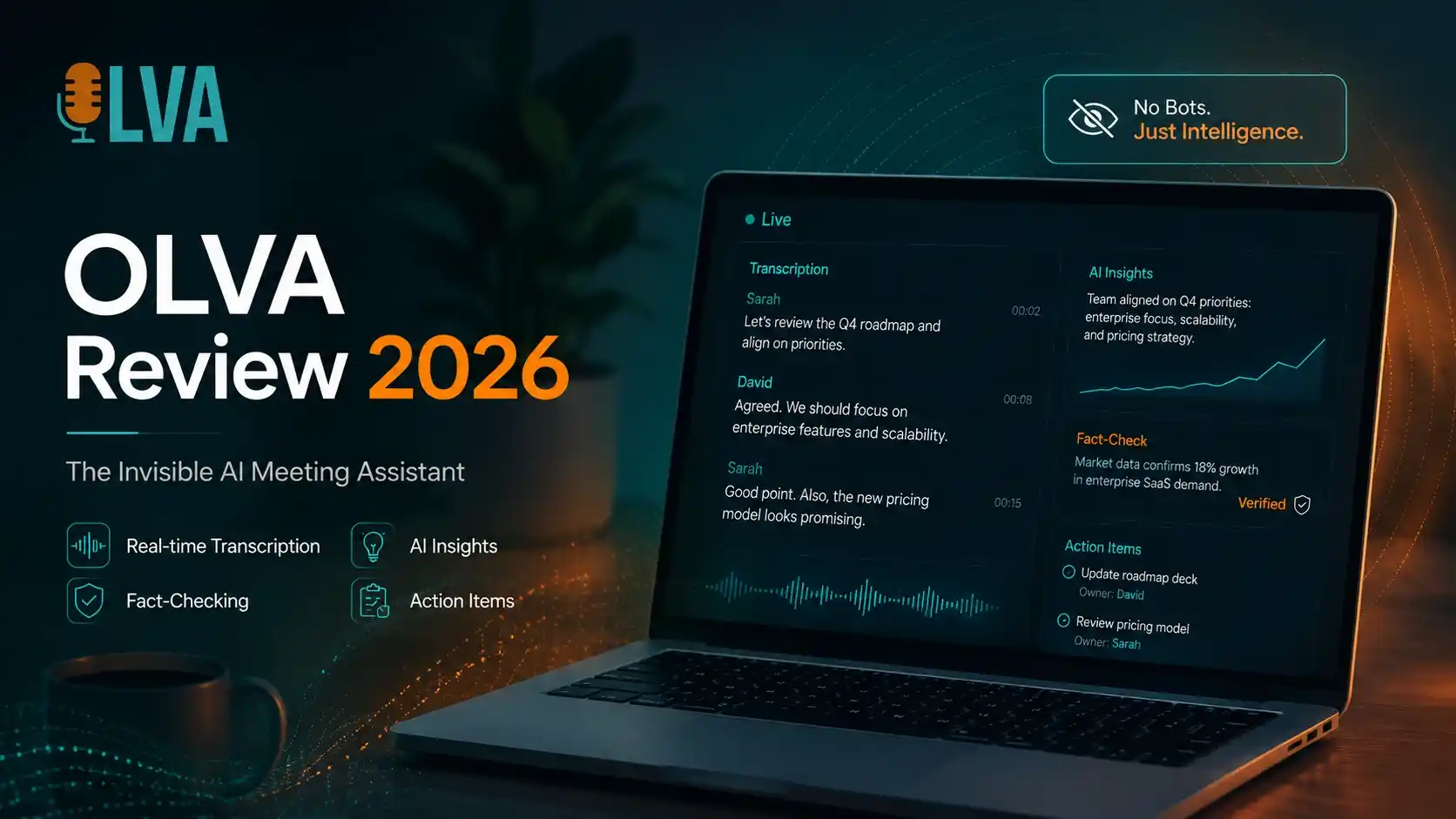
OLVA is a bot-free, invisible AI meeting assistant that listens live, automatically detects questions, fact-checks claims in real time, and coaches your next response — all without a visible bot joining Zoom, Google Meet, or Microsoft Teams. Unlike a standard notetaker, it’s built to help during the conversation, not just after it.
01 — Why “After the Meeting” AI Notetakers Leave a Gap
I’ve tested over 200 digital tools in the past 15 years, and AI meeting assistants have followed the same script for years: a bot joins your call, records everything, and drops a transcript and summary in your inbox once the call ends. That’s useful for the record — but it does nothing for you while the client is actually asking a hard question, challenging a number you cited, or waiting for you to say something smart back.
OLVA is built around a different premise: the moment that matters most is the one happening right now, not the recap you’ll skim twenty minutes later. Instead of only producing a transcript and summary afterward, it listens continuously during the call, flags questions the second they’re asked, checks claims against available information, and suggests what to say next — all while the conversation is still live.
02 — What Makes OLVA Different: Invisible, Real-Time Assistance
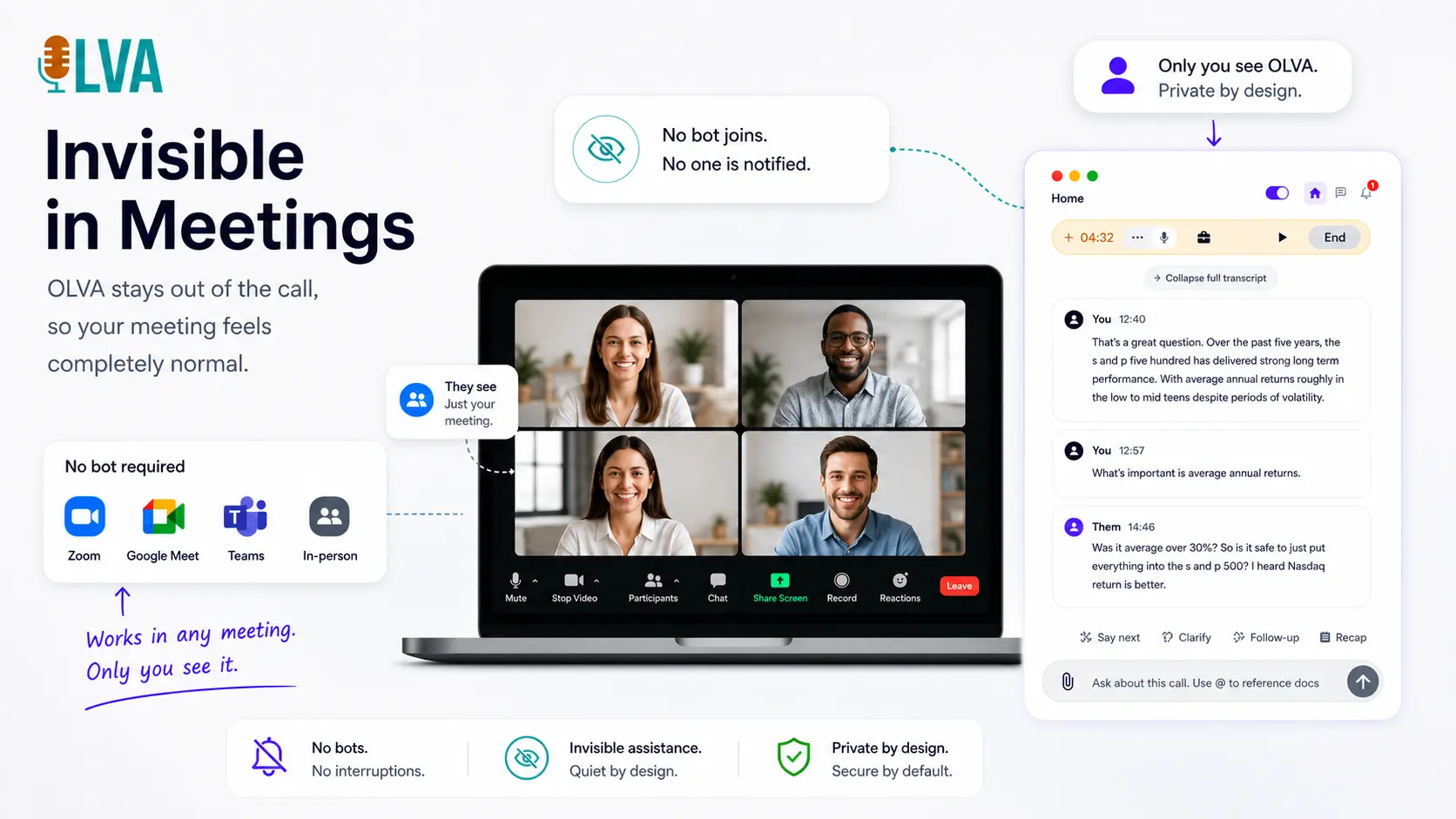
The first thing that stood out to me is that OLVA doesn’t show up as a participant anywhere. There’s no bot avatar, no “Notetaker” name sitting in your Zoom grid, and no waiting-room admission prompt for the other side of the call to notice. It runs privately on your own device, listening through your microphone and system audio, and only you ever see its interface.
This matters more than it sounds. A visible bot changes how people behave on a call — clients get cagier, candidates get more guarded, and negotiations get stiffer. OLVA’s bet is that the assistant should be felt in the quality of your answers, not seen in the participant list.
03 — How OLVA Actually Works in a Live Conversation
The clearest way to understand OLVA is through its own demo scenario: a financial advisor meeting a new client, Sarah, for the first time. As the conversation starts, OLVA begins transcribing both sides live and separating speakers automatically.
When Sarah references a competing firm’s claim — that they’re the best investment club in Canada — OLVA detects that as a factual claim and runs a live fact-check in the background. The advisor can glance at the verified result without breaking eye contact or fumbling for a search bar.
A few moments later, Sarah asks a real question: what happens if the stock market drops? OLVA automatically detects this as a question, searches for a relevant answer, and surfaces it. When she follows up asking how the S&P 500 has performed over the last five years, OLVA catches that too and pulls a factual, context-appropriate response — without the advisor typing a single prompt.
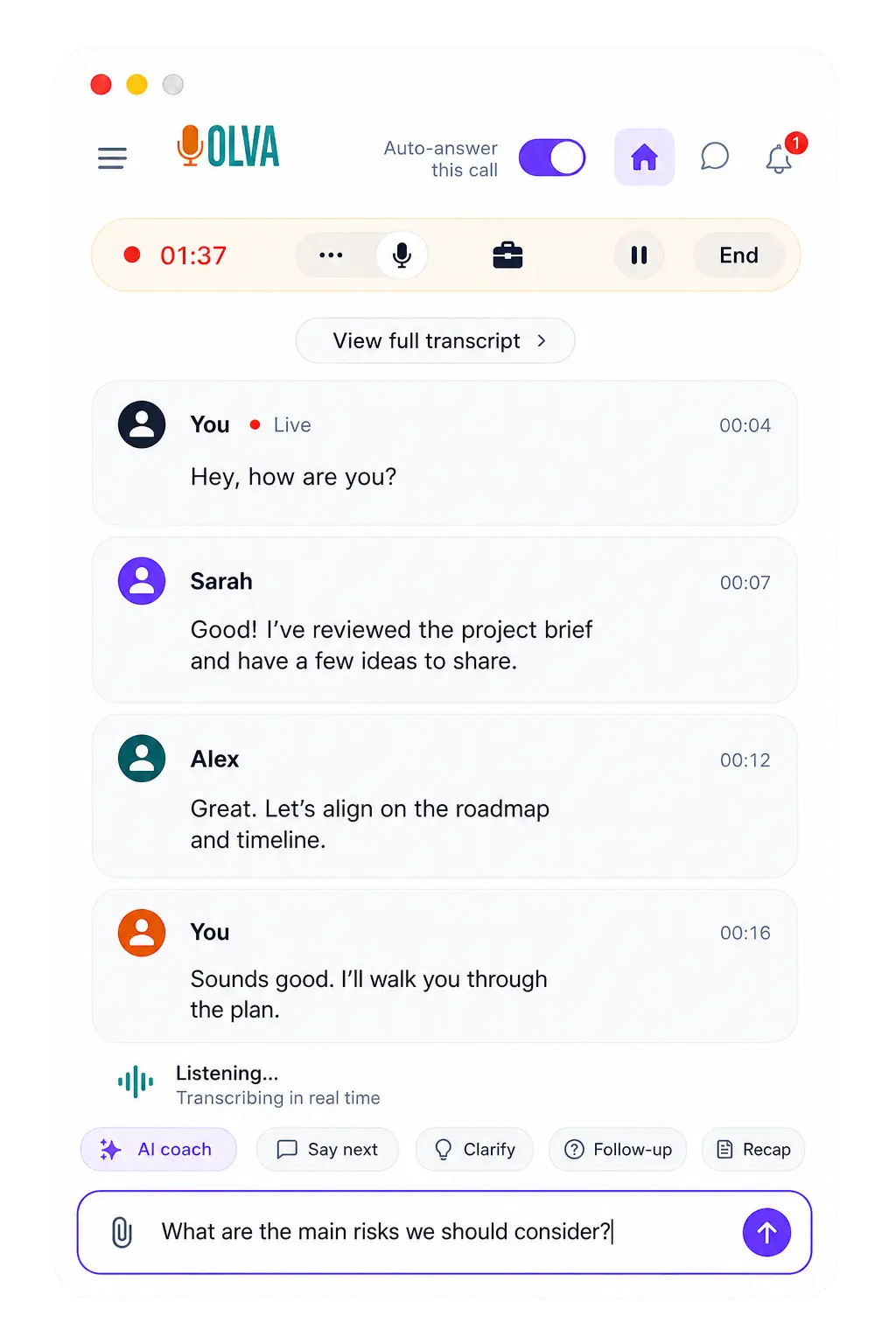
The same demo shows the advisor using OLVA’s AI coach to get a suggested next question, referencing an uploaded PDF to answer a question about retirement account options, and pulling a mid-conversation recap to stay oriented. After the call ends, everything — transcript, fact-checks, Q&A pairs, and insights — remains searchable.
04 — Key OLVA Features Worth Knowing
Real-Time Transcription
OLVA transcribes conversations live and distinguishes between speakers automatically. In client-facing calls, being able to glance at “who said what” without rereading an undifferentiated wall of text saves real cognitive load, especially once a meeting passes the 30-minute mark.
Automatic Question Detection
Instead of typing “what did they just ask?” into a chatbot, OLVA identifies questions as they’re spoken and flags them instantly. In the advisor demo, this happened three separate times in a single conversation without any manual input — each time triggering a background search for a relevant answer.
Live Fact-Checking
When a participant makes a claim — like a competitor’s marketing line or a stat about NASDAQ returns — OLVA checks it against available information in the background. This is genuinely useful in sales, financial advisory, or technical sales engineering, where nodding along with something wrong can cost you credibility on the spot.
AI Meeting Coach
Beyond answering questions, OLVA can suggest what to ask next based on how the conversation is flowing. In the demo, the advisor explicitly asks OLVA what a good follow-up question would be given the context, and receives a suggestion in real time — closer to live conversational coaching than a typical notetaker’s feature set.
Document-Aware Answers
OLVA can reference uploaded PDFs or reference files to answer questions mid-conversation. When the client asked about retirement options for both income and growth, the advisor pulled context directly from an uploaded document rather than relying on generic AI knowledge — keeping the answer grounded in the advisor’s own materials.
Persistent Meeting Memory
This is where OLVA differentiates itself from single-session tools. It retains context across meetings — prior decisions, open questions, commitments made — and can surface that in future conversations. For an account manager running a quarterly check-in, this means OLVA can remind you what was promised last time before you even ask.
Slide Deck Generation From Conversations
Once a meeting wraps, you can open it and select create, then create slide deck. You choose which transcript sections, insights, and Q&A pairs to include, add custom instructions for tone or audience, and OLVA builds a structured PowerPoint in the background. Creating the presentation costs two OVA credits. When it’s ready, open presentations, then download the .pptx or save it to Google Slides for further editing — the generated slides stay fully editable for final revisions.
Notion & Google Docs Integration
You can connect a Notion workspace, choose a default destination, then open a completed meeting and select send to Notion. Pick the sections to include, create the page, and open it directly in Notion for final edits. Meeting recaps can push into Google Docs the same way, preserving folder structure so you’re not repeatedly copying and pasting transcript excerpts.
Outbound Webhooks for Custom Workflows
For technical teams, OLVA supports configurable outbound webhooks that send signed meeting events to your own HTTPS endpoint. You add the endpoint under webhooks and integrations, choose which meeting events to receive, and save the one-time signing secret securely. Once active, you verify each signed request using OLVA’s developer guide before processing its payload — useful for piping meeting data into a CRM or internal automation system.
87-Language Support
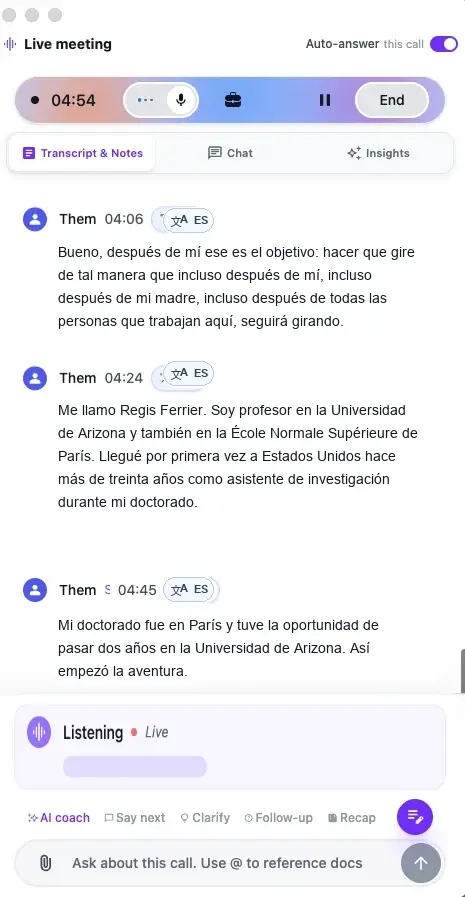
OLVA supports 87 languages and regional variants, and it can detect language switches mid-conversation automatically. For international teams or anyone regularly working in a second language, this is a meaningful accessibility feature — live support while you’re still speaking, not translation after the fact.
🆕 Live Translation
OLVA has now rolled out its new Live Translation feature, allowing users to follow meeting conversations across languages in real time. Users can either enable automatic translation into their default language as the conversation happens or manually translate selected parts of the meeting when additional clarity is needed. I’ll continue testing the feature hands-on and update this section with practical notes on translation accuracy, language coverage, and latency.
Live Translation is built to help users understand meeting conversations across languages in real time. It works alongside the 87-language transcription above, but instead of just transcribing what was said, it translates it — either automatically as the conversation happens, or on demand for a specific part of the discussion.
- Auto Translation — OLVA automatically translates meeting content into the user’s default language as the conversation happens, so you can follow along in your own language without switching tabs or pausing the call.
- Manual Translation — Users can select any part of the meeting conversation and request a translation only when they need extra clarity, rather than translating the entire call by default.
For anyone running multilingual client calls or international team meetings, this closes a real gap — the existing language support handles transcription and detection well, but Live Translation is what would actually let two people speaking different languages follow the same conversation as it happens.
05 — OLVA Pricing: What Each Plan Actually Includes
OLVA runs on three tiers, and the meeting-time allowance is really what separates them — every plan, including the free one, includes the full real-time feature set (live transcription, real-time insights, auto question detection, live AI coach, automatic notes, post-meeting Q&A, sticky notes, and slide deck generation).
| Plan | Price | Meeting Time | Best For |
|---|---|---|---|
| Basic | Free | 2 hours / month | Trying OLVA across a handful of calls before committing |
| Plus | $12.50/mo (billed annually — $150/year) | 15 hours / month | Regular callers who take several meetings a week |
| Pro | $19.99/mo (billed annually — $239.88/year) | Unlimited | Heavy meeting schedules — sales, advisory, and consulting teams |
One accuracy note worth flagging: the $12.50/mo and $19.99/mo figures above reflect OLVA’s Annual billing toggle, which is what’s shown by default on their pricing page ($150/year and $239.88/year respectively). A separate Monthly billing toggle is also available and will show a different — typically higher — per-month rate. Confirm the current monthly price directly on OLVA.ai before you commit to a plan.
Also worth budgeting for: slide deck generation isn’t unlimited even on paid plans — each deck costs two OVA credits, so factor that into your workflow if you plan to lean on it heavily for client-facing recaps.
06 — Real Integrations: Slides, Notion, Google Docs, and Webhooks
What separates OLVA from a lot of AI notetakers I’ve tested is that the post-meeting workflow doesn’t dead-end at a transcript. Here’s exactly how the three integrations I found most useful actually work:
Slide decks
Open a completed meeting and choose create, then create slide deck. Select the transcript, insights, and meeting Q&A you want to use and adjust the instructions for your audience. Creating the presentation costs two OVA credits. When it’s ready, open presentations, then download the PowerPoint or save it to Google Slides for editing. The generated slides stay editable for any final revisions.
Notion
Connect Notion from integrations and approve the workspace OLVA can access. Choose a default destination, then open a completed meeting and select send to Notion. Pick the sections to include, create the page, and open it in Notion for final edits.
Webhooks
Open webhooks and integrations, add your HTTPS endpoint, and choose the meeting events your service should receive. Save the one-time signing secret securely. Once the endpoint is active, use the developer guide to verify each signed request before processing its payload.
For anyone who currently rebuilds a client meeting into a recap deck by hand, the slide generator alone can save real time — though I’d treat the first draft as a starting point rather than a finished deliverable. The webhook support is aimed squarely at technical teams who want to pipe meeting data into a CRM or internal dashboard rather than live inside OLVA’s own app.
07 — OLVA vs. Traditional AI Notetakers
The most useful comparison isn’t feature-for-feature, it’s timing. Tools like Otter.ai, Fireflies, Fathom, and tl;dv are built around a record-transcribe-summarize pipeline that delivers value after the meeting ends. OLVA still produces that recap, but its differentiator is trying to be useful while the meeting is happening.
| Feature | OLVA | Otter.ai | Fireflies | Fathom | tl;dv |
|---|---|---|---|---|---|
| Invisible, bot-free capture | ✓ Yes | ✕ No | ✕ No | ✕ No | ⚠ Desktop only |
| Live question detection | ✓ Yes | ✕ No | ✕ No | ✕ No | ✕ No |
| Live fact-checking | ✓ Yes | ✕ No | ✕ No | ✕ No | ✕ No |
| Live AI coaching | ✓ Yes | ✕ No | ✕ No | ✕ No | ✕ No |
| Memory across meetings | ✓ Yes | ⚠ Basic | ⚠ Basic | ⚠ Basic | ⚠ Basic |
| Slide deck generation | ✓ Yes | ✕ No | ✕ No | ✕ No | ✕ No |
| Free plan available | ✓ Yes | ✓ Yes | ✓ Yes | ✓ Yes | ✓ Yes |
The trade-off is real: a visible-bot notetaker is simpler and more predictable because it does one job well. OLVA is doing more — live coaching, live fact-checking, document-aware answers — which means more surface area for the AI to get context wrong, but meaningfully more upside if it gets it right in a moment that matters.
08 — Who Should Use OLVA
Good fits
- Sales Professionals & Account Executives — handling objections and questions live, without breaking conversational flow to search for an answer.
- Financial Advisors & Consultants — who benefit from live fact-checking and document-grounded answers during high-stakes client conversations.
- Non-Native English Speakers — who want real-time support following fast conversations and preparing clearer responses on the fly.
- Project & Program Managers — persistent memory of decisions and action items across recurring meetings is genuinely useful, though a simpler notetaker may be enough if you don’t need live coaching.
- Recruiters — can stay organized across high call volumes, provided OLVA supports rather than replaces genuine judgment in candidate evaluation.
Think twice
- Teams that only need basic transcripts — a simpler, cheaper notetaker will do the job without the live-assistance layer you won’t use.
- Anyone unable to meet consent requirements — because OLVA is invisible to other participants, you’re responsible for following applicable consent laws and workplace policies, which vary by region and industry.
09 — Frequently Asked Questions
No. OLVA is designed to be invisible — it doesn’t appear as a bot or additional participant in Zoom, Teams, Google Meet, or similar platforms. It captures the conversation through your own device instead.
No. OLVA generates live transcripts rather than storing audio recordings or voiceprints, according to its documentation.
Yes. The mobile app (iOS and Android) is designed for in-person use — networking events, conferences, and face-to-face meetings — in addition to desktop apps for online meetings.
OLVA supports 87 languages and regional variants, and it can detect language switches automatically during multilingual conversations.
According to OLVA’s stated privacy approach, meeting content is private to the user’s account and is not used for AI model training.
OLVA offers a free Basic plan with 2 hours of meeting time per month. Plus is $12.50/mo billed annually ($150/year) with 15 hours per month, and Pro is $19.99/mo billed annually ($239.88/year) with unlimited meeting time. A monthly billing option is also available at a different rate — check OLVA.ai for the current figure.
There’s a free plan available, but some advanced integrations and expanded usage limits are gated behind the Plus and Pro subscriptions.
10 — Final Verdict
OLVA occupies a genuinely different lane than the crowded AI-notetaker market. Where most tools optimize for after the meeting, OLVA is built around helping during it — detecting questions automatically, fact-checking claims live, coaching your next response, and grounding answers in your own uploaded materials. For client-facing professionals who get asked hard questions in real time — advisors, sales reps, consultants — that live layer is the actual product, not the transcript.
The free plan is generous enough to test the core experience across a handful of real calls before you decide whether the live-assistance layer earns a seat in your workflow. If your job involves answering pointed questions on the spot and you currently rely on memory or a frantic second-screen search, OLVA is worth that trial.
My rating: OLVA 4.5/5 for real-time meeting assistance in 2026.
👉 Try OLVA Free at OLVA.ai →Testing transparency: This review is based on OLVA’s documented feature set, official product demonstrations (including the financial-advisor live-call walkthrough referenced above), and pricing captured directly from OLVA.ai’s Annual billing view in August 2026. It is not sponsored. Pricing, credits, and feature availability change frequently for SaaS products, so confirm current details at OLVA.ai before purchasing.

AI tools expert with over 10 years of experience testing and reviewing technology products.