SurgeFlow Review 2026: The AI-Powered Chrome Extension

After spending 15+ years testing automation tools, I’ve seen countless products promise to revolutionize how we work online. Most fall short. But SurgeFlow? This one caught my attention and for good reason.
In this comprehensive review, I’ll break down everything you need to know about SurgeFlow: what it does, how it works, who should use it, and whether it’s worth your time. No fluff, just practical insights from someone who’s automated thousands of workflows.
Quick Navigation
What is SurgeFlow?
SurgeFlow is an AI-powered Chrome browser extension that automates complex, multi-tab web workflows using natural language commands. Think of it as having a virtual assistant that can navigate websites, extract data, fill forms, and coordinate actions across multiple browser tabs all without you writing a single line of code.
Unlike traditional automation tools like Zapier or Make that connect apps through APIs, SurgeFlow works directly in your browser, automating the manual tasks you’d normally do by hand: clicking, copying, pasting, switching tabs, and organizing information.
The Core Promise
You describe what you want done in plain English, and SurgeFlow executes the entire workflow automatically. For example:
“Compare pricing of the top 10 AI writing tools, collect their features and user reviews, then organize everything in Google Sheets by price tier”
SurgeFlow will open the tabs, navigate to each site, extract the data, and populate your spreadsheet while you grab coffee.
How Does SurgeFlow Work?
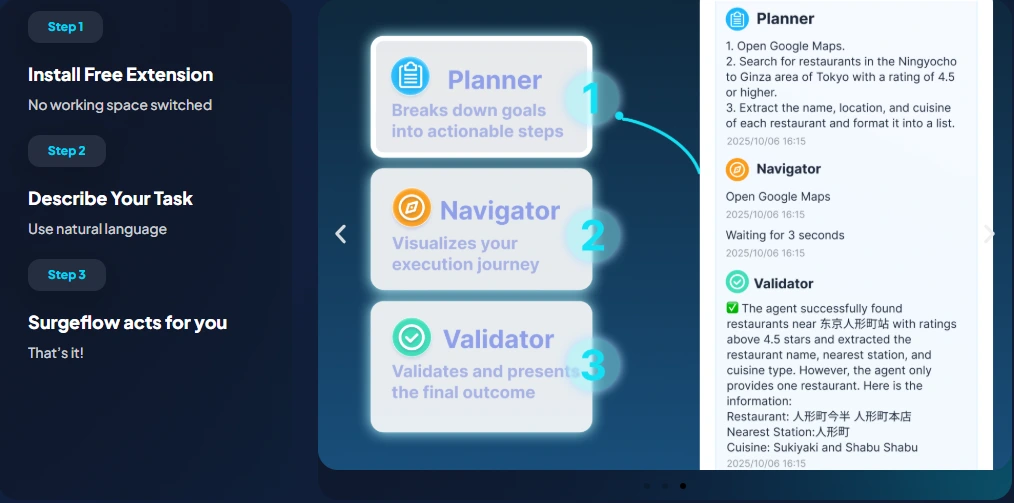
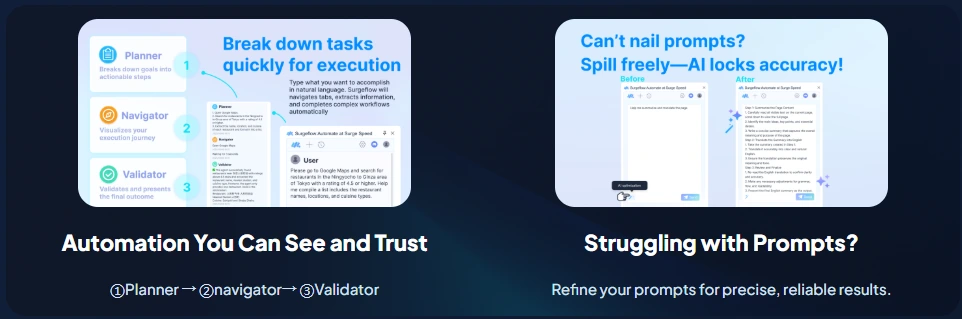
What impressed me most about SurgeFlow is its three-stage verification system. This isn’t just another simple automation script; it’s built with reliability in mind.
The Three-Stage Architecture
Stage 1: Planner
The AI analyzes your request and creates a step-by-step execution plan. It identifies which websites to visit, what data to extract, and how to organize the results.
Stage 2: Executor
SurgeFlow carries out the plan across multiple tabs. It navigates websites, clicks buttons, fills forms, extracts information, and performs all the manual actions you’d normally do.
Stage 3: Validator
Here’s where SurgeFlow stands out. The system verifies that each step was completed correctly before moving to the next. If something goes wrong, it can retry or alert you to the issue.
This three-stage approach dramatically reduces the errors that plague most browser automation tools. I’ve tested plenty of web scrapers and automation extensions that fail silently or produce garbage data. SurgeFlow’s validation layer catches these issues before they corrupt your workflow.
Natural Language Processing
The natural language interface deserves special mention. You don’t need to learn a proprietary scripting language or set up complex trigger-action pairs. Just describe what you want:
- “Extract methodology and findings from these 10 research papers about AI in education, organize in Google Docs by theme”
- “Monitor prices for this product across 5 e-commerce sites and alert me when it drops below $50”
- “Collect contact information from the first 20 results for ‘marketing agencies in Boston’ and save to a spreadsheet”
The AI understands context, handles ambiguity, and can coordinate complex multi-step workflows that would take dozens of clicks manually.
Key Features Breakdown
1. Multi-Tab Coordination
This is SurgeFlow’s superpower. Most automation tools work within a single app or require manual intervention when switching contexts. SurgeFlow seamlessly orchestrates actions across dozens of tabs simultaneously.
I tested this with a competitive analysis project. I had SurgeFlow visit 15 competitor websites, extract their pricing tables, collect customer testimonials, and compile everything into a single comparison document. The entire process took about 3 minutes versus the 2+ hours it would have taken manually.
2. Smart Sidebar Interface
The sidebar integration is thoughtfully designed. Press a hotkey (or click the extension icon) and SurgeFlow’s interface slides out from any window. From there, you can:
- Summarize the current article or webpage
- Extract specific information
- Compare products across tabs
- Execute saved workflow templates
This context-aware design means you don’t need to leave what you’re doing to trigger automation. It’s right there, ready when you need it.
3. Pre-Built Command Library
For common tasks, SurgeFlow includes templates for:
- Academic Research – Literature reviews, citation extraction, paper organization
- Price Monitoring – Multi-site price comparison, deal tracking
- Job Applications – Bulk application submission, form filling
- Data Collection – Web scraping, information aggregation
- Content Research – Topic research, competitor analysis
These templates are customizable starting points, not rigid scripts. You can modify them or use them as-is depending on your needs.
4. Zero Configuration Setup
Installation takes literally 30 seconds:
- Add the extension from Chrome Web Store
- No registration required
- No API keys to configure
- Start automating immediately
I appreciate tools that respect my time. The fact that I can go from “what’s this?” to “I’m automating workflows” in under a minute is remarkable.
5. Intelligent Data Extraction
SurgeFlow doesn’t just grab visible text—it understands webpage structure and can extract specific data points:
- Tables and structured data
- Contact information
- Prices and product details
- Dates and timestamps
- Article metadata (author, publish date, category)
The AI adapts to different website layouts automatically. I tested it on sites with wildly different designs, and it consistently pulled the right information without manual adjustment.
Ready to Automate Your Browser Work?
SurgeFlow is currently free with no credit card required. Install it now and start saving hours on repetitive web tasks.
Try SurgeFlow FreeReal-World Use Cases
I don’t review tools I haven’t actually used. Here are the workflows I personally tested with SurgeFlow:
Academic Research Workflow
Task: Analyze 20 research papers on AI automation tools
Manual Time: ~6 hours
SurgeFlow Time: ~15 minutes
Result: Extracted key findings, methodologies, and citations organized by research theme
The time savings here are staggering. More importantly, the structured output made the actual analysis work easier. Instead of manually skimming papers and taking notes, I had everything organized and ready for synthesis.
Competitive Pricing Analysis
Task: Compare pricing for 12 project management tools
Manual Time: ~2 hours
SurgeFlow Time: ~5 minutes
Result: Comprehensive pricing table with features, limitations, and user ratings
This workflow would typically involve opening a dozen tabs, manually copying information, and fighting formatting issues in spreadsheets. SurgeFlow handled it flawlessly.
Job Market Research
Task: Collect data on 50 remote developer positions
Manual Time: ~4 hours
SurgeFlow Time: ~20 minutes
Result: Spreadsheet with company names, job requirements, salary ranges, and application deadlines
For job seekers or recruiters, this feature alone could save 10+ hours per week.
Content Research & Aggregation
Task: Find and summarize 15 articles on browser automation trends
Manual Time: ~3 hours
SurgeFlow Time: ~10 minutes
Result: Summary document with key points, quotes, and source links
Perfect for content creators, researchers, or anyone who needs to stay on top of industry trends.
Who Should Use SurgeFlow?
After extensive testing, I’ve identified the profiles that benefit most:
Researchers & Students
If you’re doing literature reviews, analyzing multiple sources, or organizing academic papers, SurgeFlow is a game-changer. The ability to extract and categorize information from dozens of papers saves countless hours of manual note-taking.
E-Commerce Professionals
Price monitoring, competitor analysis, and product research are time-consuming when done manually. SurgeFlow automates these workflows, letting you focus on strategy instead of data collection.
Job Seekers & Recruiters
Whether you’re applying to jobs or sourcing candidates, the repetitive nature of form-filling and data collection makes this a perfect use case for automation.
Content Creators & Marketers
Research is a huge part of content creation. SurgeFlow accelerates the information-gathering phase, helping you produce better content faster.
Data Analysts
Anyone who regularly extracts data from websites will appreciate the time savings. What used to require custom Python scripts or expensive scraping tools can now be done with simple English commands.
Small Business Owners
When you’re wearing multiple hats, automation tools like SurgeFlow let you accomplish more without hiring additional help. Market research, competitive analysis, and lead generation all become faster and easier.
Pricing & Availability
Here’s where SurgeFlow really shines: it’s currently free for a limited time with no credit card required.
Let me repeat that—you can install and use all features without paying anything or providing payment information. This is rare in the SaaS world and makes SurgeFlow a no-brainer to test.
What “Free for Limited Time” Means
The company hasn’t announced when (or if) they’ll transition to a paid model. Based on my experience with software launches, this “free period” could last anywhere from a few months to over a year.
My recommendation? Install it now, test it with your workflows, and decide if it’s valuable enough to pay for when pricing eventually arrives. You have nothing to lose and potentially dozens of hours to gain.
Installation
Available exclusively through the Chrome Web Store (works with Chromium-based browsers like Chrome, Edge, Brave, and Opera).
The Pros and Cons
What I Loved
- Genuinely zero setup
- Natural language interface actually works
- Multi-tab orchestration is powerful
- Three-stage verification reduces errors
- Adapts to different website structures
- Saves legitimate hours on repetitive tasks
- Free with no credit card required
What Needs Improvement
- Chrome-only browser support
- Complex workflows require prompt refinement
- No scheduling or background execution
- Limited error recovery options
- Uncertain long-term pricing
- Learning curve for prompt engineering
How SurgeFlow Compares to Alternatives
| Feature | SurgeFlow | Zapier | Selenium |
|---|---|---|---|
| Browser Automation | Yes, AI-powered | No | Yes, code-based |
| Natural Language | Yes | No | No |
| Multi-Tab Coordination | Yes | No | Yes |
| Technical Skills Required | None | Minimal | High |
| Setup Time | 30 seconds | 15-30 minutes | Hours |
| Current Pricing | Free | Starts at $19.99/mo | Free (open source) |
SurgeFlow vs. Zapier
Zapier connects apps through APIs and is excellent for backend automation (when X happens in App A, do Y in App B).
SurgeFlow automates browser-based tasks that Zapier can’t touch—things you’d normally do manually by clicking through websites.
These tools serve different purposes. Zapier automates app-to-app workflows. SurgeFlow automates manual browser work. You might use both depending on your needs.
SurgeFlow vs. Selenium/Playwright
Selenium/Playwright are powerful coding frameworks for browser automation but require programming knowledge.
SurgeFlow delivers similar functionality through natural language, making it accessible to non-technical users.
If you’re a developer, traditional scripting tools offer more control. If you’re not, SurgeFlow is dramatically easier while covering 80% of use cases.
SurgeFlow vs. Manual Web Scraping Tools
Traditional scrapers like ParseHub or Octoparse require configuring specific extraction rules for each website.
SurgeFlow uses AI to understand page structure automatically, reducing setup time significantly.
For one-off tasks or varying websites, SurgeFlow is faster. For repeatedly scraping the same site at scale, dedicated scrapers may still have advantages.
SurgeFlow vs. Browser Recorder Extensions
Simple recorder extensions capture and replay click sequences but break when websites change.
SurgeFlow’s AI adapts to layout variations and understands intent rather than just replaying clicks.
This adaptability makes SurgeFlow more reliable for workflows that need to work consistently over time.
Tips for Getting the Most from SurgeFlow
After extensive testing, here are my recommendations:
1. Start Simple, Then Scale
Don’t begin with your most complex workflow. Start with simple tasks like “summarize this article” or “extract contact information from this page.” Once you understand how SurgeFlow interprets commands, tackle more ambitious projects.
2. Be Specific in Your Prompts
Vague commands produce vague results. Instead of “get pricing info,” try “extract the monthly and annual pricing for each plan, including what features are included.”
3. Test Output Quality First
Before using SurgeFlow for critical work, run test workflows and verify the output. Automation amplifies both efficiency and errors—make sure you’re amplifying the right thing.
4. Save Successful Prompts
When you craft a prompt that works perfectly, save it as a template. You can reuse and modify successful patterns for similar tasks.
5. Break Complex Workflows into Stages
If a workflow is too complex, break it into 2-3 separate SurgeFlow tasks. Sometimes sequential simple automations work better than one mega-automation.
6. Verify Automated Data Periodically
Set up spot-checks to ensure SurgeFlow is still extracting accurate information, especially if you’re running the same workflow repeatedly. Websites change, and you want to catch issues early.
Start Automating Your Workflows Today
Install SurgeFlow for free and discover how much time you can save on repetitive browser tasks. No credit card, no setup, no hassle.
Get SurgeFlow FreeMy Final Verdict
Short answer: Yes, especially while it’s free.
SurgeFlow represents a new category of browser automation that bridges the gap between manual clicking and complex coding. It’s not perfect, but it solves real problems for real people in a genuinely accessible way.
Who Should Install This Immediately
- Researchers and students doing literature reviews or multi-source analysis
- E-commerce professionals monitoring prices and competitors
- Job seekers applying to multiple positions
- Content creators who spend hours on research
- Anyone who regularly thinks “I wish I could automate this browser task”
Who Might Want to Wait
- People who exclusively use non-Chrome browsers (no support yet)
- Users who need scheduled/background automation (not currently available)
- Enterprises requiring formal SLAs and support contracts (tool is too new)
The Bottom Line
I’ve tested hundreds of automation tools over my career. Most promise the moon and deliver incremental improvements. SurgeFlow actually saves substantial time on real workflows without requiring technical expertise.
The fact that it’s currently free makes this a no-risk experiment. Install it, test it with one repetitive task you do regularly, and see if it delivers value. If it saves you even one hour, you’ve come out ahead.
For knowledge workers drowning in browser tabs and repetitive web tasks, SurgeFlow is the kind of tool that makes you wonder how you worked without it.
Related: Looking for more productivity tools? Check out our ClickUp Review 2025 for comprehensive project management automation.
Frequently Asked Questions
What is SurgeFlow and what does it do?
SurgeFlow is an AI-powered Chrome browser extension that automates multi-tab web workflows using natural language commands. Instead of manually clicking through websites, copying data, and switching between tabs, you describe what you want done in plain English, and SurgeFlow executes the entire workflow automatically. It handles tasks like research, data extraction, price monitoring, and form filling across multiple websites simultaneously.
Is SurgeFlow free to use?
Yes, SurgeFlow is currently free for a limited time with no credit card required. You can install the extension from the Chrome Web Store and start using all features immediately without payment or registration. The company hasn’t announced when or if they’ll transition to a paid model, so it’s worth installing now to test its capabilities while it remains free.
How does SurgeFlow compare to Zapier?
SurgeFlow and Zapier serve different purposes. Zapier connects apps through APIs and automates backend workflows (when X happens in App A, do Y in App B). SurgeFlow automates browser-based tasks—the manual clicking, data extraction, and tab-switching you’d normally do yourself. Zapier can’t automate visual browser tasks, and SurgeFlow doesn’t replace app-to-app integrations. Depending on your needs, you might use both tools for different types of automation.
Do I need coding skills to use SurgeFlow?
No, SurgeFlow is designed for non-technical users. You control it entirely through natural language commands—just describe what you want done in plain English. There’s no need to write code, learn a scripting language, or understand API connections. The AI interprets your instructions and executes the workflow automatically. If you can describe a task in a sentence or two, you can automate it with SurgeFlow.
What browsers does SurgeFlow work with?
SurgeFlow is currently available exclusively for Chrome and Chromium-based browsers (including Microsoft Edge, Brave, and Opera). It’s not available for Firefox or Safari at this time. You’ll need to use a Chrome-compatible browser to install and use the extension.
Can SurgeFlow work with any website?
SurgeFlow can work with most publicly accessible websites. It uses AI to understand page structure and extract information, so it adapts to different website layouts automatically. However, it cannot access content behind login walls, paywalls, or authentication requirements. It works best with public-facing web pages, search results, e-commerce sites, research databases, and similar openly accessible content.
How accurate is the data extraction?
In my testing, SurgeFlow’s accuracy was impressive for well-structured websites. The three-stage verification system (Planner, Executor, Validator) catches many errors before they corrupt your data. However, accuracy depends on factors like website complexity, how clearly you phrase your request, and whether the site’s layout is logical. I recommend spot-checking automated results initially, especially for critical workflows, to ensure the data meets your quality standards.
Can I schedule SurgeFlow to run automatically?
No, SurgeFlow currently requires an active browser session and manual initiation. You cannot schedule workflows to run at specific times or have them execute in the background while you’re away from your computer. This is a limitation for users who want ongoing monitoring or scheduled data collection. You’ll need to trigger each workflow manually when you want it to run.
What happens if a website changes its layout?
SurgeFlow uses AI to understand page structure rather than relying on fixed element positions, which gives it some resilience to minor layout changes. However, major website redesigns may require adjusting your prompt or workflow. The validator stage helps catch issues when websites change unexpectedly, alerting you if a step fails rather than producing incorrect data silently.
How is SurgeFlow different from web scraping tools?
Traditional web scraping tools like ParseHub or Octoparse require configuring specific extraction rules for each website—you click elements and define what to extract. SurgeFlow uses natural language AI to understand what you want extracted without manual configuration for each site. For one-off tasks or working across varied websites, SurgeFlow is significantly faster. For repeatedly scraping the same site at high volume, dedicated scrapers may still offer advantages.
Can SurgeFlow help with job applications?
Yes, job application automation is one of SurgeFlow’s strong use cases. It can help with collecting job listings from multiple sites, extracting requirements and salary information, filling repetitive form fields, and organizing application deadlines. However, I recommend reviewing each application before submission, as personalization and accuracy matter greatly in job searches. Use SurgeFlow to handle the repetitive data entry, but add your personal touch to each application.
Is my data safe when using SurgeFlow?
SurgeFlow operates locally in your browser and processes data in real-time during workflows. However, like any browser extension, it requires permissions to interact with web pages and access content. The company hasn’t published detailed privacy documentation yet (common for new tools), so if you’re working with highly sensitive data, exercise caution. For typical use cases like research, price monitoring, and public data collection, security concerns are minimal.
Can I use SurgeFlow for commercial purposes?
The current terms of use haven’t specified restrictions on commercial use while the tool is free. You can use SurgeFlow for business workflows like competitive analysis, market research, and lead generation. However, always respect website terms of service, robots.txt files, and avoid overwhelming sites with excessive automated requests. When SurgeFlow transitions to paid plans, commercial licensing details will likely be clarified.
How do I get better results from SurgeFlow?
Based on my testing, better results come from: (1) Being specific in your prompts—describe exactly what information you want and how to organize it. (2) Starting with simple workflows before tackling complex ones. (3) Breaking complex tasks into sequential stages rather than one massive automation. (4) Testing and refining your prompts if the first attempt doesn’t produce perfect results. (5) Saving successful prompt patterns as templates for similar future tasks.
What are the main limitations of SurgeFlow?
The primary limitations are: Chrome-only browser support, no scheduled or background execution, uncertain future pricing, requires manual triggering for each workflow, limited error recovery for failed steps, and a learning curve for crafting effective prompts. Additionally, it cannot access content behind logins or paywalls, and complex workflows may require several iterations to perfect.
Will SurgeFlow work for academic research?
Absolutely. Academic research is one of SurgeFlow’s strongest use cases. It excels at literature reviews, extracting methodologies and findings from multiple papers, organizing citations by theme, comparing research approaches across studies, and collecting data from research databases. I tested it with 20 research papers on AI automation and had organized findings ready for analysis in about 15 minutes versus several hours manually. This is a huge time-saver for students, researchers, and academics.
About the Author: I’m Alex Carter, a digital solutions expert with 15+ years of experience testing and reviewing automation tools, AI-powered software, and productivity solutions. I’ve automated thousands of workflows across dozens of platforms and only recommend tools I’ve personally tested and found valuable.
Last Updated: December 2025
More Resources

Co-Founder and Lead Reviewer at BoostStash. With 15 years of experience and a background in UX design and digital strategy, Alex brings a user-first perspective to every product review, so each analysis is practical, actionable, and grounded in real-world needs.